> ## Documentation Index
> Fetch the complete documentation index at: https://docs.onsomble.ai/llms.txt
> Use this file to discover all available pages before exploring further.
# Adding a client
> Bring a new client into your portfolio, from their website URL to their first scan, plus the conversations worth having along the way.
Adding a client is the most repeated workflow in an agency account. Getting it right in the first session (clean setup, a meaningful first scan, clear expectations) shapes how the client perceives the work from day one.
 ## The Add Client flow
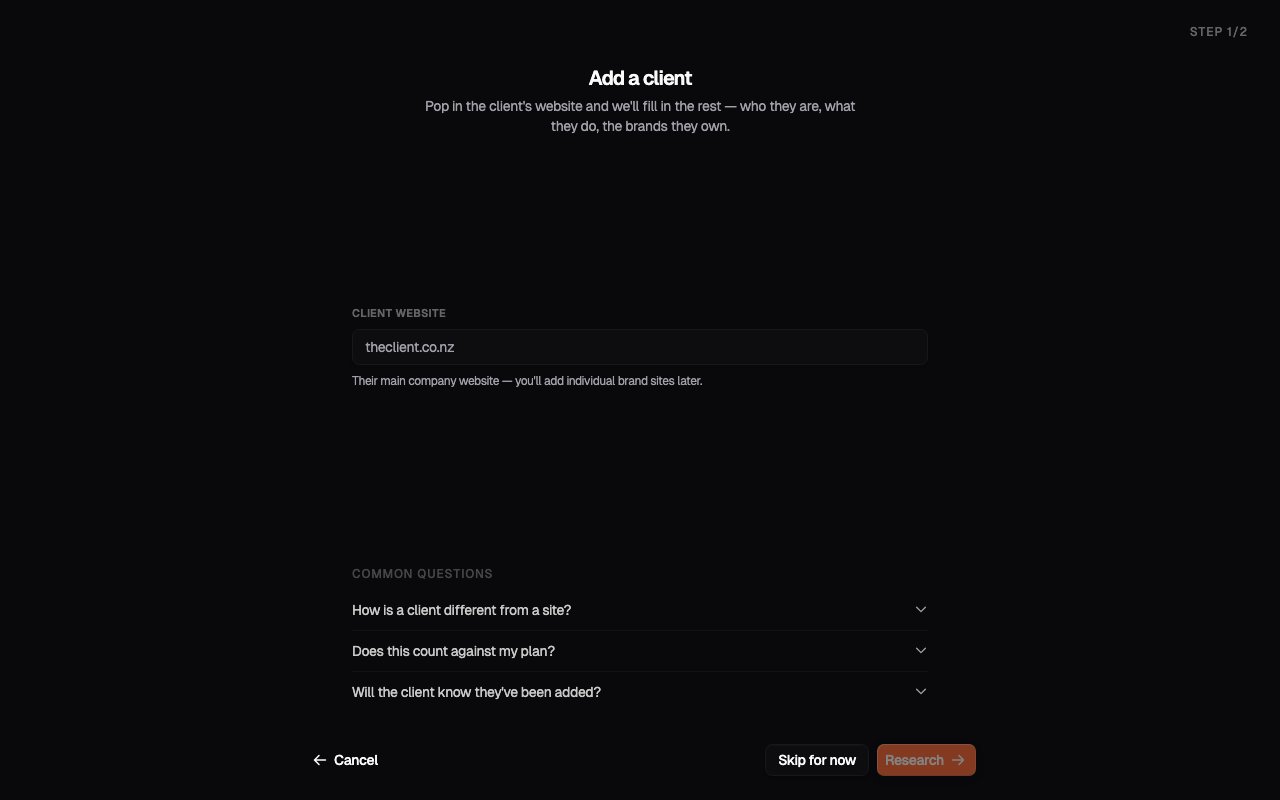
From your portfolio, click **Add Client**.
Provide the client's website URL and let Onsomble research it. The **client
profile** comes back pre-filled: business name, industry, and space for notes
about the relationship, brands, or scope of work.
Check what the research found and correct anything that's off. If Onsomble flags warnings about the enrichment, resolve them here, or fill the profile in yourself and continue.
Creating the client sets up their workspace in your portfolio.
From the client's workspace, add their Site. This runs the same scan setup wizard a business account uses (business profile, **Competitors**, **Prompts**, **Models**, **Review**) and ends with their first scan. See [Adding a site](/sites/adding-a-site) for the wizard in detail.
How many clients you can have is governed by your plan. When you're at the
limit, **Add Client** offers an upgrade. See [Plans and
entitlements](/account/plans-and-entitlements).
## Setup decisions worth involving the client in
Two of the wizard steps benefit enormously from five minutes of client input:
* **Competitors.** Walk the suggested list past the client before the first scan. They'll usually add and remove a few names: their sense of who they actually compete with is more accurate than any external tool can infer, and the conversation teaches you their market.
* **Prompts.** Ask the client: "What questions would your ideal customer ask an AI assistant when they're close to making a decision?" Their answers usually surface prompts you wouldn't have generated from the outside.
## What to send the client after the first scan
The moment a first scan completes is the best communication opportunity in the whole relationship. A short message with three things works well:
1. **The headline finding.** Something specific and often surprising: "You're not mentioned at all when customers ask ChatGPT for insurance brokers in your region" lands harder than any score.
2. **One concrete example.** Quote a real AI response from [Prompt Results](/results/prompt-results). Seeing exactly what the AI said is far more persuasive than a summary.
3. **The plan.** What you're going to do about it over the next few weeks, and when you'll reconvene. The [Recommendations](/results/recommendations) page gives you the prioritised starting point.
## Setting expectations on timeline
Clients ask "how long until we see results?" Realistic answers:
* **Accuracy fixes and content updates**: visible movement within one to three scans.
* **Positioning and structural improvements**: a month or two, as content propagates and gets re-indexed.
* **Third-party signal: reviews, directories, press**: longer horizon; plan these as ongoing programmes, not quick wins.
Being upfront prevents the usual "why aren't we seeing results yet?" conversation three weeks in.
## What's next
Where this client's sites and day-to-day work now live.
Work across many clients without losing track of who needs attention.
## The Add Client flow
From your portfolio, click **Add Client**.
Provide the client's website URL and let Onsomble research it. The **client
profile** comes back pre-filled: business name, industry, and space for notes
about the relationship, brands, or scope of work.
Check what the research found and correct anything that's off. If Onsomble flags warnings about the enrichment, resolve them here, or fill the profile in yourself and continue.
Creating the client sets up their workspace in your portfolio.
From the client's workspace, add their Site. This runs the same scan setup wizard a business account uses (business profile, **Competitors**, **Prompts**, **Models**, **Review**) and ends with their first scan. See [Adding a site](/sites/adding-a-site) for the wizard in detail.
How many clients you can have is governed by your plan. When you're at the
limit, **Add Client** offers an upgrade. See [Plans and
entitlements](/account/plans-and-entitlements).
## Setup decisions worth involving the client in
Two of the wizard steps benefit enormously from five minutes of client input:
* **Competitors.** Walk the suggested list past the client before the first scan. They'll usually add and remove a few names: their sense of who they actually compete with is more accurate than any external tool can infer, and the conversation teaches you their market.
* **Prompts.** Ask the client: "What questions would your ideal customer ask an AI assistant when they're close to making a decision?" Their answers usually surface prompts you wouldn't have generated from the outside.
## What to send the client after the first scan
The moment a first scan completes is the best communication opportunity in the whole relationship. A short message with three things works well:
1. **The headline finding.** Something specific and often surprising: "You're not mentioned at all when customers ask ChatGPT for insurance brokers in your region" lands harder than any score.
2. **One concrete example.** Quote a real AI response from [Prompt Results](/results/prompt-results). Seeing exactly what the AI said is far more persuasive than a summary.
3. **The plan.** What you're going to do about it over the next few weeks, and when you'll reconvene. The [Recommendations](/results/recommendations) page gives you the prioritised starting point.
## Setting expectations on timeline
Clients ask "how long until we see results?" Realistic answers:
* **Accuracy fixes and content updates**: visible movement within one to three scans.
* **Positioning and structural improvements**: a month or two, as content propagates and gets re-indexed.
* **Third-party signal: reviews, directories, press**: longer horizon; plan these as ongoing programmes, not quick wins.
Being upfront prevents the usual "why aren't we seeing results yet?" conversation three weeks in.
## What's next
Where this client's sites and day-to-day work now live.
Work across many clients without losing track of who needs attention.