> ## Documentation Index
> Fetch the complete documentation index at: https://docs.onsomble.ai/llms.txt
> Use this file to discover all available pages before exploring further.
# Client settings
> Edit a client's details, and delete a client along with all of its Sites and scan history.
Every client has a **Client Settings** page: the place to keep their details current and, when a relationship ends, to remove the client entirely. Open it from **Client Settings** at the bottom of the sidebar while you are inside a client's workspace.
Client details are the agency's record of who the client is. They are separate from the business profile on each of the client's Sites: changing a client's details here does not change any Site's scan configuration.
 ## Editing client details
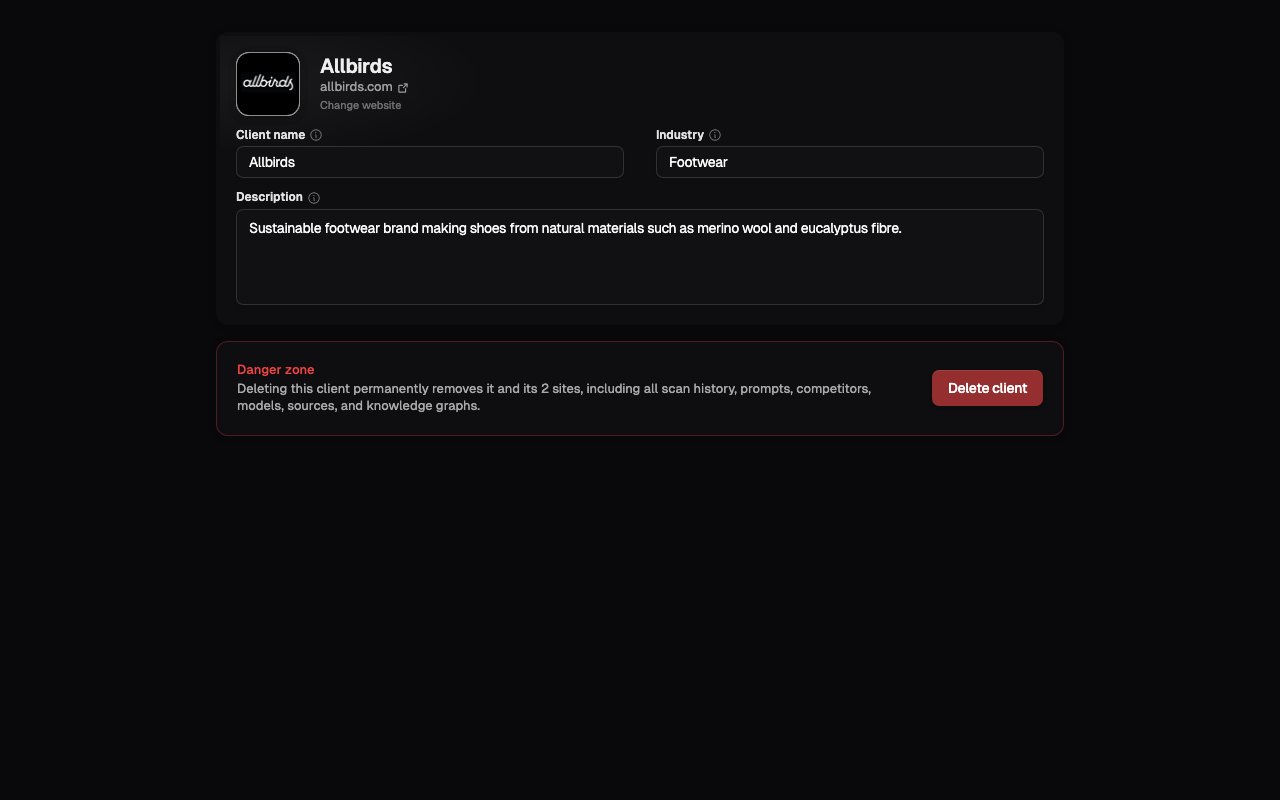
The profile at the top of the page holds:
* **Client name**: how the client appears across your portfolio, sidebar, and reports.
* **Website**: the client organisation's own website. Select **Change website** under the name to edit it. This is the client's corporate site, separate from the brand Sites you scan for them.
* **Industry**: the client's industry classification.
* **Description**: a short account of the client organisation, for your team's context.
Each field saves when you finish editing it. A status beside the profile header shows whether the change is saving, saved, or failed.
## Deleting a client
The **Danger zone** at the bottom of the page removes a client for good. This is permanent and cannot be undone.
Deleting a client also deletes **every Site under that client**, along with each Site's full scan history, prompts, competitors, model selections, indexed sources, and knowledge graph. Nothing from the client is recoverable afterwards.
Deleting a client deletes all of its Sites and their scan history. There is no
way to move a Site to another client first, so export or record anything you
need to keep before you delete.
Scroll to the bottom of **Client Settings** and select **Delete client**.
The confirmation names the client and lists the Sites that will be deleted
with it, so you can see the full extent before continuing.
Type the client's name to enable the **Delete client** button. This step is deliberate: it prevents an accidental deletion of an entire client and their history.
After deletion you return to your portfolio, with the client and all of its Sites removed.
## What's next
Where a client's Sites and day-to-day work live.
Edit the business profile on each of a client's Sites.
## Editing client details
The profile at the top of the page holds:
* **Client name**: how the client appears across your portfolio, sidebar, and reports.
* **Website**: the client organisation's own website. Select **Change website** under the name to edit it. This is the client's corporate site, separate from the brand Sites you scan for them.
* **Industry**: the client's industry classification.
* **Description**: a short account of the client organisation, for your team's context.
Each field saves when you finish editing it. A status beside the profile header shows whether the change is saving, saved, or failed.
## Deleting a client
The **Danger zone** at the bottom of the page removes a client for good. This is permanent and cannot be undone.
Deleting a client also deletes **every Site under that client**, along with each Site's full scan history, prompts, competitors, model selections, indexed sources, and knowledge graph. Nothing from the client is recoverable afterwards.
Deleting a client deletes all of its Sites and their scan history. There is no
way to move a Site to another client first, so export or record anything you
need to keep before you delete.
Scroll to the bottom of **Client Settings** and select **Delete client**.
The confirmation names the client and lists the Sites that will be deleted
with it, so you can see the full extent before continuing.
Type the client's name to enable the **Delete client** button. This step is deliberate: it prevents an accidental deletion of an entire client and their history.
After deletion you return to your portfolio, with the client and all of its Sites removed.
## What's next
Where a client's Sites and day-to-day work live.
Edit the business profile on each of a client's Sites.