> ## Documentation Index
> Fetch the complete documentation index at: https://docs.onsomble.ai/llms.txt
> Use this file to discover all available pages before exploring further.
# Quickstart for businesses
> Create a Site, configure your first scan, and learn where to start with the results.
This guide takes you from account creation to a completed AI discoverability scan. You will add your business as a Site, review the scan setup, and choose which AI models to include.
When the scan finishes, you can see which measured answers mentioned your business, how it compared with competitors, and which results need a closer look.
Running an agency and setting this up for clients? Follow the [agency
quickstart](/getting-started/quickstart-agency) instead. Agency accounts use a
different setup flow.
Sign up at [app.onsomble.ai](https://app.onsomble.ai) with an email and password, or sign in with Google.
The first question is **"Who are you setting up Onsomble for?"** Choose the option for managing AI discovery for **your own business**.
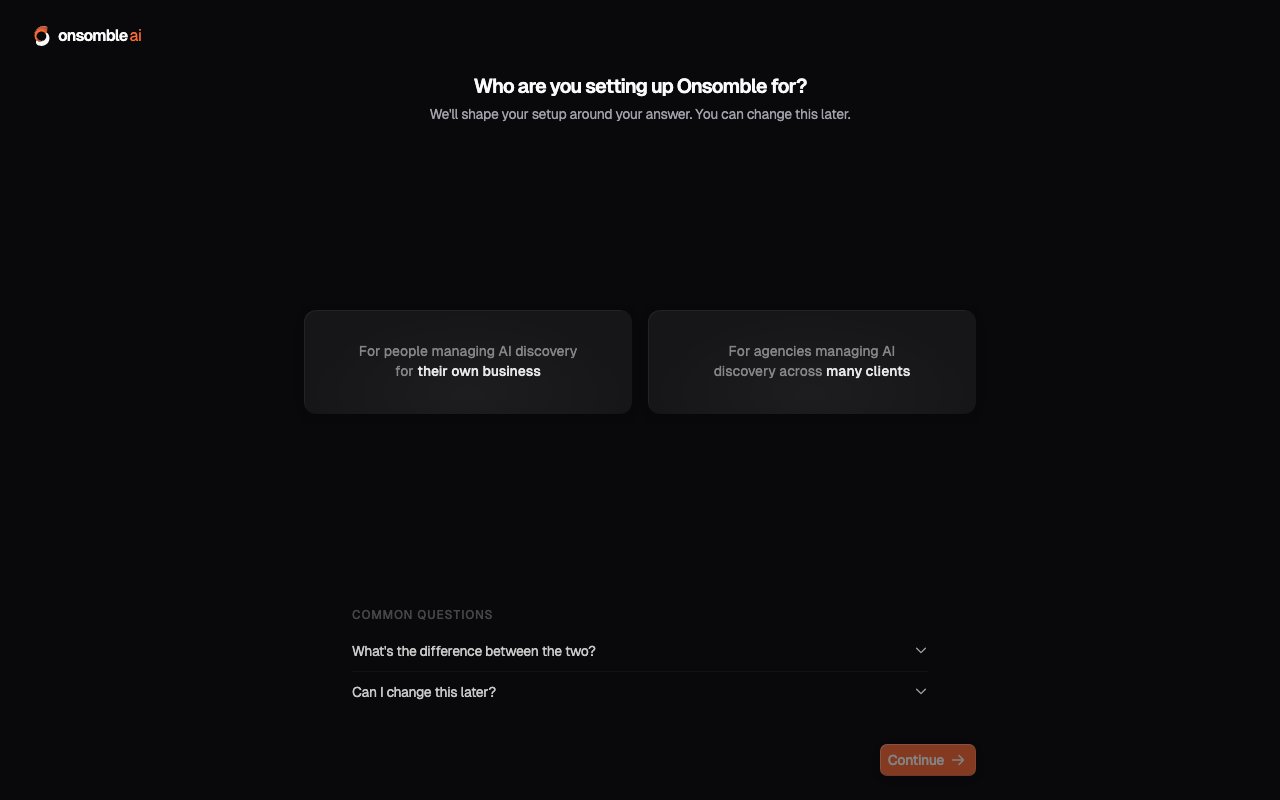 You can change the account type while the account is still empty. Once you create a Site, the self-service switch is no longer available.
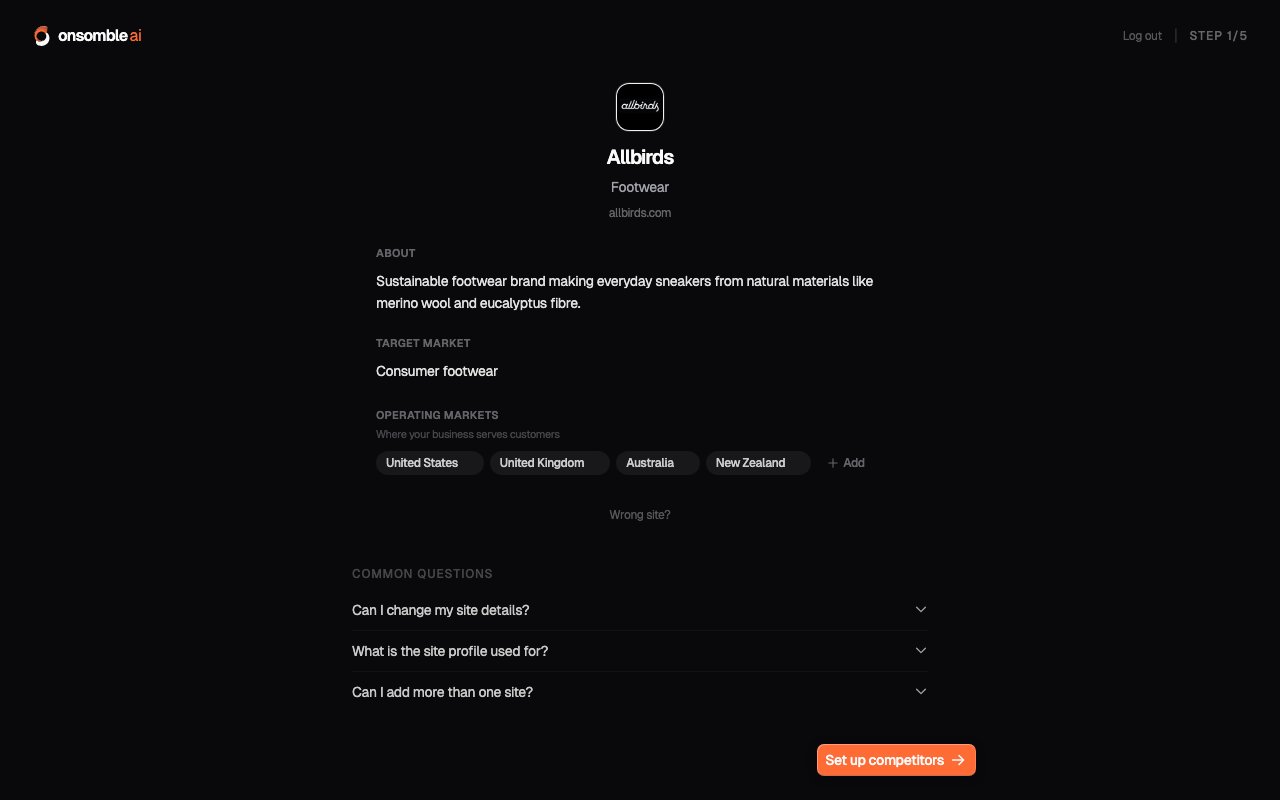
Enter your website URL. Onsomble reads the website and drafts a **business profile** with the business name, industry, target market, products, and operating regions.
Review each field and correct anything inaccurate. Onsomble uses this profile to suggest competitors, generate prompts, and provide context for the scan.
You can change the account type while the account is still empty. Once you create a Site, the self-service switch is no longer available.
Enter your website URL. Onsomble reads the website and drafts a **business profile** with the business name, industry, target market, products, and operating regions.
Review each field and correct anything inaccurate. Onsomble uses this profile to suggest competitors, generate prompts, and provide context for the scan.
 Onsomble suggests competitors based on the business profile. The competitors you select are included in the scan setup and comparison results.
Remove businesses that are not relevant and add any that are missing. You can update the list before a later scan.
Prompts are the questions Onsomble sends to each selected AI model. For an insurance broker, examples might include "best insurance broker in Auckland" or "who should I talk to about commercial property cover". Onsomble drafts a set from your business profile, and you can edit, remove, or add prompts.
Choose questions that reflect the decisions you want to measure. General information questions are less useful when they do not relate to your business or market.
Select from the AI models available to your account. Different models can
produce different answers to the same prompt, so selecting more than one can
help you compare their results.
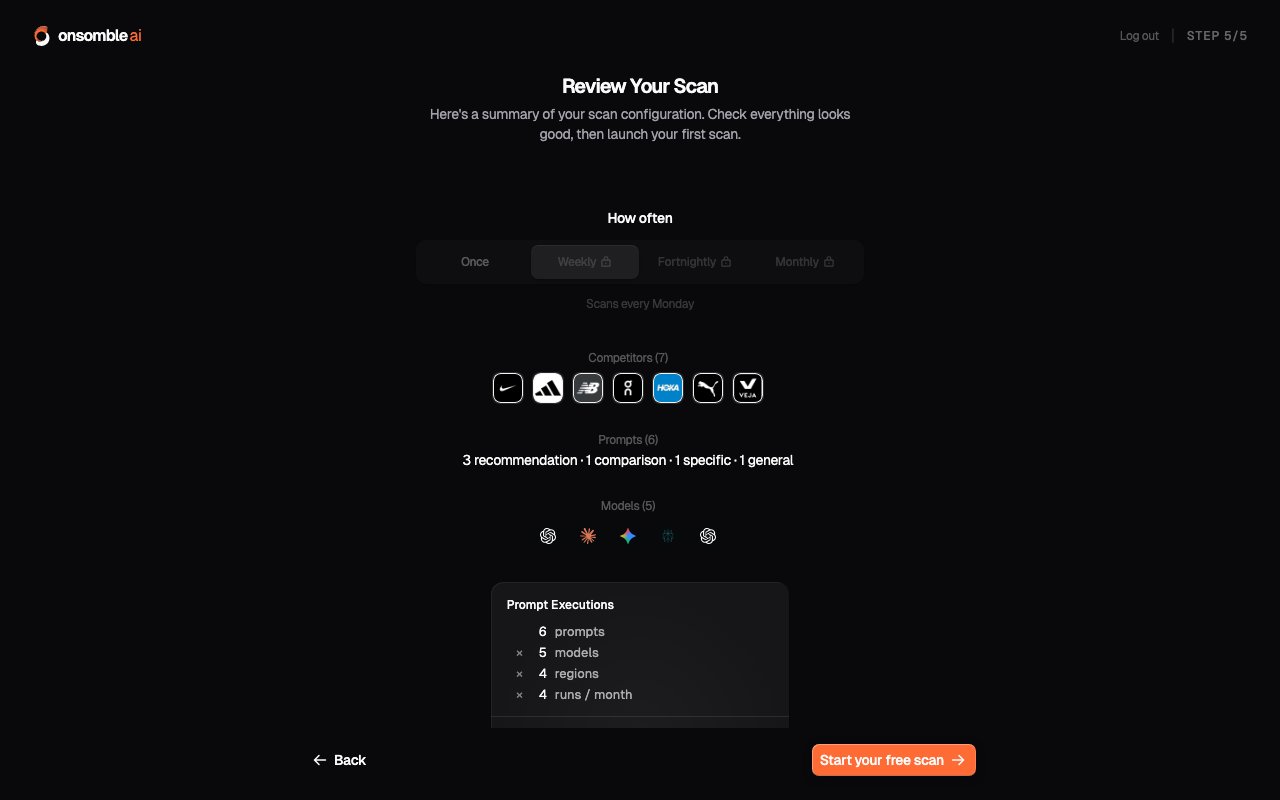
The review step shows the scan configuration. Check it, then start
the scan. **Your first scan is free on every account**, no card required.
Onsomble suggests competitors based on the business profile. The competitors you select are included in the scan setup and comparison results.
Remove businesses that are not relevant and add any that are missing. You can update the list before a later scan.
Prompts are the questions Onsomble sends to each selected AI model. For an insurance broker, examples might include "best insurance broker in Auckland" or "who should I talk to about commercial property cover". Onsomble drafts a set from your business profile, and you can edit, remove, or add prompts.
Choose questions that reflect the decisions you want to measure. General information questions are less useful when they do not relate to your business or market.
Select from the AI models available to your account. Different models can
produce different answers to the same prompt, so selecting more than one can
help you compare their results.
The review step shows the scan configuration. Check it, then start
the scan. **Your first scan is free on every account**, no card required.
 The scan runs each prompt against the selected models and regions. It usually
takes a few minutes, depending on the configuration. You can leave the page
while it continues in the background. When the scan finishes, Onsomble opens
the Site's Overview.
The **Overview** brings together five headline metrics, including Visibility, Share of Voice, and Sentiment. The other **Insights** pages let you inspect the prompts, brands, descriptions, and sources behind those results. See [Understanding your results](/results/overview).
A missing or inaccurate mention is a result to investigate. Read the underlying answers and compare several prompts before deciding what it means or what to change.
## What to do next
Review suggested actions and the scan evidence behind each recommendation.
Run scans on a schedule and compare how the measured results change over
time.
Ask questions about your first results or get help using the dashboard.
New to the idea of AI discoverability? Start with [What is AI
discoverability?](/reference/what-is-aeo) for an explanation of what Onsomble
measures and how it differs from traditional search visibility.
The scan runs each prompt against the selected models and regions. It usually
takes a few minutes, depending on the configuration. You can leave the page
while it continues in the background. When the scan finishes, Onsomble opens
the Site's Overview.
The **Overview** brings together five headline metrics, including Visibility, Share of Voice, and Sentiment. The other **Insights** pages let you inspect the prompts, brands, descriptions, and sources behind those results. See [Understanding your results](/results/overview).
A missing or inaccurate mention is a result to investigate. Read the underlying answers and compare several prompts before deciding what it means or what to change.
## What to do next
Review suggested actions and the scan evidence behind each recommendation.
Run scans on a schedule and compare how the measured results change over
time.
Ask questions about your first results or get help using the dashboard.
New to the idea of AI discoverability? Start with [What is AI
discoverability?](/reference/what-is-aeo) for an explanation of what Onsomble
measures and how it differs from traditional search visibility.