> ## Documentation Index
> Fetch the complete documentation index at: https://docs.onsomble.ai/llms.txt
> Use this file to discover all available pages before exploring further.
# Generate prompts with AI
> Generate a complete prompt set or add questions to one Prompt Matrix intersection, then review what will be added to your library.
Use **Generate with AI** when you want Onsomble to draft customer questions from your prompt strategy. You choose the Products, Personas, journey stages, and regions that matter. Onsomble uses those choices to write the questions and organise them in your Prompt Library.
Before you begin, decide which customer situations you want to measure. [Build a prompt strategy](/prompts/prompt-strategy) explains how the four strategy dimensions and customer intent fit together.
## Choose what you want to generate
| Use | When to choose it |
| - | - |
| **Generate a complete prompt set** | You are starting a Prompt Library or want to reconsider its overall coverage. |
| **Generate for one Matrix intersection** | The wider set is sound, but one customer situation needs more coverage. |
## Generate a complete prompt set
Open your Site, then select **Prompt Library** under **Scan Settings**.
Select **Add Prompt**, then select **Generate with AI**.
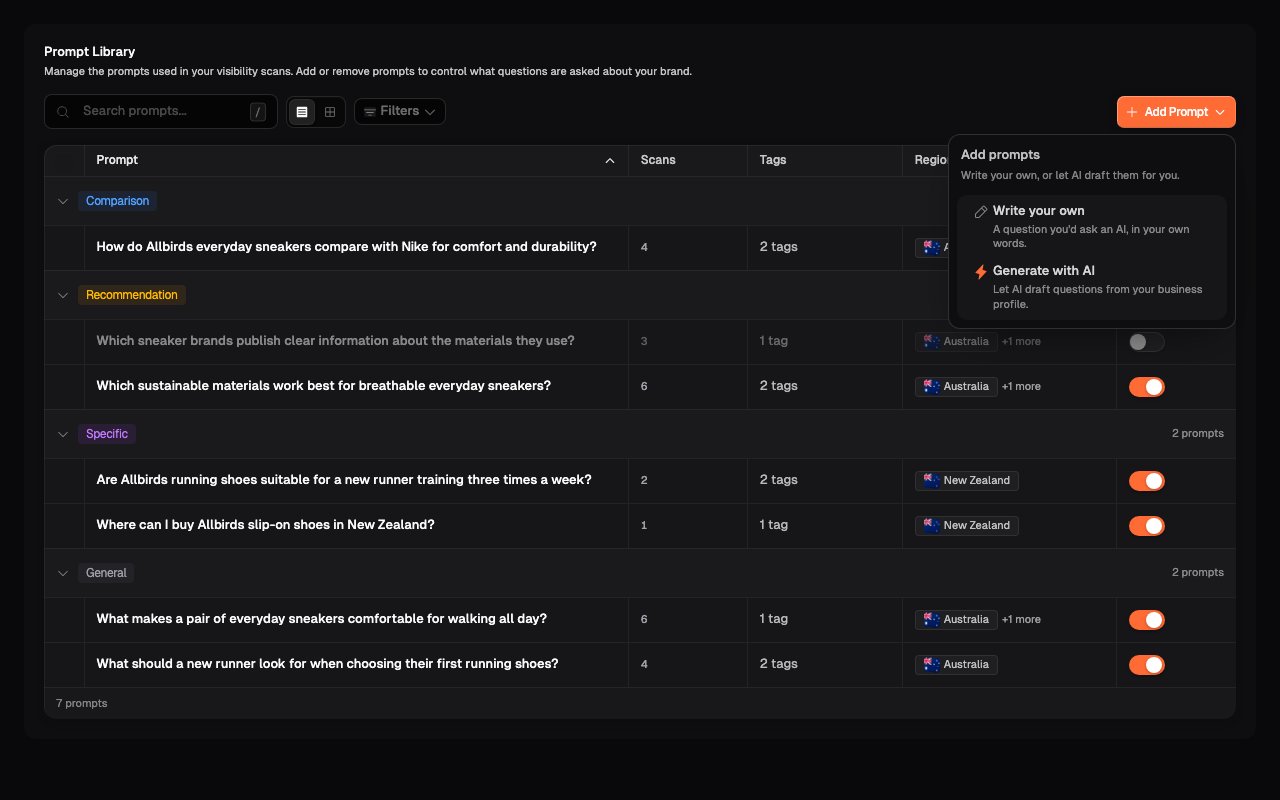 Review the products and services Onsomble suggests from your Site profile.
Keep the commercially important Products, remove irrelevant suggestions,
and add anything missing.
Use the category a customer would recognise, such as "Running shoes", rather
than an internal stock code or plan identifier.
Review the products and services Onsomble suggests from your Site profile.
Keep the commercially important Products, remove irrelevant suggestions,
and add anything missing.
Use the category a customer would recognise, such as "Running shoes", rather
than an internal stock code or plan identifier.
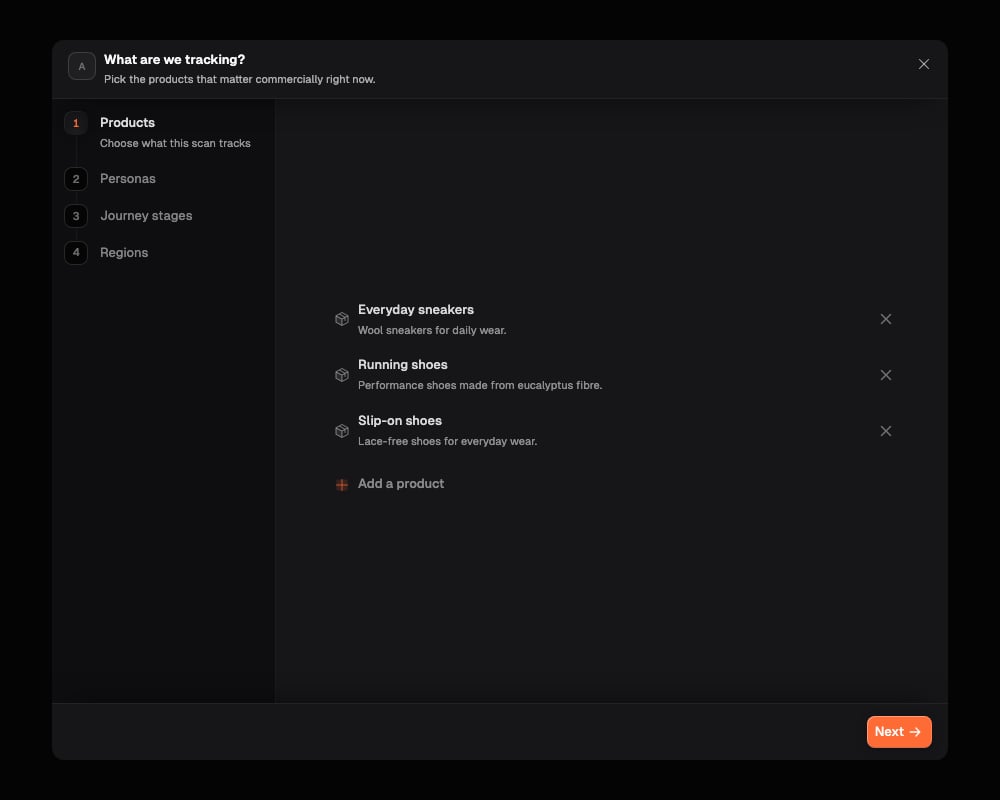 Review the suggested Personas. Each Persona should represent a customer with
a meaningfully different need, constraint, or decision.
Add or remove Personas until the list reflects the audiences you want the
prompt set to measure.
Review the suggested Personas. Each Persona should represent a customer with
a meaningfully different need, constraint, or decision.
Add or remove Personas until the list reflects the audiences you want the
prompt set to measure.
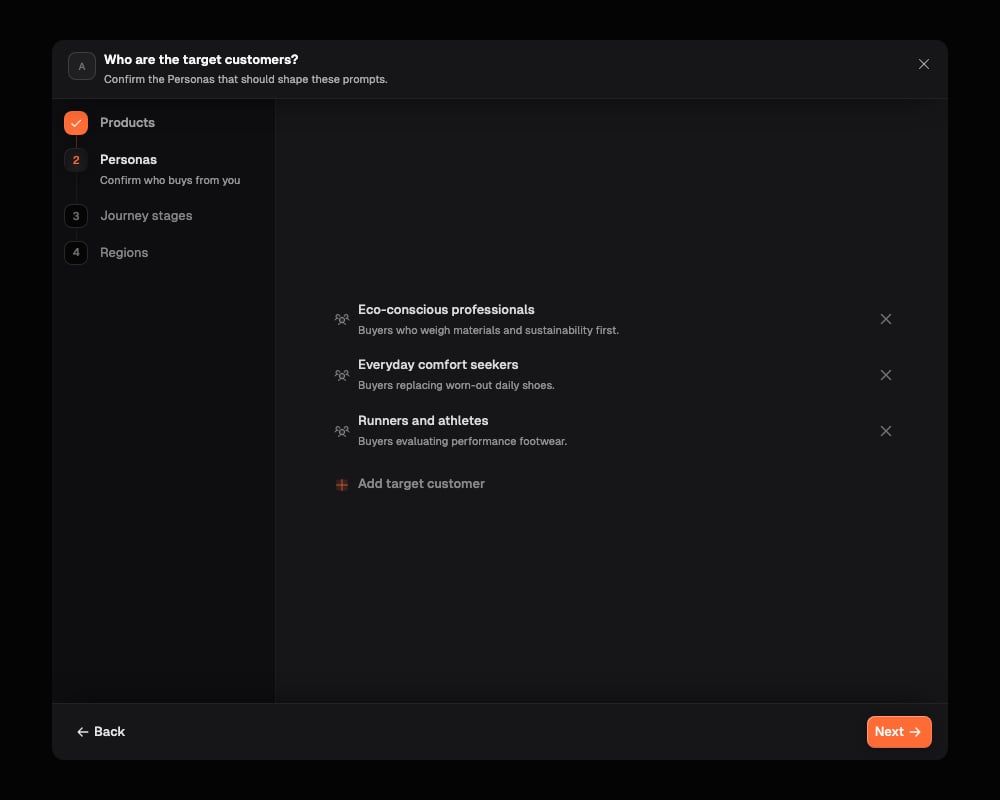 Choose the stages you want to include in this generation run. Onsomble only
generates for the stages you select.
You do not need to select every stage. Use the stages that support your
measurement objective.
Choose the stages you want to include in this generation run. Onsomble only
generates for the stages you select.
You do not need to select every stage. Use the stages that support your
measurement objective.
 Choose whether the prompts apply globally or to specific markets. Select
specific regions when location may change the available options, customer
context, or AI-assistant response.
Choose whether the prompts apply globally or to specific markets. Select
specific regions when location may change the available options, customer
context, or AI-assistant response.
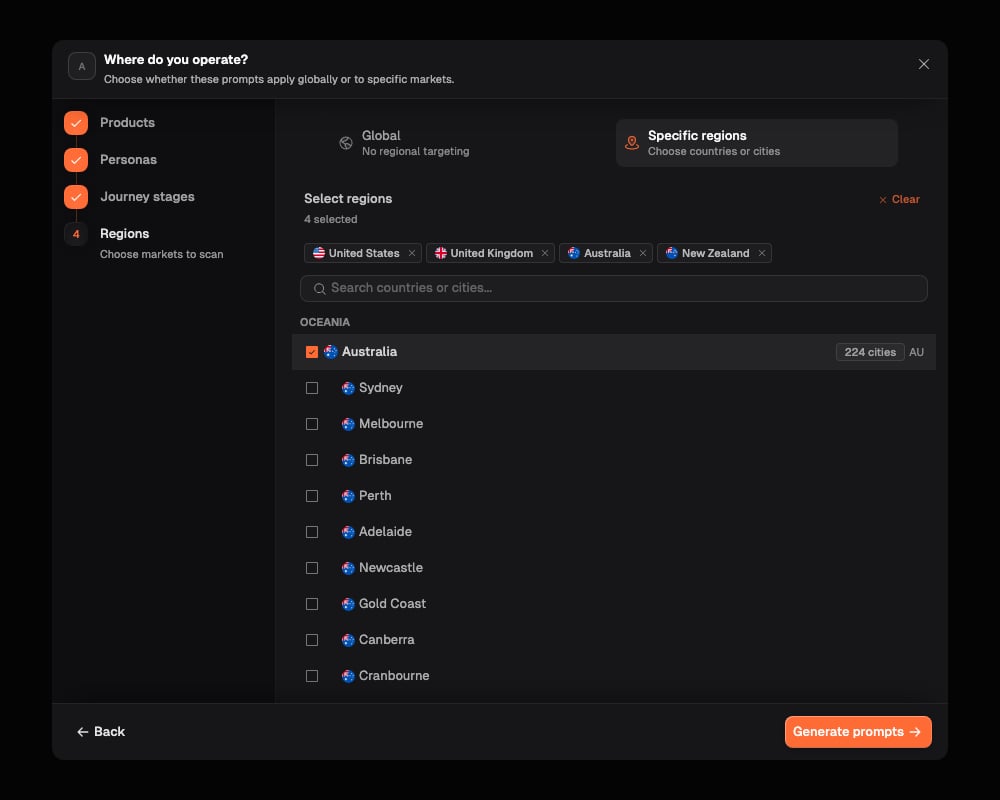 Selecting a region attaches that market to the generated prompts. It does
not force the region name into every question. The wording names a
location only when it is natural and useful to the customer question.
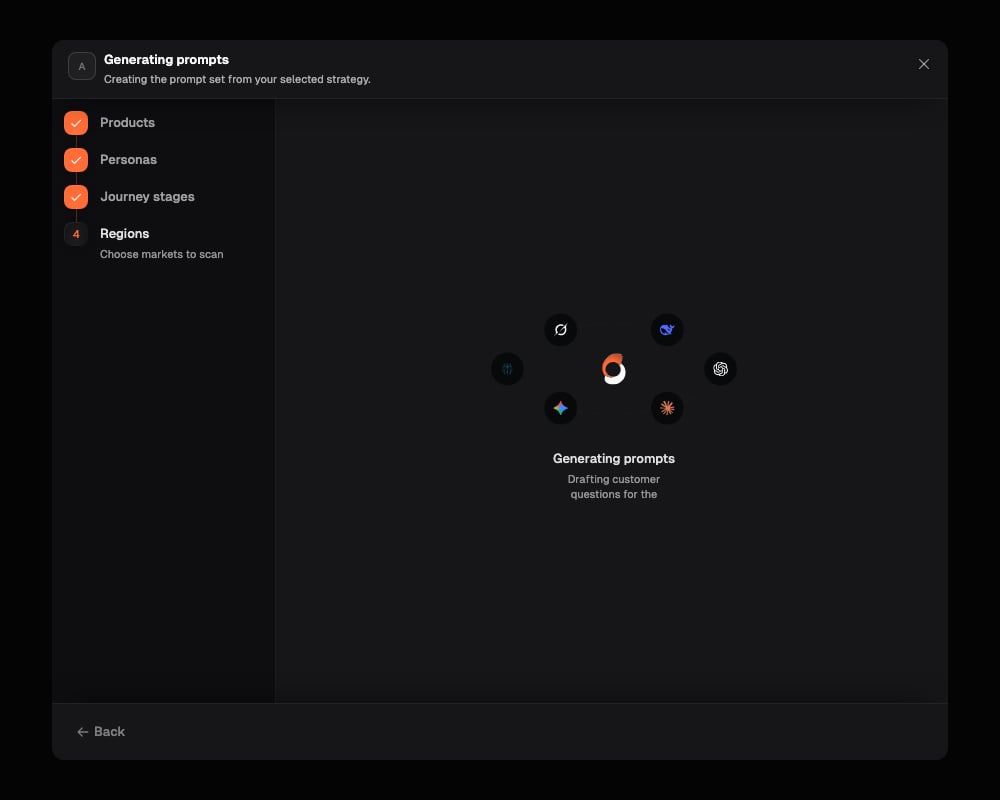
Select **Generate prompts**. The progress display changes as Onsomble uses
your selected strategy and drafts the questions.
Selecting a region attaches that market to the generated prompts. It does
not force the region name into every question. The wording names a
location only when it is natural and useful to the customer question.
Select **Generate prompts**. The progress display changes as Onsomble uses
your selected strategy and drafts the questions.
 ## Review what was generated
If the Prompt Library is empty, the generated set is added when generation finishes.
If prompts already exist, the **Add generated prompts?** dialog opens before the library changes.
## Review what was generated
If the Prompt Library is empty, the generated set is added when generation finishes.
If prompts already exist, the **Add generated prompts?** dialog opens before the library changes.
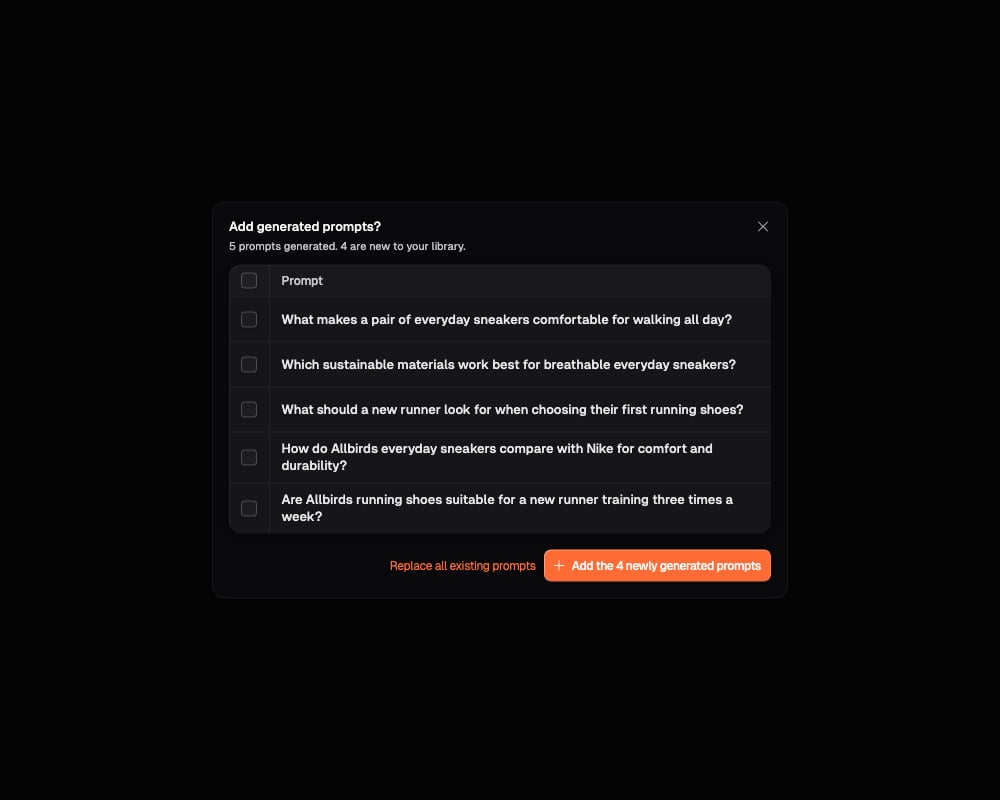 You can:
* select one or more questions, then add only the selected prompts;
* leave every checkbox clear to add every generated prompt; or
* select **Replace all existing prompts** to replace the current library with the generated set.
Replacing the existing set removes the current prompts from the library. If
those prompts have scan history you want to keep interpretable, add the new
prompts and deactivate the older ones instead.
Generated prompts include a category and the available strategy details used to organise them, such as Products, Personas, journey stages, tags, and regions. Review the wording and coverage before your next scan.
When the run is complete, the added questions appear in List view. They also appear in Matrix view when their Persona and column details match an intersection.
If generation reports that some selected journey stages were not represented,
review the returned questions before adding them. Adjust the selected stages
or other strategy details and generate again if the set does not cover what
you intended.
## Generate prompts for one matrix intersection
Use cell-level generation when the wider prompt set is sound but one customer situation needs more coverage.
Open **Prompt Library**. In the two-icon view switch beside **Search
prompts**, select the grid icon labelled **Matrix view**, then select the
cell you want to work on. The dialog header shows the Persona and the column
value fixed by that intersection.
See [Switch to Matrix view](/prompts/review-prompt-coverage#switch-to-matrix-view)
for a visual guide to the control.
You can:
* select one or more questions, then add only the selected prompts;
* leave every checkbox clear to add every generated prompt; or
* select **Replace all existing prompts** to replace the current library with the generated set.
Replacing the existing set removes the current prompts from the library. If
those prompts have scan history you want to keep interpretable, add the new
prompts and deactivate the older ones instead.
Generated prompts include a category and the available strategy details used to organise them, such as Products, Personas, journey stages, tags, and regions. Review the wording and coverage before your next scan.
When the run is complete, the added questions appear in List view. They also appear in Matrix view when their Persona and column details match an intersection.
If generation reports that some selected journey stages were not represented,
review the returned questions before adding them. Adjust the selected stages
or other strategy details and generate again if the set does not cover what
you intended.
## Generate prompts for one matrix intersection
Use cell-level generation when the wider prompt set is sound but one customer situation needs more coverage.
Open **Prompt Library**. In the two-icon view switch beside **Search
prompts**, select the grid icon labelled **Matrix view**, then select the
cell you want to work on. The dialog header shows the Persona and the column
value fixed by that intersection.
See [Switch to Matrix view](/prompts/review-prompt-coverage#switch-to-matrix-view)
for a visual guide to the control.
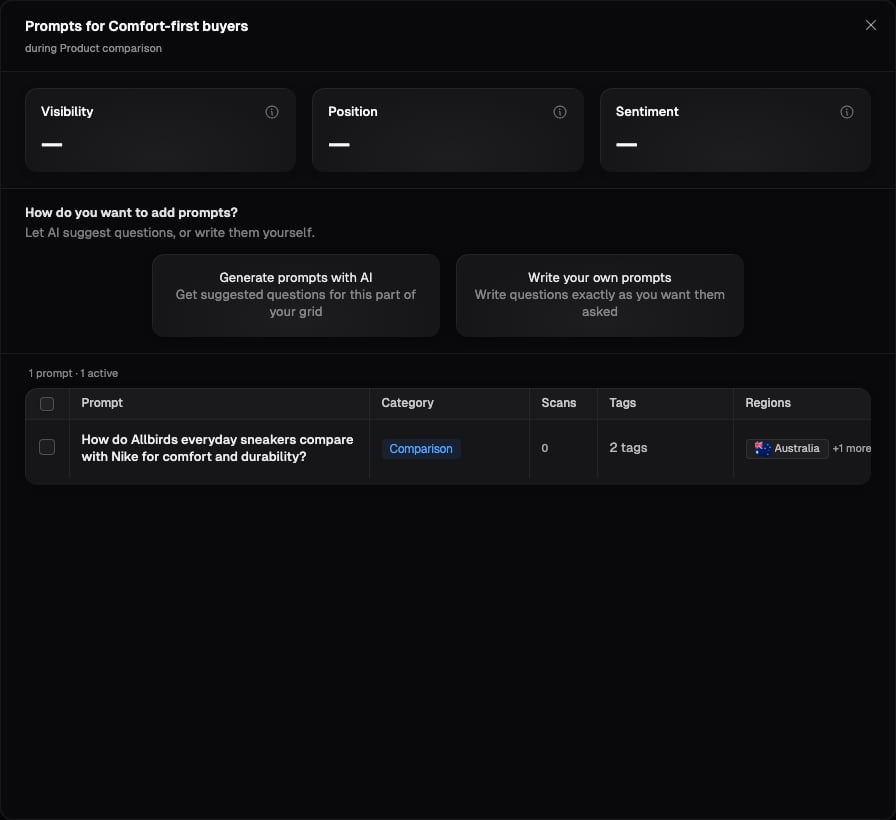 Select **Generate prompts with AI**. Add a **Direction** if you want the
questions to emphasise a particular issue or customer situation.
Use **Narrow the focus** to choose any relevant dimensions that are not
already fixed by the cell, such as a Product, journey stage, or regions.
Your selections guide the wording and are saved on any prompts you add.
Select **Generate prompts with AI**. Add a **Direction** if you want the
questions to emphasise a particular issue or customer situation.
Use **Narrow the focus** to choose any relevant dimensions that are not
already fixed by the cell, such as a Product, journey stage, or regions.
Your selections guide the wording and are saved on any prompts you add.
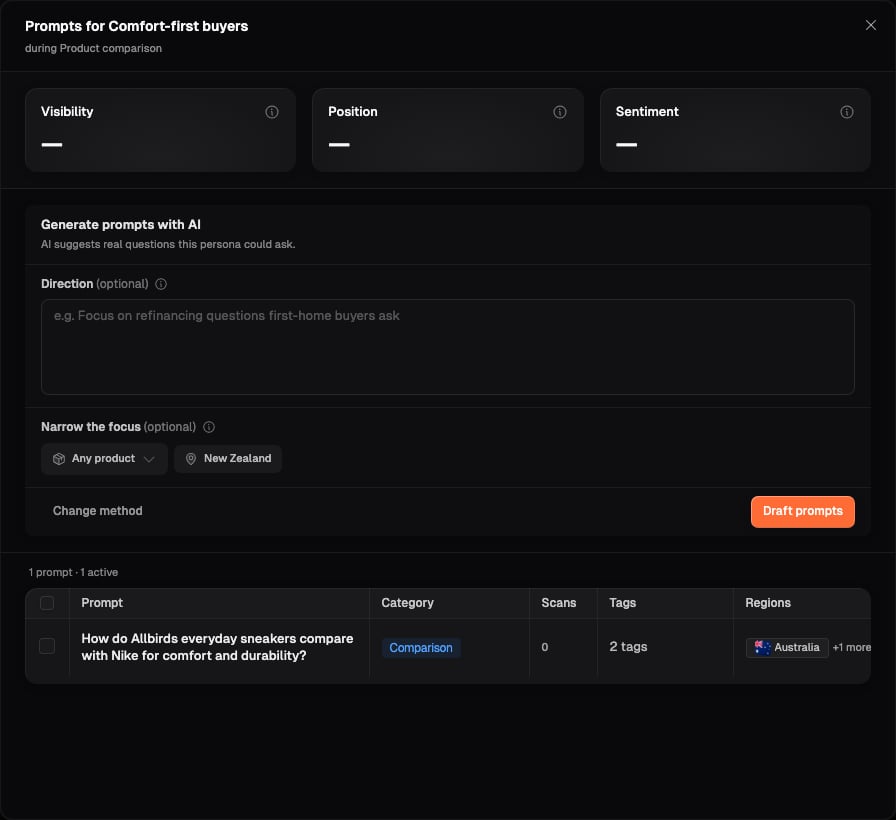 Select **Draft prompts**. Review the questions and their categories, clear
any you do not want, then select **Add selected**. Select **Adjust** to
change the direction or scope, or **Regenerate** to request another set.
Select **Draft prompts**. Review the questions and their categories, clear
any you do not want, then select **Add selected**. Select **Adjust** to
change the direction or scope, or **Regenerate** to request another set.
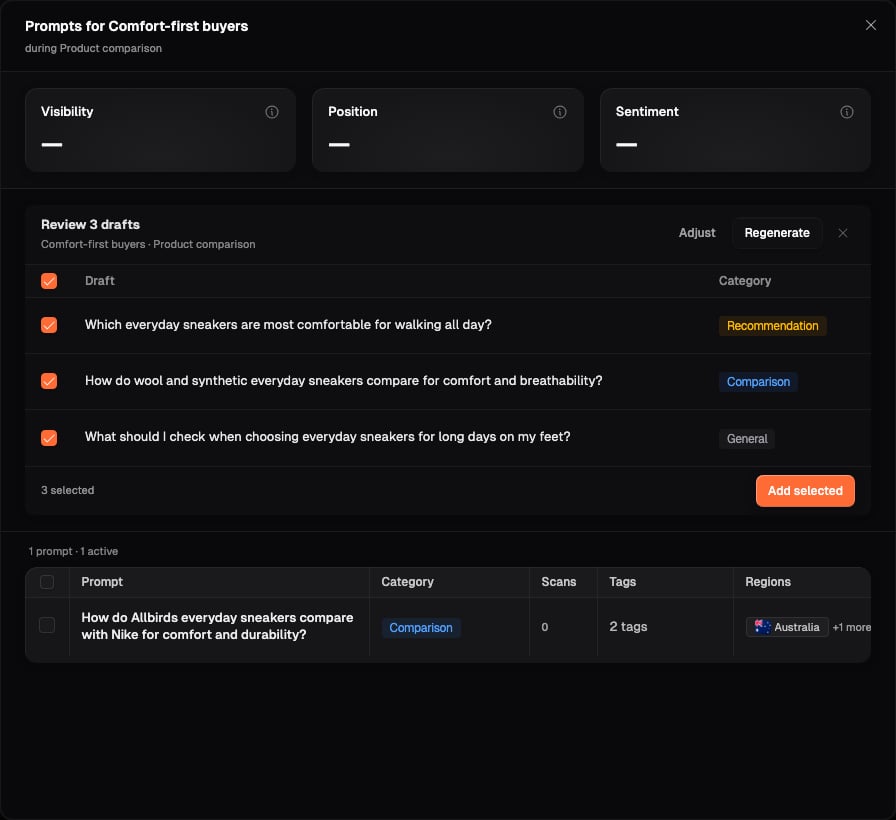 The new prompts appear in the selected intersection and in List view. Their
Persona and the column value represented by the cell are applied automatically.
## If generation stops
* If the full-set generator shows an error, select **Generate again**.
* If cell generation shows an error, review your Direction and scope, then select **Draft prompts** again.
* If the generated questions are not useful, change the strategy details or Direction before generating another set.
* If generation is still running, wait for the review or completion state before starting another run.
## What's next
Add a precisely worded question and attach its coverage details yourself.
Check whether the generated set covers the customer situations that matter.
This documentation is built and hosted on [Mintlify](https://mintlify.com), a developer documentation platform.
The new prompts appear in the selected intersection and in List view. Their
Persona and the column value represented by the cell are applied automatically.
## If generation stops
* If the full-set generator shows an error, select **Generate again**.
* If cell generation shows an error, review your Direction and scope, then select **Draft prompts** again.
* If the generated questions are not useful, change the strategy details or Direction before generating another set.
* If generation is still running, wait for the review or completion state before starting another run.
## What's next
Add a precisely worded question and attach its coverage details yourself.
Check whether the generated set covers the customer situations that matter.
This documentation is built and hosted on [Mintlify](https://mintlify.com), a developer documentation platform.