> ## Documentation Index
> Fetch the complete documentation index at: https://docs.onsomble.ai/llms.txt
> Use this file to discover all available pages before exploring further.
# Manage your Prompt Library
> Use List view to find prompts, update Categories, tags and regions, manage active status, and preserve useful scan history.
Use List view to maintain the individual questions used in future scans. You can find a prompt, update how it is organised, decide whether it remains active, or apply the same change to several prompts.
Results already collected remain part of their original scans when you update the current library.
## Open List view
1. Open your Site, then select **Prompt Library** under **Scan Settings**.
2. If Matrix view is active, select the list icon beside **Search prompts**.
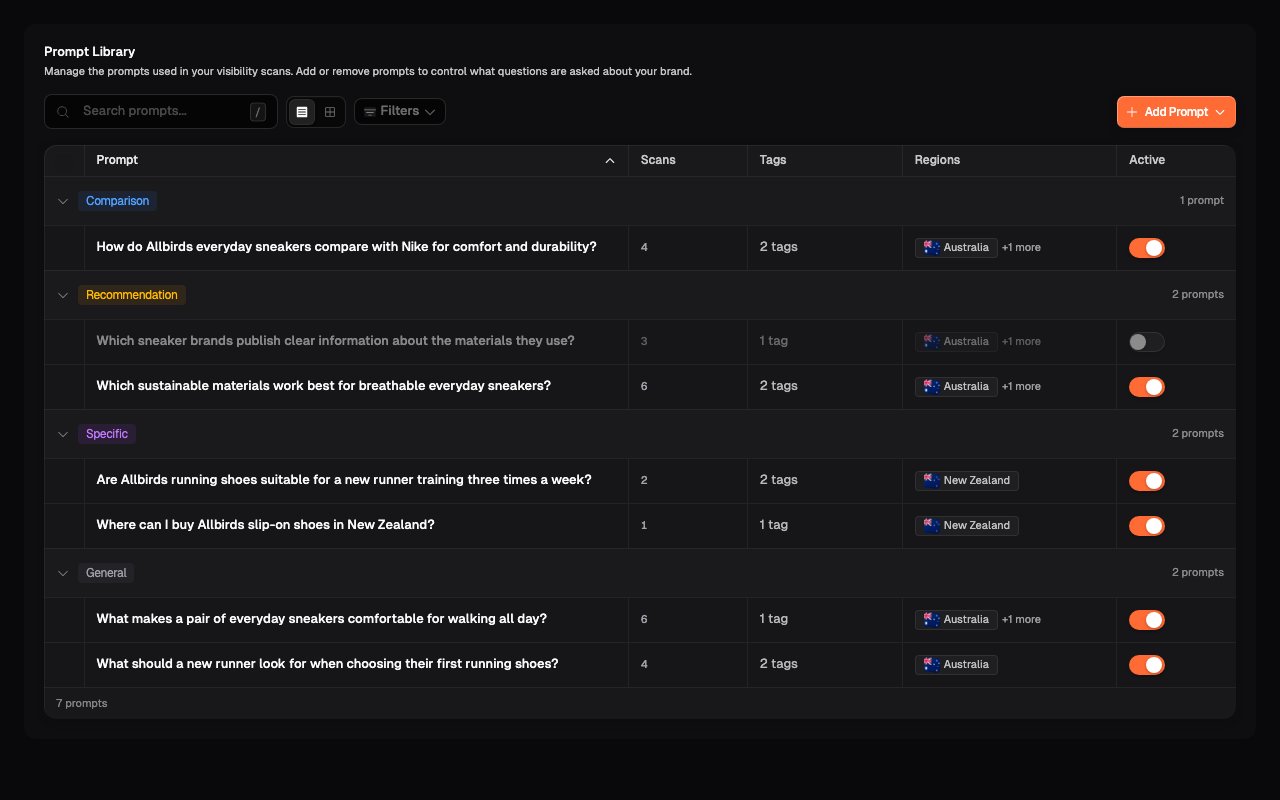
The page shows the complete library grouped by Category. The highlighted list icon confirms that List view is active.
 ## Find the prompts you need
1. Enter part of a question in **Search prompts** to find matching prompt text.
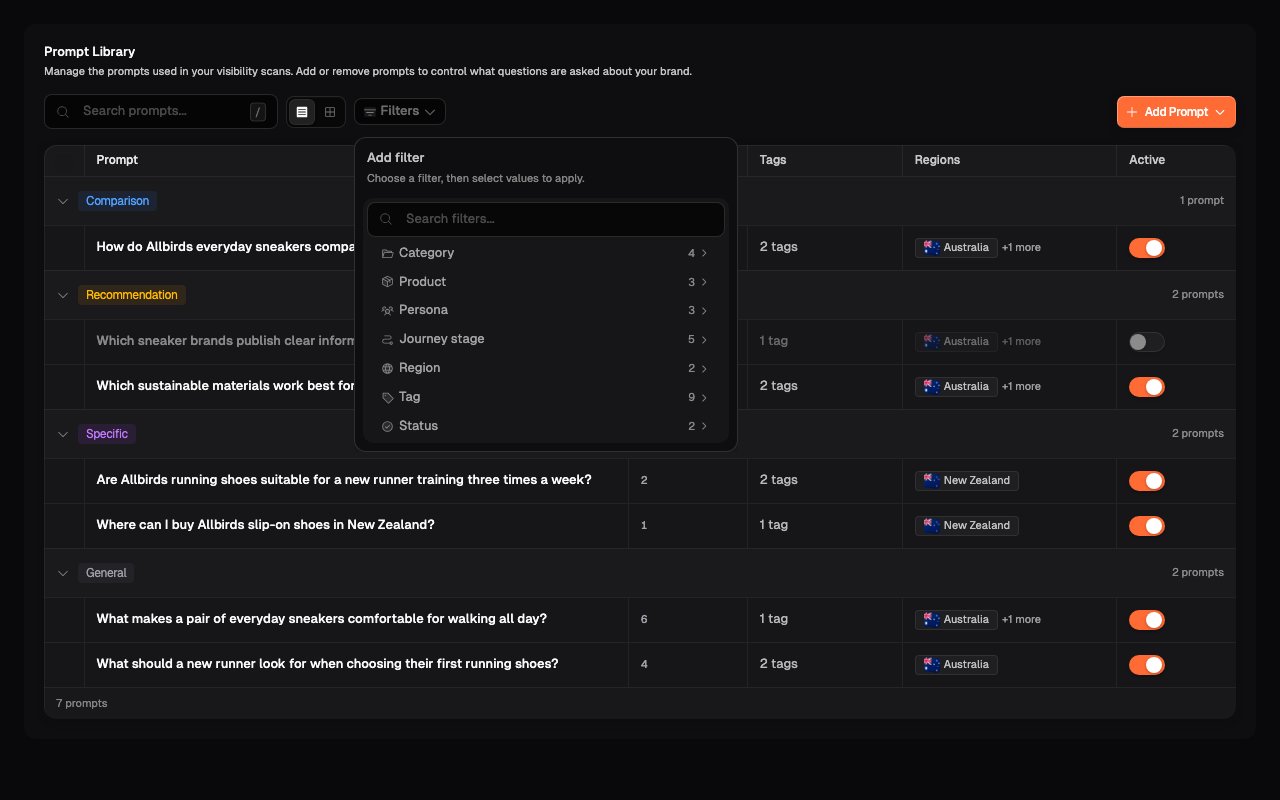
2. Select **Filters**, then choose the part of the prompt strategy you want to narrow by.
3. Select one or more values. The table updates to show the matching prompts.
4. Add another filter when you need to narrow the results further.
5. Select **Clear all** to return to the complete library.
You can filter by:
* Category
* Product
* Persona
* Journey stage
* Region
* Tag
* Status
Selections within the same filter include prompts matching any selected value. Different filters work together. For example, selecting two Personas and the New Zealand region shows prompts for either Persona that are also attached to New Zealand.
## Find the prompts you need
1. Enter part of a question in **Search prompts** to find matching prompt text.
2. Select **Filters**, then choose the part of the prompt strategy you want to narrow by.
3. Select one or more values. The table updates to show the matching prompts.
4. Add another filter when you need to narrow the results further.
5. Select **Clear all** to return to the complete library.
You can filter by:
* Category
* Product
* Persona
* Journey stage
* Region
* Tag
* Status
Selections within the same filter include prompts matching any selected value. Different filters work together. For example, selecting two Personas and the New Zealand region shows prompts for either Persona that are also attached to New Zealand.
 ## Navigate the list
Select a Category heading to collapse or expand its prompts. Select the **Prompt** column heading to reverse the alphabetical order of prompts within each Category.
Each prompt row shows:
* the question sent to AI assistants
* how many scans have used it
* its tags
* its regions
* whether it is active, or whether an unscanned prompt can be removed
The scan count helps distinguish an established prompt from a recent addition. Results collected before a prompt change remain part of their original scans.
## Update one prompt
### Update tags or regions
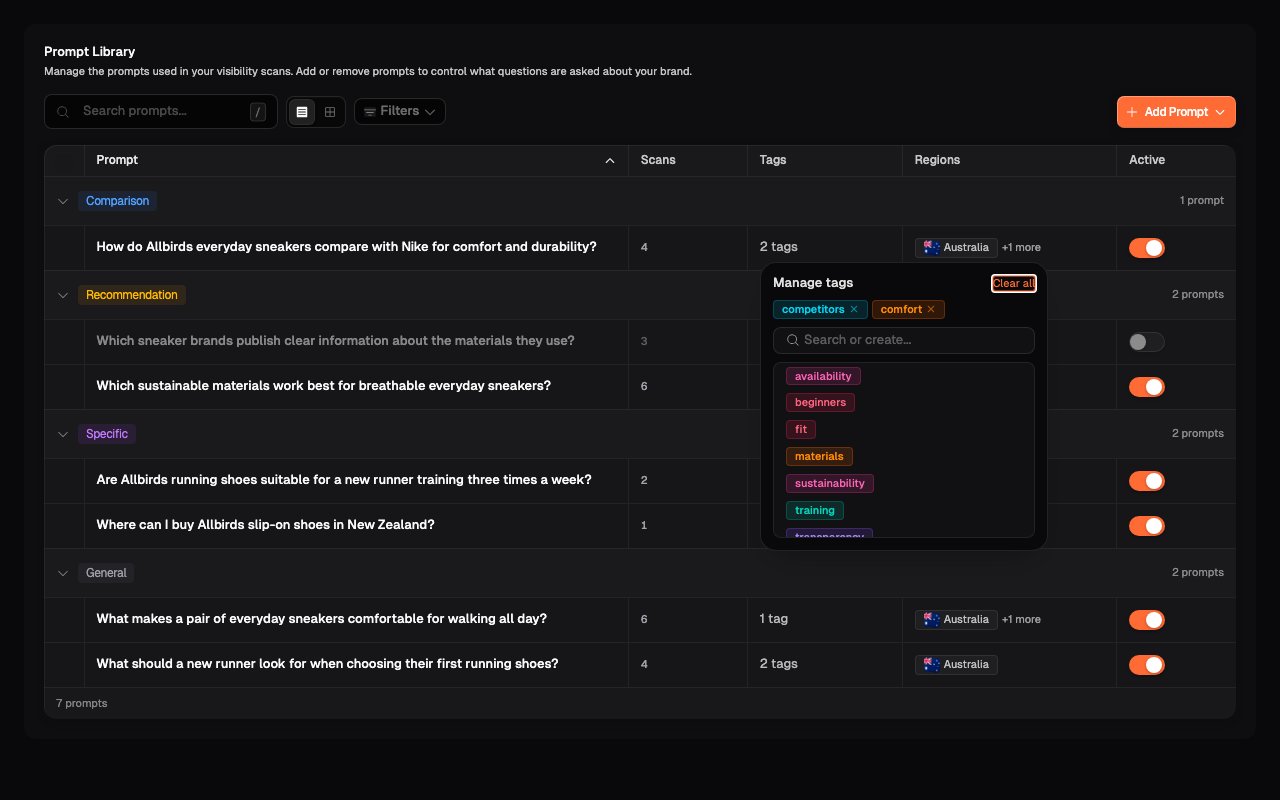
1. Select the tag count or region value in the prompt row.
2. Add an existing value, create a new tag, or remove a selected value.
3. Close the menu. The updated values appear in the row.
## Navigate the list
Select a Category heading to collapse or expand its prompts. Select the **Prompt** column heading to reverse the alphabetical order of prompts within each Category.
Each prompt row shows:
* the question sent to AI assistants
* how many scans have used it
* its tags
* its regions
* whether it is active, or whether an unscanned prompt can be removed
The scan count helps distinguish an established prompt from a recent addition. Results collected before a prompt change remain part of their original scans.
## Update one prompt
### Update tags or regions
1. Select the tag count or region value in the prompt row.
2. Add an existing value, create a new tag, or remove a selected value.
3. Close the menu. The updated values appear in the row.
 ### Change the Category
1. Select the checkbox beside the prompt.
2. Select **Set Category** in the selection toolbar.
3. Choose the Category that best describes the question.
4. Clear the selection when you have finished.
The prompt moves into the selected Category group.
### Change the question wording
The regular Prompt Library does not currently edit saved question wording in place. If the wording needs to change:
* remove and recreate the prompt when it has not run in a scan
* deactivate the existing prompt and add a replacement when you want to preserve the meaning of its scan history
## Activate, deactivate, or remove a prompt
An active prompt is included in future scans. Turning it off keeps the prompt and its earlier results but excludes it from future scans.
For a prompt with scan history, use the **Active** switch to deactivate or reactivate it. A deactivated prompt remains in the table with a muted appearance.
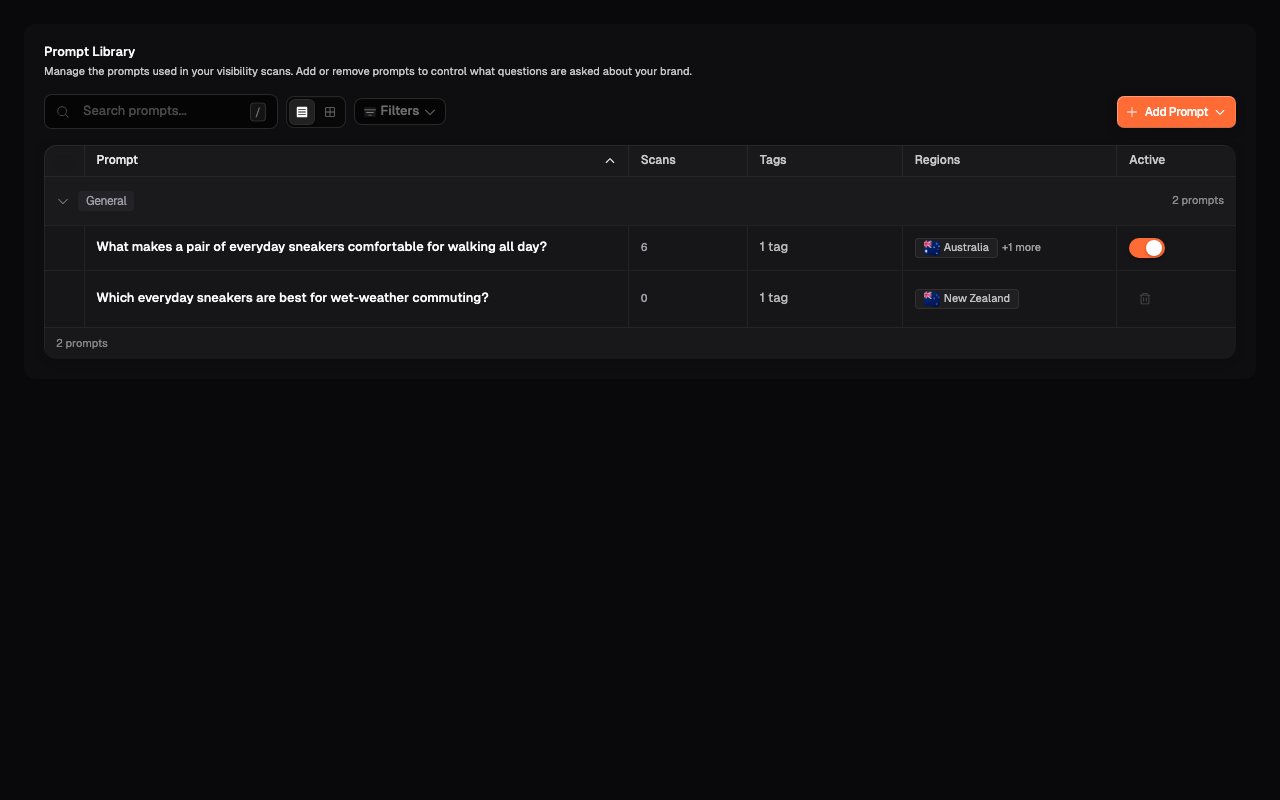
For a prompt that has not run, the last column shows **Remove prompt** instead of an Active switch. Select it to take the prompt out of the current library.
### Change the Category
1. Select the checkbox beside the prompt.
2. Select **Set Category** in the selection toolbar.
3. Choose the Category that best describes the question.
4. Clear the selection when you have finished.
The prompt moves into the selected Category group.
### Change the question wording
The regular Prompt Library does not currently edit saved question wording in place. If the wording needs to change:
* remove and recreate the prompt when it has not run in a scan
* deactivate the existing prompt and add a replacement when you want to preserve the meaning of its scan history
## Activate, deactivate, or remove a prompt
An active prompt is included in future scans. Turning it off keeps the prompt and its earlier results but excludes it from future scans.
For a prompt with scan history, use the **Active** switch to deactivate or reactivate it. A deactivated prompt remains in the table with a muted appearance.
For a prompt that has not run, the last column shows **Remove prompt** instead of an Active switch. Select it to take the prompt out of the current library.
 Removing a prompt takes it out of the current library. Deactivate a prompt
instead when its earlier scan results still need to remain easy to interpret.
## Update several prompts
1. Use search or filters when you want to narrow the prompts that can be selected.
2. Select the checkboxes beside the prompts you want to change. The toolbar switches to group controls.
3. Confirm the selected count, then choose the change you want to apply.
4. Select the clear control at the start of the toolbar when you have finished.
Removing a prompt takes it out of the current library. Deactivate a prompt
instead when its earlier scan results still need to remain easy to interpret.
## Update several prompts
1. Use search or filters when you want to narrow the prompts that can be selected.
2. Select the checkboxes beside the prompts you want to change. The toolbar switches to group controls.
3. Confirm the selected count, then choose the change you want to apply.
4. Select the clear control at the start of the toolbar when you have finished.
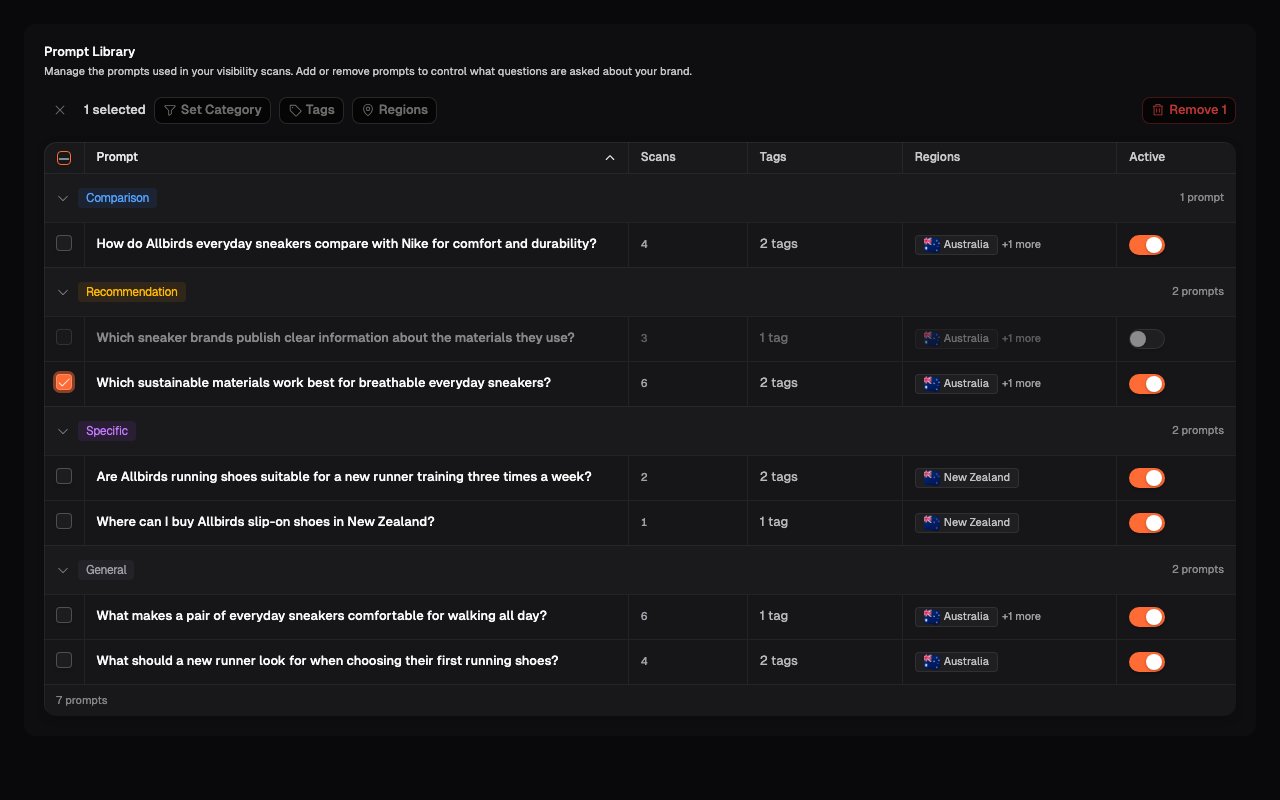 The group controls work as follows:
* **Set Category**: apply one Category to the selection.
* **Tags**: add a tag to prompts that do not have it. If every selected prompt already has the tag, selecting it removes the tag from all of them.
* **Regions**: add a region to prompts that do not have it. If every selected prompt already has the region, selecting it removes the region from all of them.
* **Remove**: remove every selected prompt from the library.
**Select all** includes every prompt matching the current search and filters,
including prompts inside collapsed Category groups. Expand the groups and
confirm the selected count before applying a change.
**Remove** applies to every selected prompt, including prompts with scan
history, and there is no additional confirmation step. Clear those prompts
from the selection and deactivate them individually when you want to keep
them in the library.
## Add another prompt
Select **Add Prompt**, then choose:
* [**Write your own**](/prompts/write-your-own-prompts) when you know the exact customer question you want to add
* [**Generate with AI**](/prompts/generate-prompts-with-ai) when you want Onsomble to draft questions from your prompt strategy
You can also [add prompts to a specific Matrix intersection](/prompts/manage-prompts-in-matrix#add-prompts-to-an-intersection) when you have found a particular coverage gap.
## Confirm your changes
Check that the row shows the intended Category, tags, regions, or active state. Clear the search and filters when you want to review the complete library again.
If you added a replacement prompt, switch to Matrix view and confirm that it appears in the intended Persona and column intersection.
## Keep changes comparable
Prompt changes affect what future scans measure. Keep a stable core of important prompts and change the library when your strategy, Products, Personas, markets, or customer questions materially change.
Avoid replacing a prompt because of one unusual answer. AI-assistant responses can vary between runs even when the prompt remains the same.
## What's next
Switch from individual questions to the coverage shape of the whole set.
Work with prompts at a specific Persona and column intersection.
This documentation is built and hosted on [Mintlify](https://mintlify.com), a developer documentation platform.
The group controls work as follows:
* **Set Category**: apply one Category to the selection.
* **Tags**: add a tag to prompts that do not have it. If every selected prompt already has the tag, selecting it removes the tag from all of them.
* **Regions**: add a region to prompts that do not have it. If every selected prompt already has the region, selecting it removes the region from all of them.
* **Remove**: remove every selected prompt from the library.
**Select all** includes every prompt matching the current search and filters,
including prompts inside collapsed Category groups. Expand the groups and
confirm the selected count before applying a change.
**Remove** applies to every selected prompt, including prompts with scan
history, and there is no additional confirmation step. Clear those prompts
from the selection and deactivate them individually when you want to keep
them in the library.
## Add another prompt
Select **Add Prompt**, then choose:
* [**Write your own**](/prompts/write-your-own-prompts) when you know the exact customer question you want to add
* [**Generate with AI**](/prompts/generate-prompts-with-ai) when you want Onsomble to draft questions from your prompt strategy
You can also [add prompts to a specific Matrix intersection](/prompts/manage-prompts-in-matrix#add-prompts-to-an-intersection) when you have found a particular coverage gap.
## Confirm your changes
Check that the row shows the intended Category, tags, regions, or active state. Clear the search and filters when you want to review the complete library again.
If you added a replacement prompt, switch to Matrix view and confirm that it appears in the intended Persona and column intersection.
## Keep changes comparable
Prompt changes affect what future scans measure. Keep a stable core of important prompts and change the library when your strategy, Products, Personas, markets, or customer questions materially change.
Avoid replacing a prompt because of one unusual answer. AI-assistant responses can vary between runs even when the prompt remains the same.
## What's next
Switch from individual questions to the coverage shape of the whole set.
Work with prompts at a specific Persona and column intersection.
This documentation is built and hosted on [Mintlify](https://mintlify.com), a developer documentation platform.