> ## Documentation Index
> Fetch the complete documentation index at: https://docs.onsomble.ai/llms.txt
> Use this file to discover all available pages before exploring further.
# Manage prompts in Matrix view
> Use Matrix view to manage prompts, Personas, and Products for a specific customer situation.
Matrix view organises your Prompt Library by customer situation. Personas form the rows. You choose whether the columns represent a Journey stage, Product, Region, or Category.
Use this view when you want to work with one part of your prompt strategy, such as **Comfort-first buyers × Product comparison**, without losing sight of the wider library.
## Open Matrix view
Open your Site, then select **Prompt Library** under **Scan Settings**.
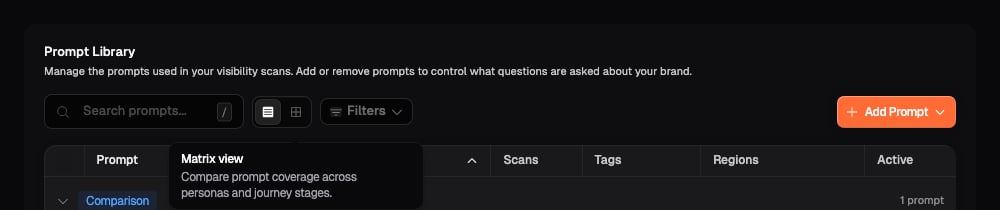
Look immediately to the right of **Search prompts**. The first icon opens
**List view** and the grid icon opens **Matrix view**. Hover over either
icon to see its name.
Select the grid icon labelled **Matrix view**. The table changes to a grid,
and the highlighted grid icon confirms that Matrix view is active.
 ## Understand the grid
Each cell joins one Persona with one column value. A cell can therefore represent a situation such as **New runners × Running shoes** or **Eco-conscious shoppers × New Zealand**.
## Understand the grid
Each cell joins one Persona with one column value. A cell can therefore represent a situation such as **New runners × Running shoes** or **Eco-conscious shoppers × New Zealand**.
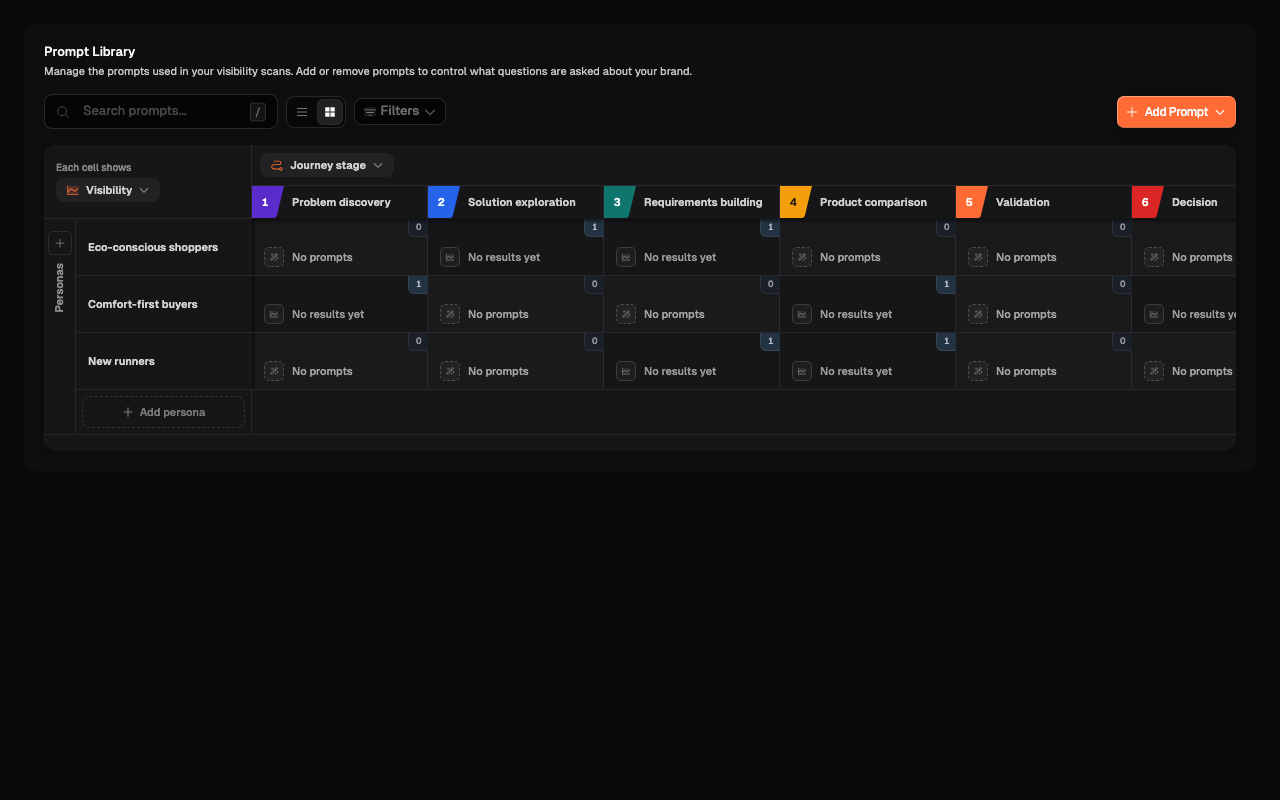 * **Rows**: the Personas you want to understand.
* **Columns**: the part of your prompt strategy selected above the grid.
* **Cells**: the prompts assigned to that Persona and column value.
* **Unassigned**: prompts that are missing a Persona or the detail needed for the current grouping.
Search and filters also affect the matrix. Clear them before deciding that a cell is empty across the complete library.
## Choose what the columns compare
Select the current column name above the grid, such as **Journey stage**.
Select **Journey stage**, **Region**, **Category**, or **Product**. The grid
reorganises the same prompts without editing them.
Scroll horizontally when the selected grouping contains more columns than
the grid can show at once.
* **Rows**: the Personas you want to understand.
* **Columns**: the part of your prompt strategy selected above the grid.
* **Cells**: the prompts assigned to that Persona and column value.
* **Unassigned**: prompts that are missing a Persona or the detail needed for the current grouping.
Search and filters also affect the matrix. Clear them before deciding that a cell is empty across the complete library.
## Choose what the columns compare
Select the current column name above the grid, such as **Journey stage**.
Select **Journey stage**, **Region**, **Category**, or **Product**. The grid
reorganises the same prompts without editing them.
Scroll horizontally when the selected grouping contains more columns than
the grid can show at once.
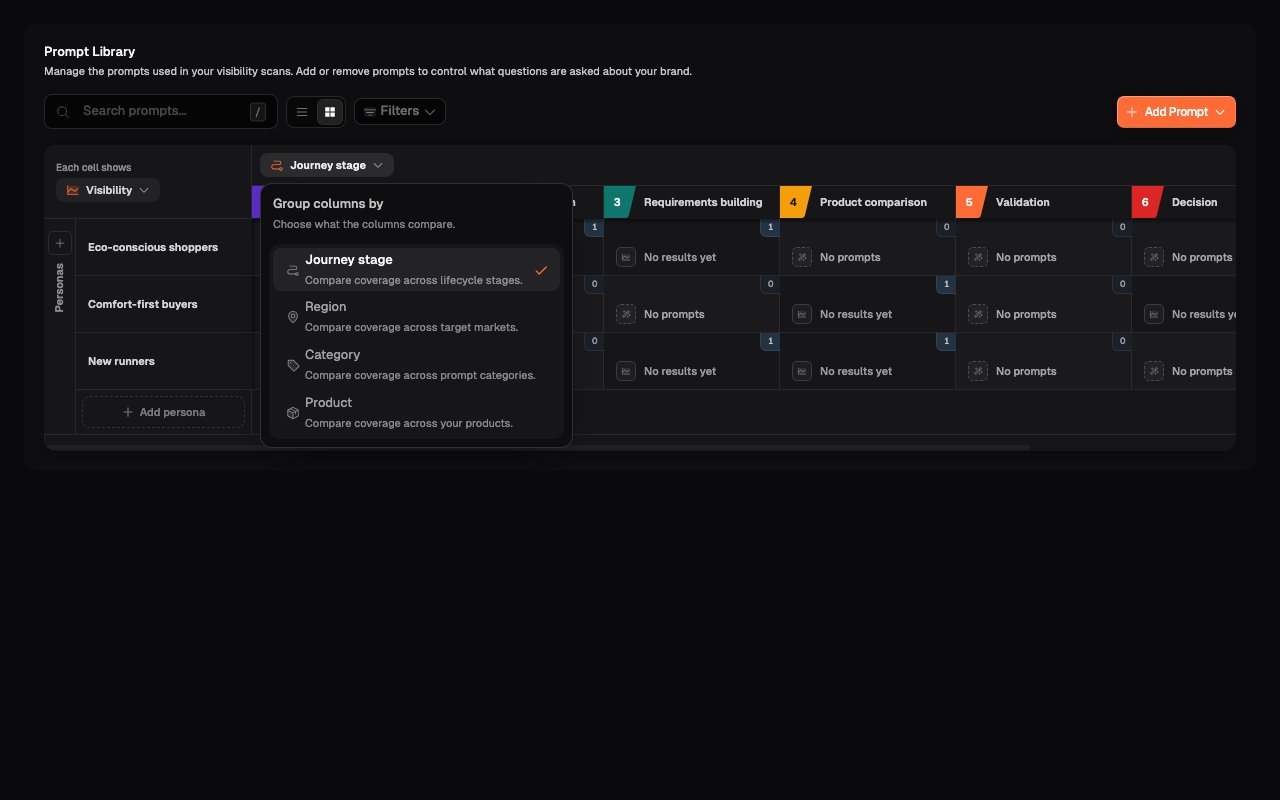 If **Region** is unavailable, the Site has no configured regions. **Product** remains available when the Product list is empty so that you can add the first Product from the matrix.
## Work with an intersection
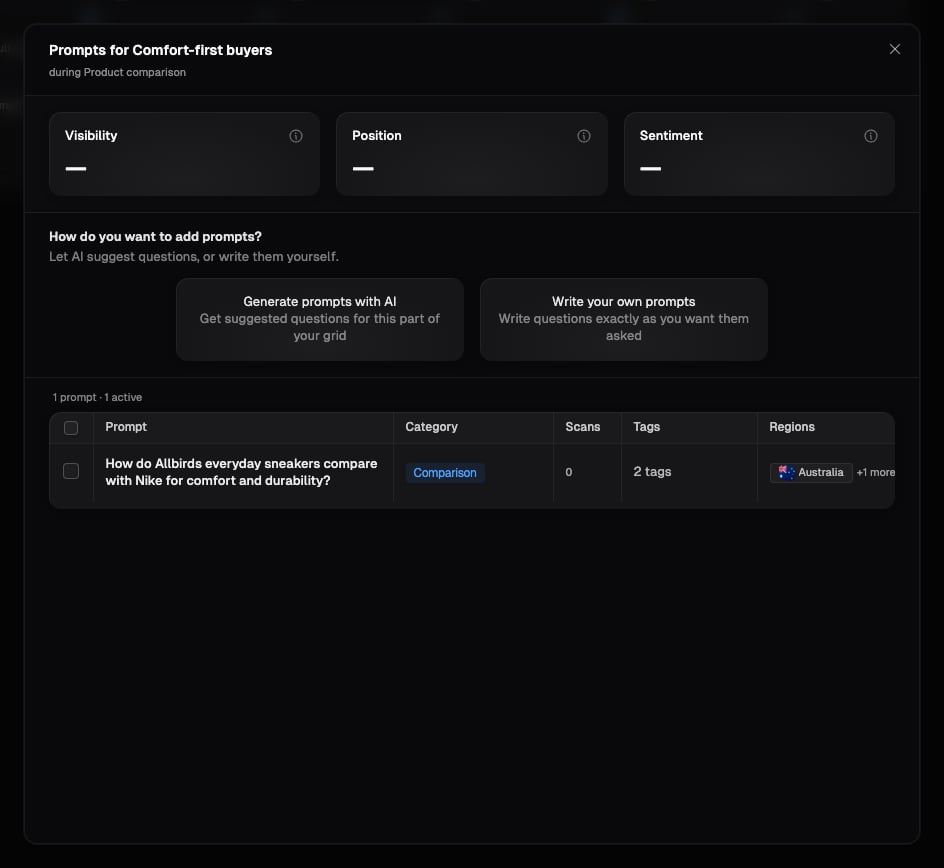
Select a cell to open the prompts assigned to that Persona and column value. Check the dialog heading before making a change.
* An empty cell shows **Generate prompts with AI** and **Write your own prompts**.
* A populated cell shows those methods followed by the prompts already assigned to the intersection.
If **Region** is unavailable, the Site has no configured regions. **Product** remains available when the Product list is empty so that you can add the first Product from the matrix.
## Work with an intersection
Select a cell to open the prompts assigned to that Persona and column value. Check the dialog heading before making a change.
* An empty cell shows **Generate prompts with AI** and **Write your own prompts**.
* A populated cell shows those methods followed by the prompts already assigned to the intersection.
 To update several prompts in the cell:
1. Select the checkbox beside each prompt you want to change.
2. Confirm the selected count in the group toolbar.
3. Choose **Set Category**, **Tags**, **Regions**, or **Remove**.
4. Select the clear control at the start of the toolbar when you have finished.
To update several prompts in the cell:
1. Select the checkbox beside each prompt you want to change.
2. Confirm the selected count in the group toolbar.
3. Choose **Set Category**, **Tags**, **Regions**, or **Remove**.
4. Select the clear control at the start of the toolbar when you have finished.
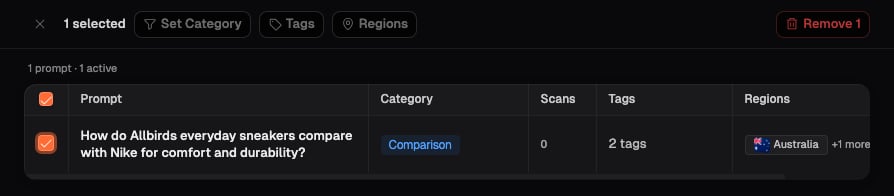 The group controls work as follows:
* **Set Category**: apply one Category to the selected prompts.
* **Tags**: add a tag to prompts that do not have it. If every selected prompt already has the tag, selecting it removes the tag from all of them.
* **Regions**: add a region to prompts that do not have it. If every selected prompt already has the region, selecting it removes the region from all of them.
* **Remove**: remove every selected prompt from the Prompt Library.
**Remove** applies to every selected prompt, including prompts with scan
history, and there is no additional confirmation step. Clear those prompts
from the selection and deactivate them in List view when you want to preserve
their earlier scan history.
## Add prompts to an intersection
Choose one of the two methods shown when the intersection needs another question:
* **Generate prompts with AI**: draft questions for this part of the grid.
* **Write your own prompts**: enter the exact question yourself.
The intersection fixes the Persona and current column value. You can still choose relevant details that the cell does not define. For example, a Persona by Product intersection can also be narrowed to a Journey stage and specific regions.
See [Generate prompts with AI](/prompts/generate-prompts-with-ai#generate-prompts-for-one-matrix-intersection) or [Write your own prompts](/prompts/write-your-own-prompts#write-from-a-matrix-cell) for the complete steps.
## Add, edit, or delete a Persona
### Add a Persona
1. Select **Add persona** beneath the Persona rows.
2. Enter a clear Persona name.
3. Add a description when it helps explain the customer's needs or goals.
4. Select **Add persona**.
The new Persona appears as another row. If **Add persona** is unavailable, hover over the control to see why.
### Edit or delete a Persona
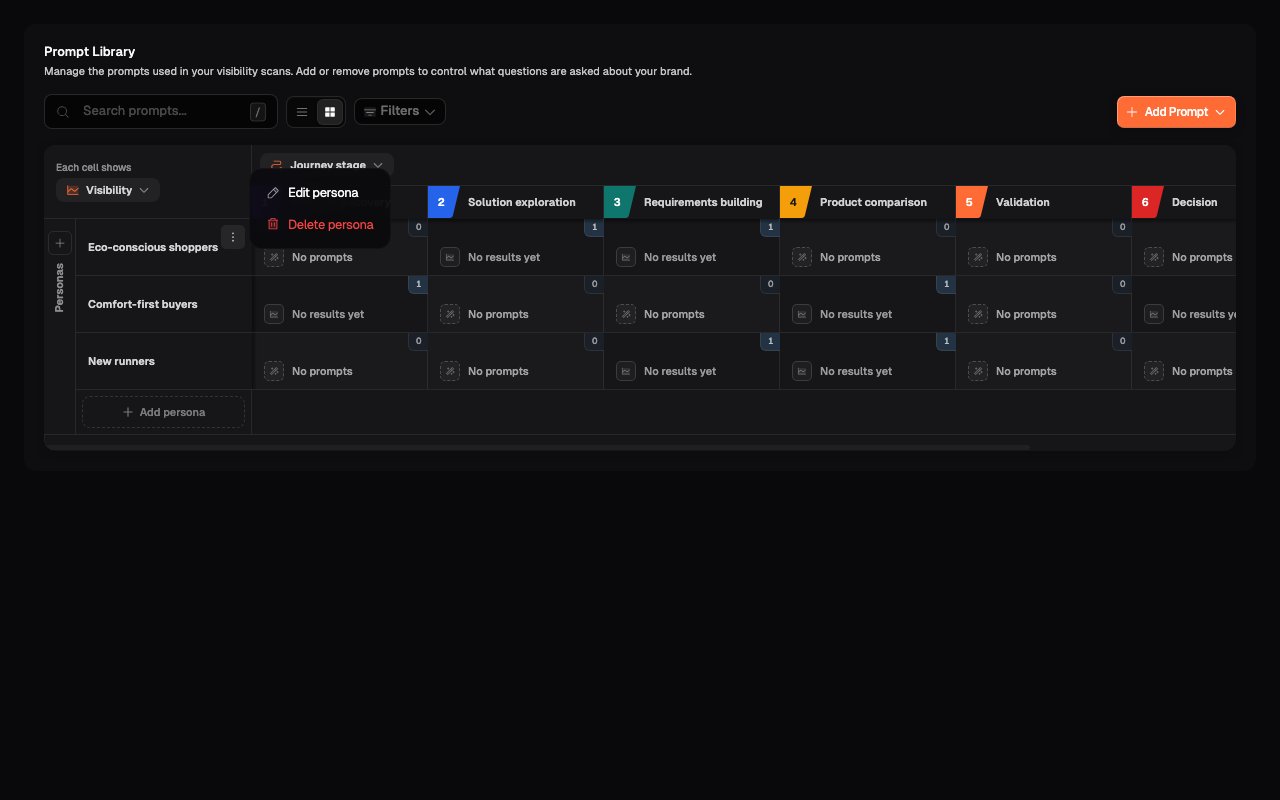
1. Hover over the Persona row, or move keyboard focus into it.
2. Open **Persona actions**.
3. Select **Edit persona** to update its name or description, or **Delete persona** to remove it.
The group controls work as follows:
* **Set Category**: apply one Category to the selected prompts.
* **Tags**: add a tag to prompts that do not have it. If every selected prompt already has the tag, selecting it removes the tag from all of them.
* **Regions**: add a region to prompts that do not have it. If every selected prompt already has the region, selecting it removes the region from all of them.
* **Remove**: remove every selected prompt from the Prompt Library.
**Remove** applies to every selected prompt, including prompts with scan
history, and there is no additional confirmation step. Clear those prompts
from the selection and deactivate them in List view when you want to preserve
their earlier scan history.
## Add prompts to an intersection
Choose one of the two methods shown when the intersection needs another question:
* **Generate prompts with AI**: draft questions for this part of the grid.
* **Write your own prompts**: enter the exact question yourself.
The intersection fixes the Persona and current column value. You can still choose relevant details that the cell does not define. For example, a Persona by Product intersection can also be narrowed to a Journey stage and specific regions.
See [Generate prompts with AI](/prompts/generate-prompts-with-ai#generate-prompts-for-one-matrix-intersection) or [Write your own prompts](/prompts/write-your-own-prompts#write-from-a-matrix-cell) for the complete steps.
## Add, edit, or delete a Persona
### Add a Persona
1. Select **Add persona** beneath the Persona rows.
2. Enter a clear Persona name.
3. Add a description when it helps explain the customer's needs or goals.
4. Select **Add persona**.
The new Persona appears as another row. If **Add persona** is unavailable, hover over the control to see why.
### Edit or delete a Persona
1. Hover over the Persona row, or move keyboard focus into it.
2. Open **Persona actions**.
3. Select **Edit persona** to update its name or description, or **Delete persona** to remove it.
 Before deletion, the confirmation dialog shows how many prompts:
* are linked to the Persona;
* will stay assigned through another Persona; and
* will move to **Unassigned**.
Before deletion, the confirmation dialog shows how many prompts:
* are linked to the Persona;
* will stay assigned through another Persona; and
* will move to **Unassigned**.
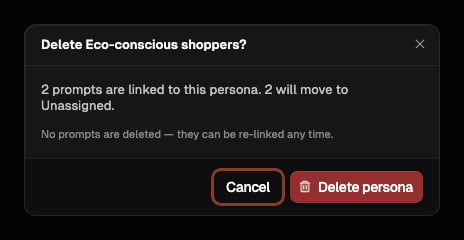 Deleting a Persona does not delete its prompts. It removes that Persona from the affected prompts.
## Add, edit, or delete a Product
1. Change the column grouping to **Product**.
2. Select **Add product** beside the Product selector or at the right edge of the Product columns.
3. To manage an existing Product, hover over its column heading or move keyboard focus into it.
4. Open **Product actions**, then select **Edit product** or **Delete product**.
Deleting a Persona does not delete its prompts. It removes that Persona from the affected prompts.
## Add, edit, or delete a Product
1. Change the column grouping to **Product**.
2. Select **Add product** beside the Product selector or at the right edge of the Product columns.
3. To manage an existing Product, hover over its column heading or move keyboard focus into it.
4. Open **Product actions**, then select **Edit product** or **Delete product**.
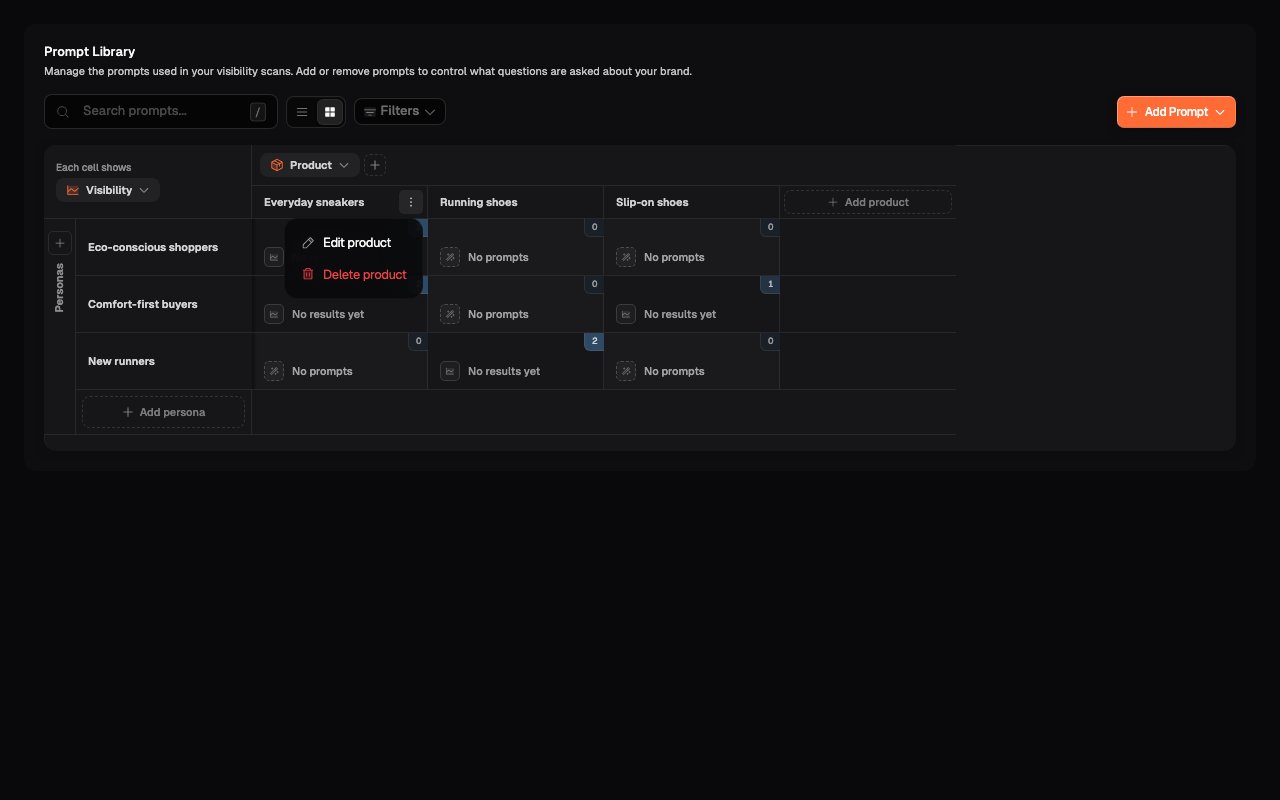 The deletion confirmation shows which prompts will stay under another Product and which will move to **Unassigned**. The prompts themselves are not deleted.
If **Add product** is unavailable, hover over the control to see why.
## Resolve unassigned prompts
The **Unassigned** card appears below the grid when at least one prompt is missing a Persona or the detail used for the current columns.
The deletion confirmation shows which prompts will stay under another Product and which will move to **Unassigned**. The prompts themselves are not deleted.
If **Add product** is unavailable, hover over the control to see why.
## Resolve unassigned prompts
The **Unassigned** card appears below the grid when at least one prompt is missing a Persona or the detail used for the current columns.
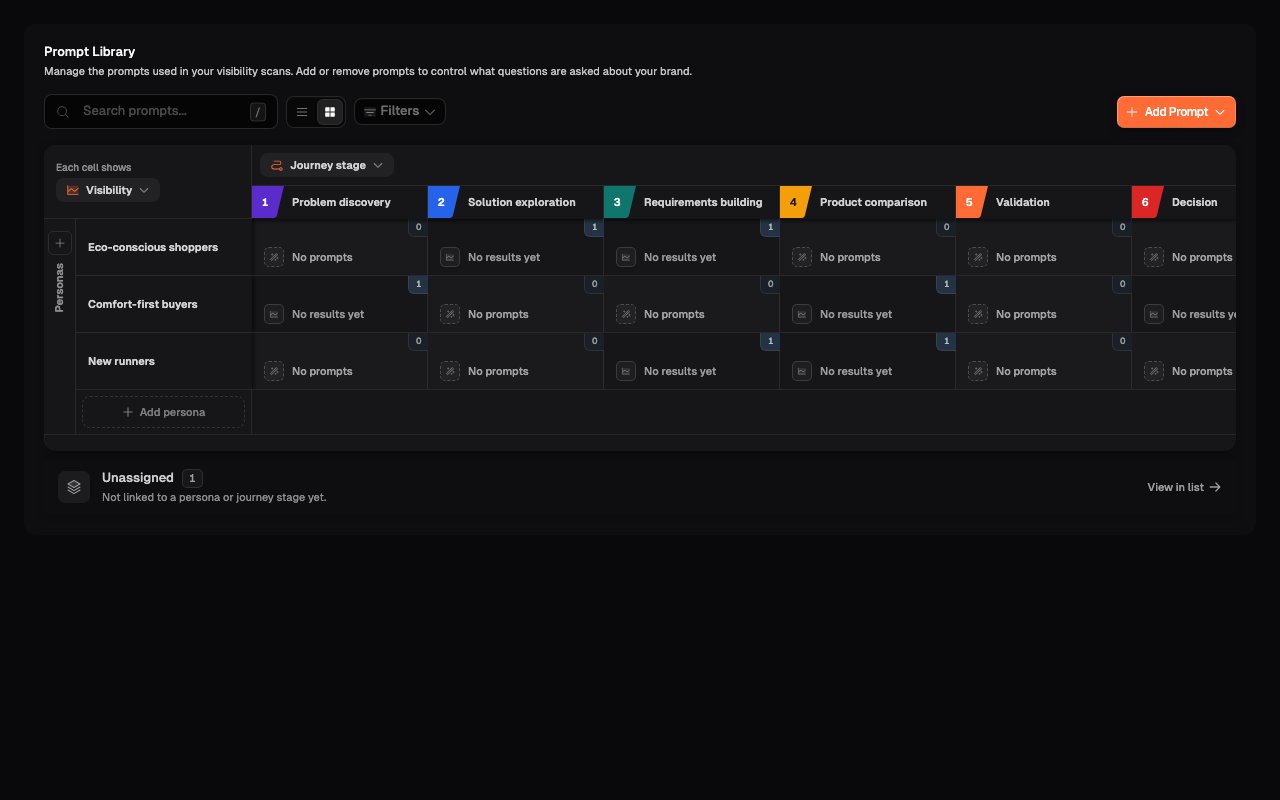 1. Select **View in list**. This opens the complete List view rather than a filtered list of unassigned prompts.
2. Use search and filters to find the question you need to correct.
3. If the prompt is missing a Region, add the Region from its row.
4. If it is missing a Persona, Product, or Journey stage, replace it with a correctly assigned prompt.
The regular Prompt Library does not currently edit Persona, Product, or Journey stage assignments on a saved prompt. Remove and recreate an unscanned prompt. If the prompt has scan history, deactivate it and add a replacement so the earlier results remain easy to interpret.
Check **Unassigned** before treating an empty cell as a genuine coverage gap. The question may already exist but lack the details needed to place it on the matrix.
## Confirm your changes
Return to the relevant column grouping and check that the prompt, Persona, or Product appears where you expected. Clear search and filters when you want to review the complete library.
## What's next
Decide which empty intersections represent meaningful customer questions.
Work with Categories, tags, regions, status, and scan history in List view.
This documentation is built and hosted on [Mintlify](https://mintlify.com), a developer documentation platform.
1. Select **View in list**. This opens the complete List view rather than a filtered list of unassigned prompts.
2. Use search and filters to find the question you need to correct.
3. If the prompt is missing a Region, add the Region from its row.
4. If it is missing a Persona, Product, or Journey stage, replace it with a correctly assigned prompt.
The regular Prompt Library does not currently edit Persona, Product, or Journey stage assignments on a saved prompt. Remove and recreate an unscanned prompt. If the prompt has scan history, deactivate it and add a replacement so the earlier results remain easy to interpret.
Check **Unassigned** before treating an empty cell as a genuine coverage gap. The question may already exist but lack the details needed to place it on the matrix.
## Confirm your changes
Return to the relevant column grouping and check that the prompt, Persona, or Product appears where you expected. Clear search and filters when you want to review the complete library.
## What's next
Decide which empty intersections represent meaningful customer questions.
Work with Categories, tags, regions, status, and scan history in List view.
This documentation is built and hosted on [Mintlify](https://mintlify.com), a developer documentation platform.