> ## Documentation Index
> Fetch the complete documentation index at: https://docs.onsomble.ai/llms.txt
> Use this file to discover all available pages before exploring further.
# Write your own prompts
> Add a customer question in your own words, place it in your prompt strategy, and confirm where it appears in the Prompt Library and Matrix view.
Use **Write your own** when you know the exact question you want AI assistants to answer. You write the wording and choose the details that connect the prompt to your Personas, journey stages, Products, tags, and regions.
Before adding a question, check that it represents a useful customer situation rather than another version of a prompt you already have. [Choose prompts by customer intent](/prompts/customer-intent) explains how to make that distinction.
## Choose where to start
| Start from | Use it when |
| - | - |
| **Prompt Library** | You know the question and want to choose all of its details yourself. |
| **A Matrix intersection** | You have found a coverage gap and want the new prompt placed in that specific customer situation. |
## Add a prompt from the Prompt Library
Open your Site, then select **Prompt Library** under **Scan Settings**.
Select **Add Prompt**, then select **Write your own**.
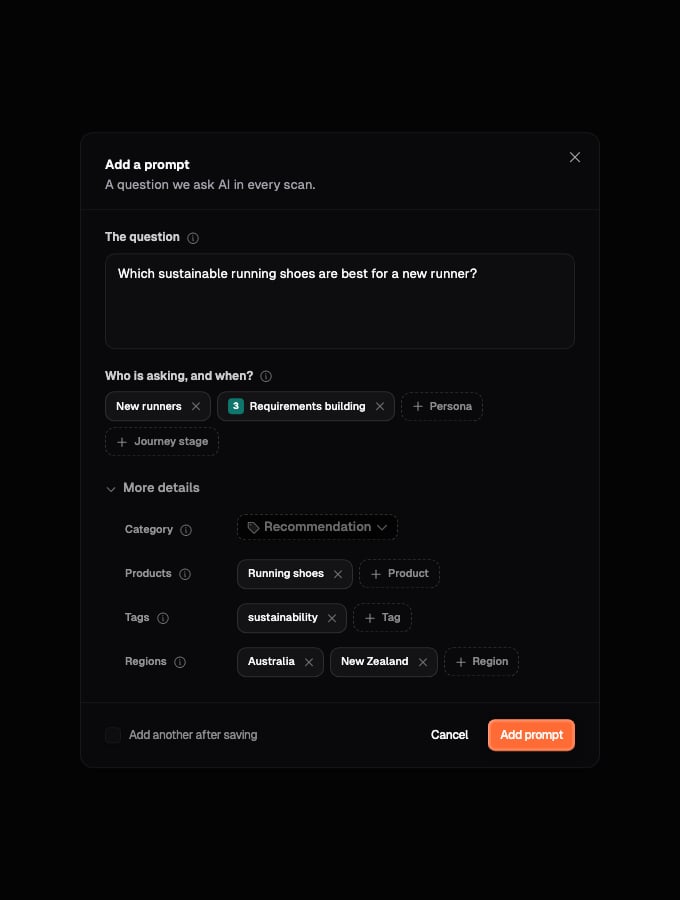
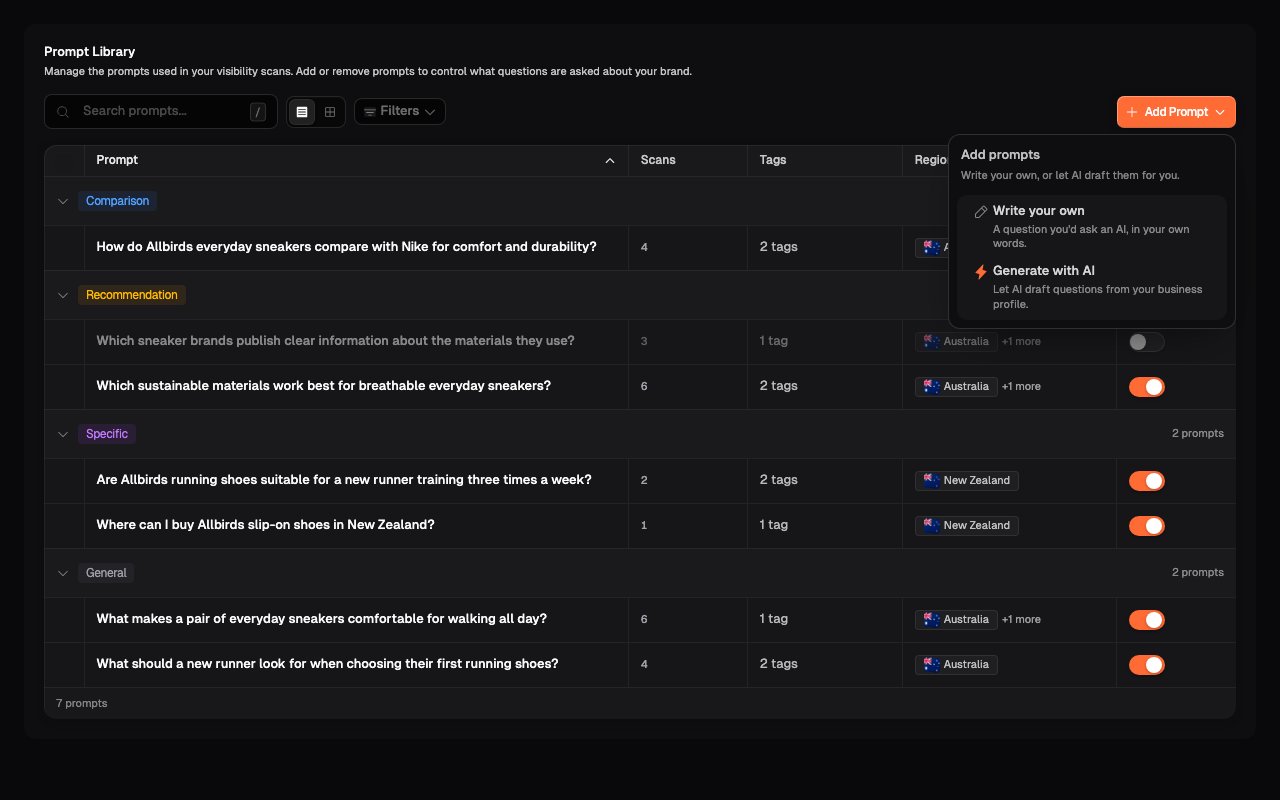 Under **The question**, enter the complete wording you want used in every
scan. Write it as a customer would naturally ask an AI assistant.
For example, write **Which sustainable running shoes are best for a new
runner?** rather than a keyword list such as **sustainable running shoes
beginner**.
Select one or more **Personas** when the question belongs to a particular
audience. Select one or more **journey stages** when it belongs to a
particular point in the customer's decision.
These selections place the prompt in the corresponding intersections in
Matrix view. Leave either detail empty when the question is not specific to
one Persona or stage.
Expand **More details**, then add the details that help you review coverage,
filter the library, and interpret results:
* **Category** describes the type of question.
* **Products** connects the question to one or more products or services.
* **Tags** adds your own short labels for topics or initiatives.
* **Regions** limits the prompt to particular markets when needed.
Under **The question**, enter the complete wording you want used in every
scan. Write it as a customer would naturally ask an AI assistant.
For example, write **Which sustainable running shoes are best for a new
runner?** rather than a keyword list such as **sustainable running shoes
beginner**.
Select one or more **Personas** when the question belongs to a particular
audience. Select one or more **journey stages** when it belongs to a
particular point in the customer's decision.
These selections place the prompt in the corresponding intersections in
Matrix view. Leave either detail empty when the question is not specific to
one Persona or stage.
Expand **More details**, then add the details that help you review coverage,
filter the library, and interpret results:
* **Category** describes the type of question.
* **Products** connects the question to one or more products or services.
* **Tags** adds your own short labels for topics or initiatives.
* **Regions** limits the prompt to particular markets when needed.
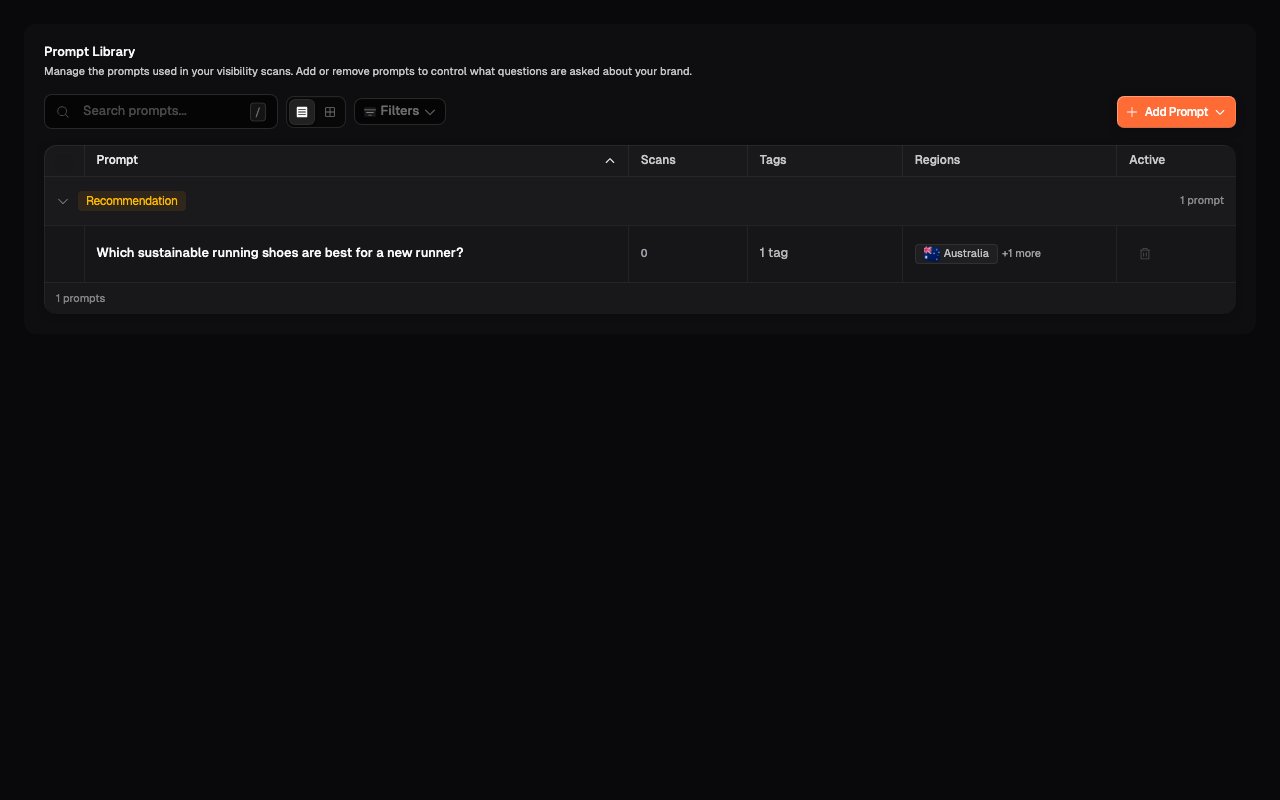
 Select **Add prompt**. The question appears in List view as an active prompt.
Its Category, tags, and regions are shown in the table, and its strategy
details determine where it appears in Matrix view.
Select **Add prompt**. The question appears in List view as an active prompt.
Its Category, tags, and regions are shown in the table, and its strategy
details determine where it appears in Matrix view.
 ## Choose the right Category
| Category | Use it for |
| - | - |
| **Comparison** | A question comparing brands, providers, products, or alternatives. |
| **Recommendation** | A question asking which option best fits a need. |
| **Specific** | A focused question about a particular product, issue, or situation. |
| **General** | A broad topic without a fixed comparison or recommendation. |
New prompts start as **General**. Change the Category when another description better matches the customer's question.
## Understand how Regions work
Regions determine where a prompt is run. During each scan, Onsomble runs the prompt separately in every region assigned to it, with every AI assistant included in the scan. For example, if you select Australia and New Zealand, the prompt is checked in both markets.
If you leave **Regions** empty, Onsomble treats the prompt as a global reference and runs it from the United States. Select one or more regions when you want the prompt to run separately in specific markets instead.
Selecting a region controls where the prompt runs. It does not mean the region name must appear in the question. Include a location in the wording only when it is a natural part of what the customer would ask.
## Add several related prompts
Turn on **Add another after saving** when you want to enter another question with the same setup. After each save, Onsomble clears **The question** but keeps the selected Personas, journey stages, Category, Products, tags, and regions.
Review those retained details before saving the next prompt. Turn off **Add another after saving**, or close the form, when you are finished.
## Add a missing Persona or Product
You can create a Persona or Product without leaving the prompt form.
Select **Persona** or **Product**, then search for the item you need.
Select the option to create a new Persona or Product. Enter a clear name and
add a short description of who the Persona represents or what the Product
is.
## Choose the right Category
| Category | Use it for |
| - | - |
| **Comparison** | A question comparing brands, providers, products, or alternatives. |
| **Recommendation** | A question asking which option best fits a need. |
| **Specific** | A focused question about a particular product, issue, or situation. |
| **General** | A broad topic without a fixed comparison or recommendation. |
New prompts start as **General**. Change the Category when another description better matches the customer's question.
## Understand how Regions work
Regions determine where a prompt is run. During each scan, Onsomble runs the prompt separately in every region assigned to it, with every AI assistant included in the scan. For example, if you select Australia and New Zealand, the prompt is checked in both markets.
If you leave **Regions** empty, Onsomble treats the prompt as a global reference and runs it from the United States. Select one or more regions when you want the prompt to run separately in specific markets instead.
Selecting a region controls where the prompt runs. It does not mean the region name must appear in the question. Include a location in the wording only when it is a natural part of what the customer would ask.
## Add several related prompts
Turn on **Add another after saving** when you want to enter another question with the same setup. After each save, Onsomble clears **The question** but keeps the selected Personas, journey stages, Category, Products, tags, and regions.
Review those retained details before saving the next prompt. Turn off **Add another after saving**, or close the form, when you are finished.
## Add a missing Persona or Product
You can create a Persona or Product without leaving the prompt form.
Select **Persona** or **Product**, then search for the item you need.
Select the option to create a new Persona or Product. Enter a clear name and
add a short description of who the Persona represents or what the Product
is.
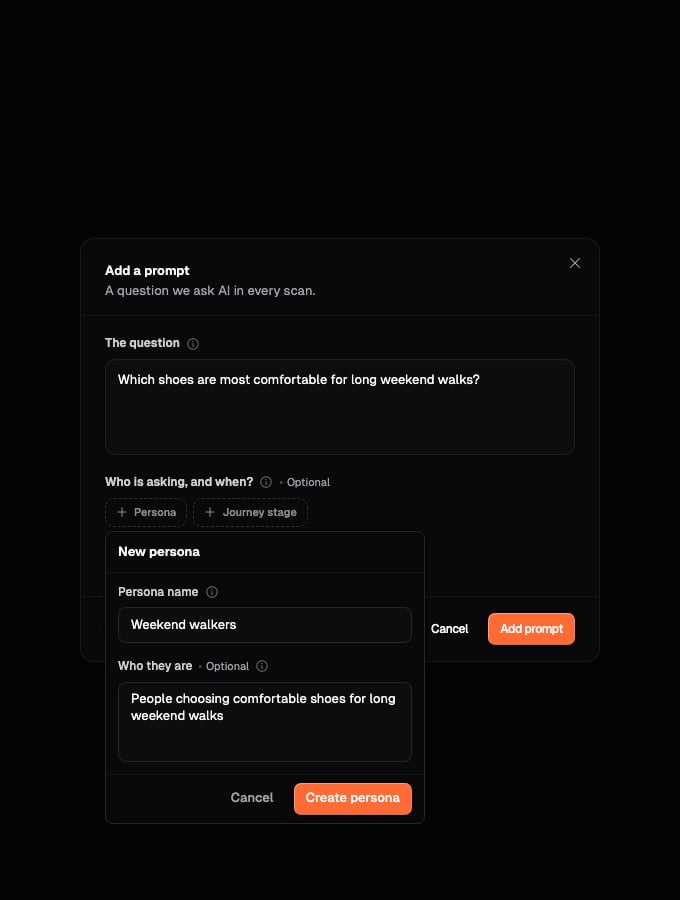 Select **Create persona** or **Create product**. The new item is saved,
selected on the prompt, and becomes available elsewhere in the Prompt
Library and Matrix view.
## Write a prompt from a Matrix intersection
Start from Matrix view when you have found a specific coverage gap. The intersection applies its Persona and column value to the new prompt automatically.
Open **Prompt Library**. In the two-icon view switch beside **Search
prompts**, select the grid icon labelled **Matrix view**.
See [Switch to Matrix view](/prompts/review-prompt-coverage#switch-to-matrix-view)
for a visual guide to the control.
Select the cell you want to add coverage to. The dialog header names the
Persona and the column value represented by that intersection.
Select **Write your own prompts** from the two available methods.
Select **Create persona** or **Create product**. The new item is saved,
selected on the prompt, and becomes available elsewhere in the Prompt
Library and Matrix view.
## Write a prompt from a Matrix intersection
Start from Matrix view when you have found a specific coverage gap. The intersection applies its Persona and column value to the new prompt automatically.
Open **Prompt Library**. In the two-icon view switch beside **Search
prompts**, select the grid icon labelled **Matrix view**.
See [Switch to Matrix view](/prompts/review-prompt-coverage#switch-to-matrix-view)
for a visual guide to the control.
Select the cell you want to add coverage to. The dialog header names the
Persona and the column value represented by that intersection.
Select **Write your own prompts** from the two available methods.
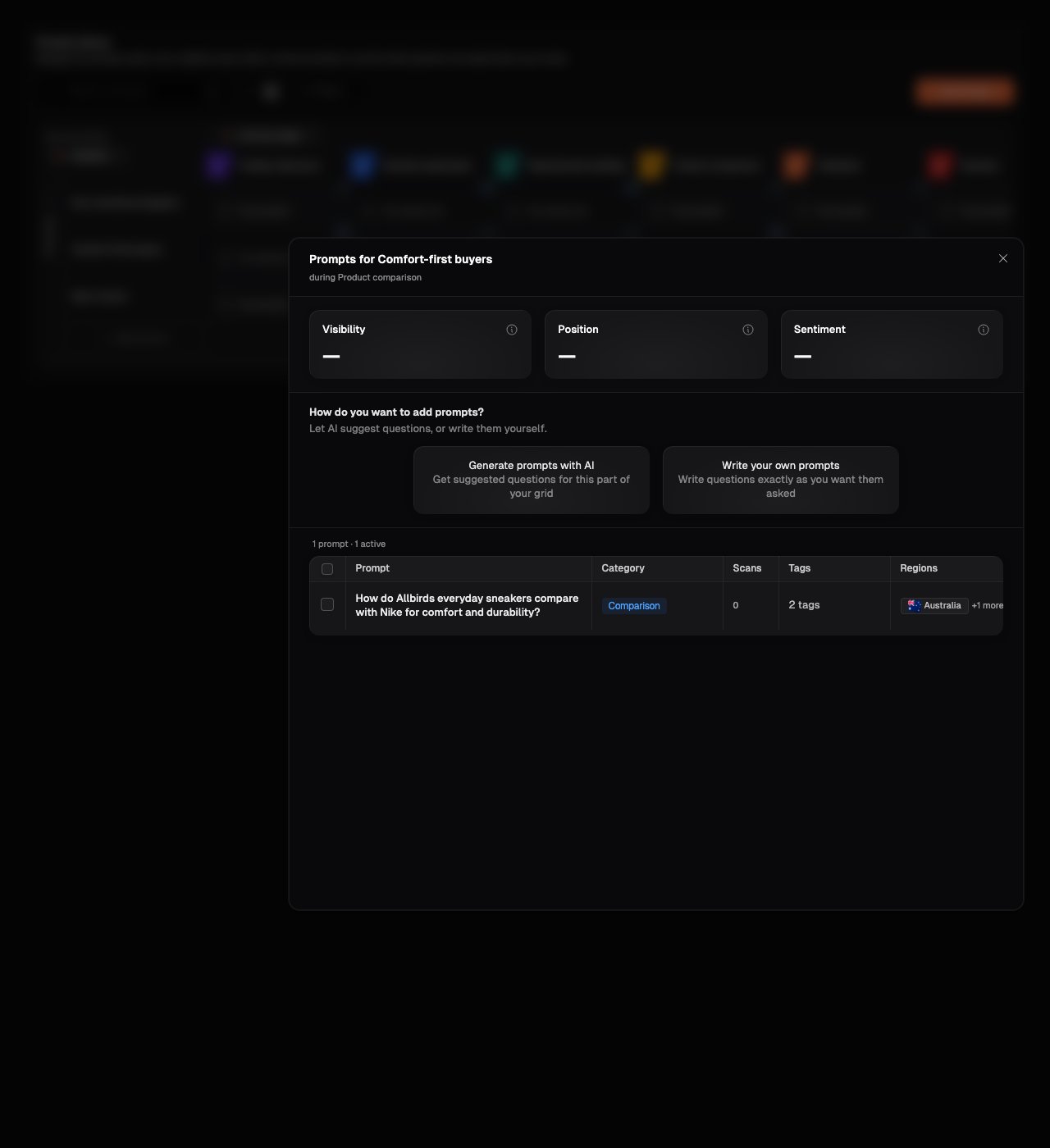 Enter the question, then expand **More details** if you need to add a
Category, Product, tag, or region that is not already fixed by the
intersection.
The form does not ask you to reselect the Persona or column value from the
cell. It only shows the additional details that remain available.
Enter the question, then expand **More details** if you need to add a
Category, Product, tag, or region that is not already fixed by the
intersection.
The form does not ask you to reselect the Persona or column value from the
cell. It only shows the additional details that remain available.
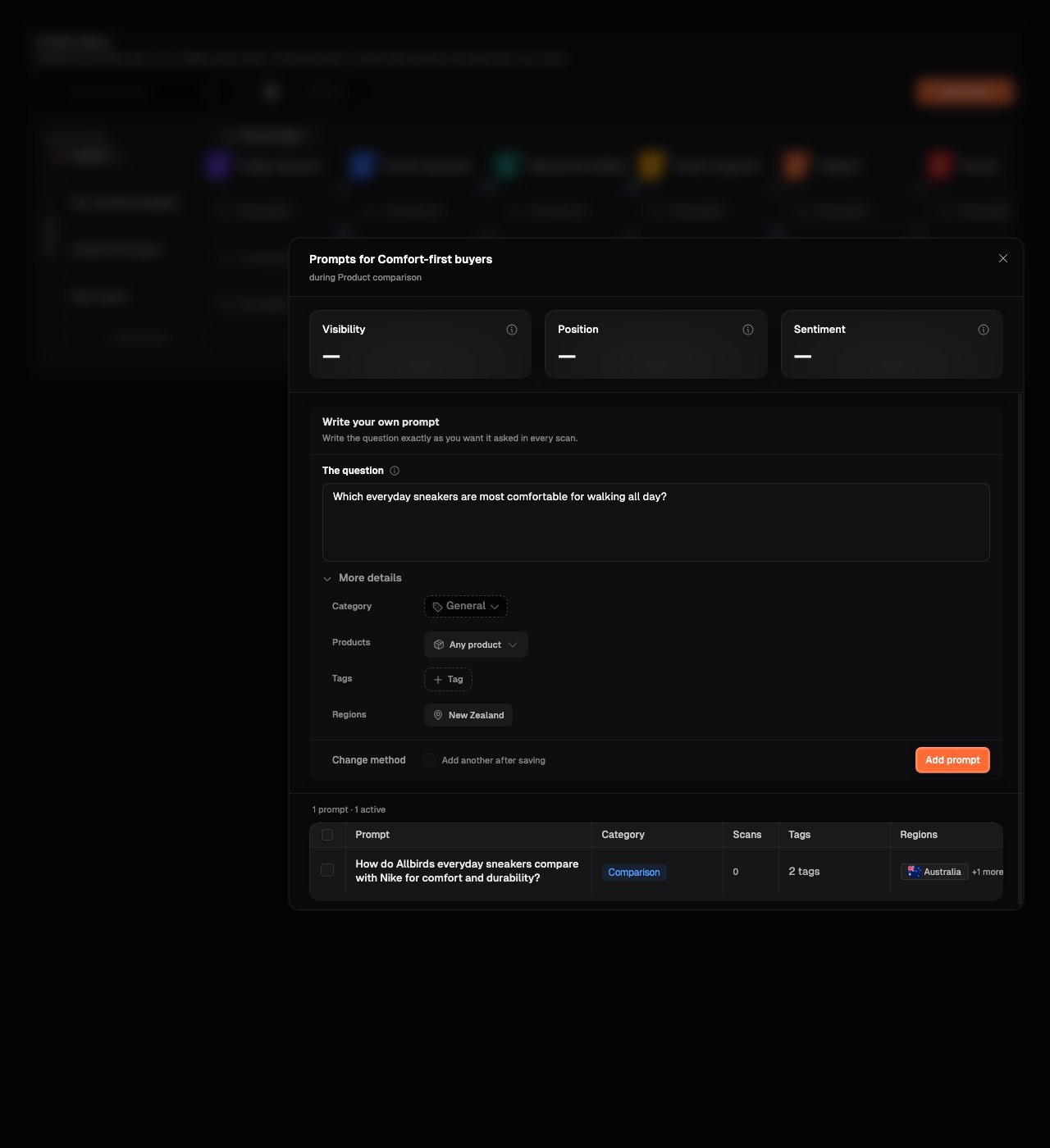 Select **Add prompt**. The question is added to the open intersection and
also appears in List view.
For example, a **Comfort-first buyers × Product comparison** cell already fixes the Persona and journey stage. You can still select a Product, tags, or regions when those details help define the question more precisely.
## If the prompt cannot be saved
* **Prompt text is required**: enter a question before saving.
* **Prompt must be at least 10 characters**: write the complete customer question rather than a short topic label.
* **This prompt already exists**: review the existing question instead of adding the same wording twice.
## What's next
Check where the new question sits and whether it fills a meaningful gap.
Find the prompt, update its organisation, or change whether it remains active.
This documentation is built and hosted on [Mintlify](https://mintlify.com), a developer documentation platform.
Select **Add prompt**. The question is added to the open intersection and
also appears in List view.
For example, a **Comfort-first buyers × Product comparison** cell already fixes the Persona and journey stage. You can still select a Product, tags, or regions when those details help define the question more precisely.
## If the prompt cannot be saved
* **Prompt text is required**: enter a question before saving.
* **Prompt must be at least 10 characters**: write the complete customer question rather than a short topic label.
* **This prompt already exists**: review the existing question instead of adding the same wording twice.
## What's next
Check where the new question sits and whether it fills a meaningful gap.
Find the prompt, update its organisation, or change whether it remains active.
This documentation is built and hosted on [Mintlify](https://mintlify.com), a developer documentation platform.