> ## Documentation Index
> Fetch the complete documentation index at: https://docs.onsomble.ai/llms.txt
> Use this file to discover all available pages before exploring further.
# Tracking recommendations
> Once you approve a recommendation, each scan re-reads where you stand and shows whether the work moved your standing.
When you approve a recommendation, Onsomble starts tracking it. From then on, every scan re-reads where your brand stands on that question, so you can see whether the work you did actually moved the answer. The progress page is where that story lives.
 ## Where you stand, scan by scan
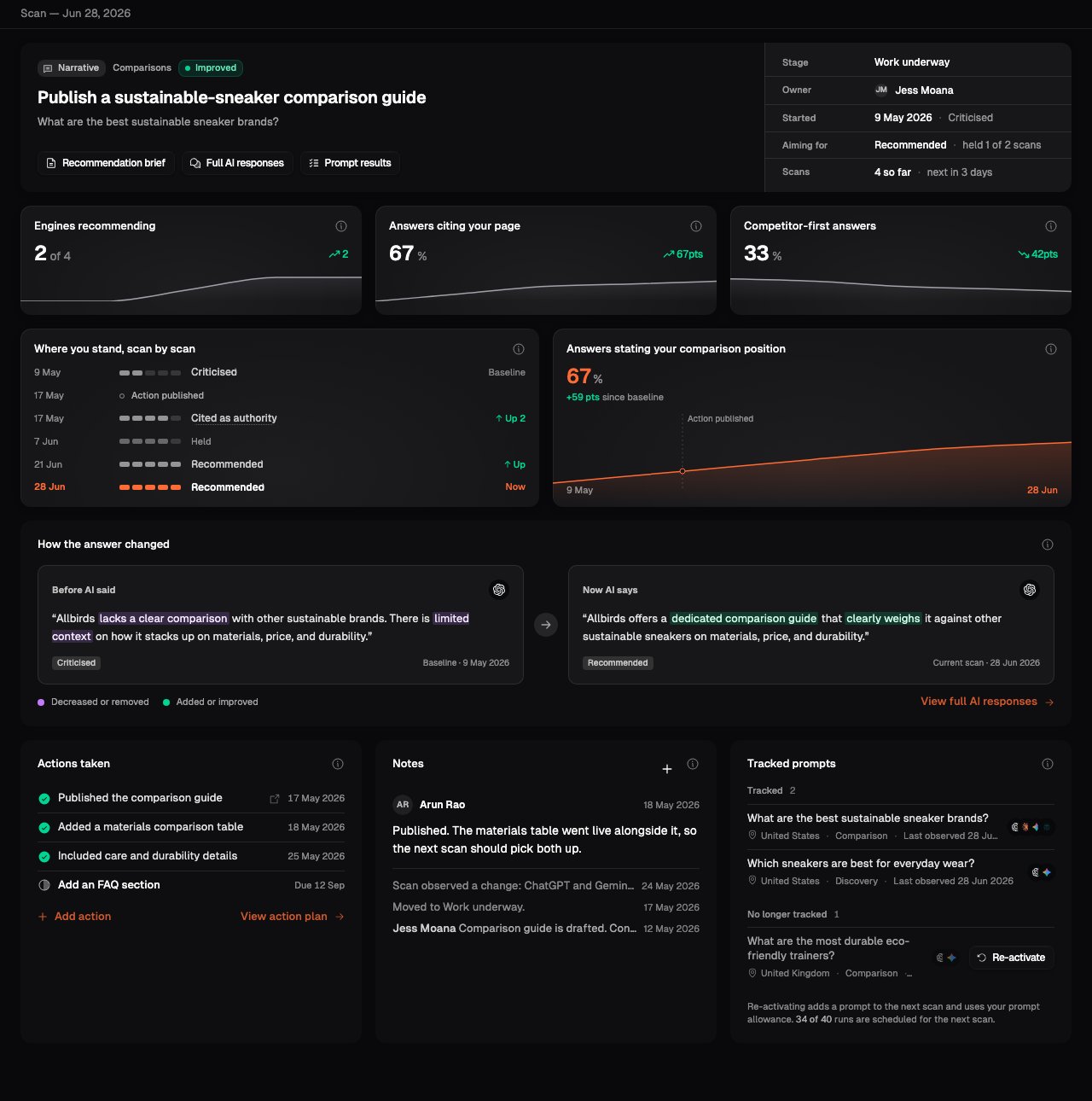
The top of the page shows the recommendation's standing at every scan since its baseline, with the milestone where your action went live. Alongside it, a small set of measures show the movement that matters for this question, such as how many engines now recommend you and the share of answers that cite your page.
Progress is measured from the scan that raised the recommendation. Standing can move at different times across assistants, and a change between scans does not by itself prove your work caused it.
## How the answer changed
This panel puts a representative answer from the baseline scan beside the most recent one, with the language that changed marked in place: added or improved wording on one side, decreased or removed wording on the other. It is the quickest way to see, in the assistants' own words, what moved.
## Record the actions you take
The **Actions taken** panel is where you record the work you do, so later scans can be read against it.
Select **Add action** and record what you did or plan to do: a title, an
optional description, a status, an optional date, and any references such as
the page you published.
Mark each action **Planned**, **In progress** or **Done**, so the panel
reflects where the work really is.
Select an action's title to open it again. Hovering the title shows its
description. Change any field and save, or remove the action if it no longer
applies.
Record actions as you do them, with the date. The clearer the record, the
easier it is to tell later whether a change in standing followed your work.
## Notes and tracked prompts
* **Notes** is a running log for this recommendation. Add your own, and Onsomble adds system entries when the recommendation moves or a scan observes a change.
* **Tracked prompts** lists the questions this recommendation is measured on. If a prompt stops being tracked, you can re-activate it so the next scan includes it again, within your plan's allowance.
## Confirm the result
Once your standing has held at the target across enough scans, the recommendation is ready to confirm. Review the evidence, then confirm it from the board or the progress header. Confirming moves the recommendation to **Proven**.
If the result does not hold, re-check the answers and the references. The change may not have been picked up yet, the evidence may conflict across sources, or the original recommendation may not have addressed the real issue.
## What's next
See how tracked recommendations move through the workflow columns.
Compare your metrics across scans as the work lands.
This documentation is built and hosted on [Mintlify](https://mintlify.com), a developer documentation platform.
## Where you stand, scan by scan
The top of the page shows the recommendation's standing at every scan since its baseline, with the milestone where your action went live. Alongside it, a small set of measures show the movement that matters for this question, such as how many engines now recommend you and the share of answers that cite your page.
Progress is measured from the scan that raised the recommendation. Standing can move at different times across assistants, and a change between scans does not by itself prove your work caused it.
## How the answer changed
This panel puts a representative answer from the baseline scan beside the most recent one, with the language that changed marked in place: added or improved wording on one side, decreased or removed wording on the other. It is the quickest way to see, in the assistants' own words, what moved.
## Record the actions you take
The **Actions taken** panel is where you record the work you do, so later scans can be read against it.
Select **Add action** and record what you did or plan to do: a title, an
optional description, a status, an optional date, and any references such as
the page you published.
Mark each action **Planned**, **In progress** or **Done**, so the panel
reflects where the work really is.
Select an action's title to open it again. Hovering the title shows its
description. Change any field and save, or remove the action if it no longer
applies.
Record actions as you do them, with the date. The clearer the record, the
easier it is to tell later whether a change in standing followed your work.
## Notes and tracked prompts
* **Notes** is a running log for this recommendation. Add your own, and Onsomble adds system entries when the recommendation moves or a scan observes a change.
* **Tracked prompts** lists the questions this recommendation is measured on. If a prompt stops being tracked, you can re-activate it so the next scan includes it again, within your plan's allowance.
## Confirm the result
Once your standing has held at the target across enough scans, the recommendation is ready to confirm. Review the evidence, then confirm it from the board or the progress header. Confirming moves the recommendation to **Proven**.
If the result does not hold, re-check the answers and the references. The change may not have been picked up yet, the evidence may conflict across sources, or the original recommendation may not have addressed the real issue.
## What's next
See how tracked recommendations move through the workflow columns.
Compare your metrics across scans as the work lands.
This documentation is built and hosted on [Mintlify](https://mintlify.com), a developer documentation platform.