> ## Documentation Index
> Fetch the complete documentation index at: https://docs.onsomble.ai/llms.txt
> Use this file to discover all available pages before exploring further.
# How scans work
> What a discoverability scan is made of, what it produces, and how your plan shapes it.
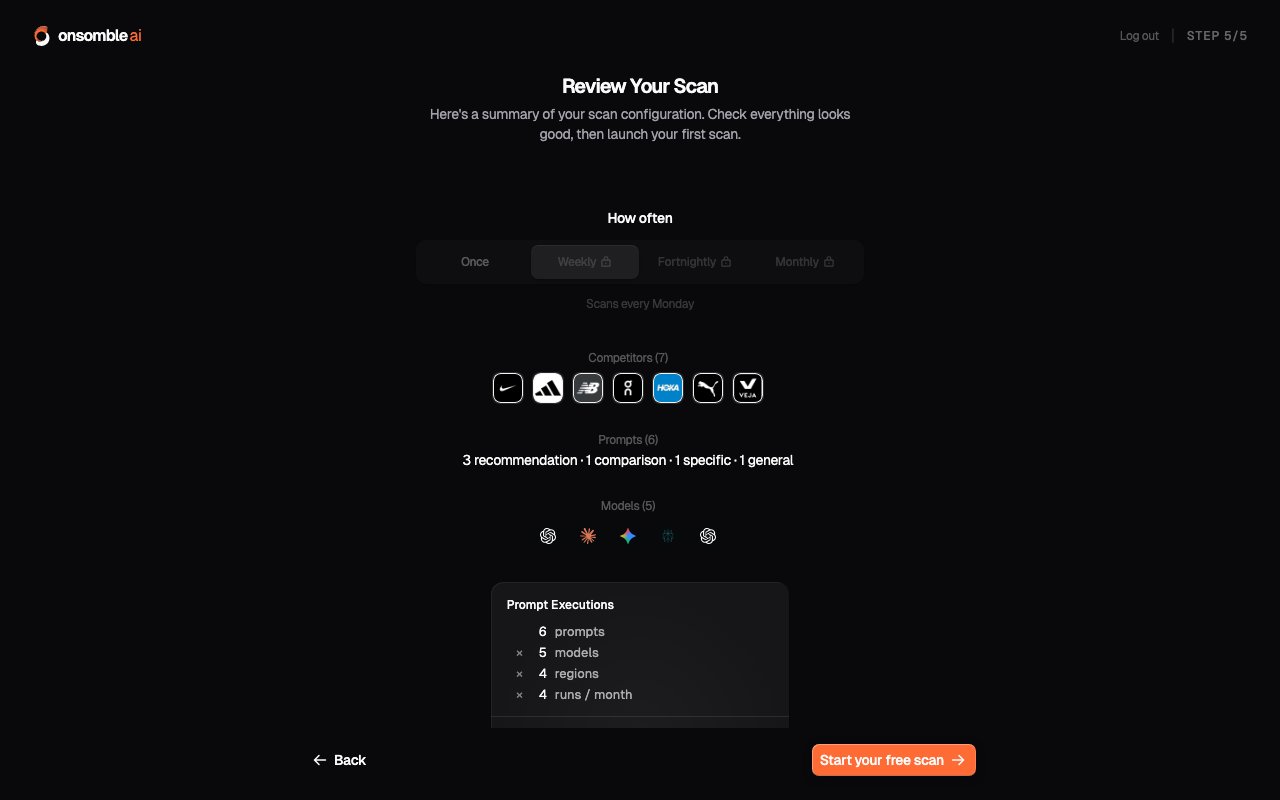
A **scan** is a run of Onsomble's discoverability check. It takes every active prompt in your [Prompt Library](/scans/prompt-library), sends each one to every enabled [model](/scans/models), captures the full responses, and analyses them: who was mentioned, how prominently, in what tone, and citing which sources.
Each prompt-model-region combination is one unit of work in the run. More prompts, more models, and more regions mean a bigger, richer scan, and a longer run.
 ## What a scan produces
When a scan completes, it refreshes every page under **Insights** for the Site:
* The **Overview** headline: visibility, share of voice, and sentiment at a glance
* The **[Brand Scorecard](/results/brand-scorecard)** trend lines against competitors
* **[Narrative](/results/narrative)**, **[References](/results/references)**, **[Prompt Results](/results/prompt-results)**, and **[Region Exploration](/results/region-exploration)** detail views
* Fresh **[Recommendations](/results/recommendations)** based on what changed
While a scan is running, the insights pages show a progress banner. Results appear as soon as the run finishes.
## The four configuration surfaces
Everything a scan does is controlled from the **Scan Settings** group in the Site's sidebar. Each page is covered in its own guide:
The businesses each scan measures you against, including ones Onsomble
discovers for you.
The questions each scan asks, and the wizard that generates them from your
business profile.
Which AI assistants each scan queries.
How often scans run automatically, and the history of every run.
Configuration changes save to the Site's active scan configuration and take effect from the next run. They don't alter past results, so your history stays comparable.
## Scans and your plan
Your plan shapes how much scanning you can do:
* **Your first scan is free** on every account: it runs during onboarding with no card required.
* **Scan size**: how many prompts and models each scan can cover: is governed by plan entitlements. Where you're at a limit, the app offers an upgrade rather than a hard stop.
* **Recurring schedules** are available on paid plans; see [Schedule](/scans/schedule).
See [Plans and entitlements](/account/plans-and-entitlements) for how entitlements work.
Model behaviour changes as providers update their systems. A scan that returns
one picture today may look different in a few months even without any action
on your side. This is exactly why recurring scans matter: one-off scans are a
snapshot, trends are the signal.
## What's next
How to read what comes back from each scan.
Set a recurring cadence and review past runs.
## What a scan produces
When a scan completes, it refreshes every page under **Insights** for the Site:
* The **Overview** headline: visibility, share of voice, and sentiment at a glance
* The **[Brand Scorecard](/results/brand-scorecard)** trend lines against competitors
* **[Narrative](/results/narrative)**, **[References](/results/references)**, **[Prompt Results](/results/prompt-results)**, and **[Region Exploration](/results/region-exploration)** detail views
* Fresh **[Recommendations](/results/recommendations)** based on what changed
While a scan is running, the insights pages show a progress banner. Results appear as soon as the run finishes.
## The four configuration surfaces
Everything a scan does is controlled from the **Scan Settings** group in the Site's sidebar. Each page is covered in its own guide:
The businesses each scan measures you against, including ones Onsomble
discovers for you.
The questions each scan asks, and the wizard that generates them from your
business profile.
Which AI assistants each scan queries.
How often scans run automatically, and the history of every run.
Configuration changes save to the Site's active scan configuration and take effect from the next run. They don't alter past results, so your history stays comparable.
## Scans and your plan
Your plan shapes how much scanning you can do:
* **Your first scan is free** on every account: it runs during onboarding with no card required.
* **Scan size**: how many prompts and models each scan can cover: is governed by plan entitlements. Where you're at a limit, the app offers an upgrade rather than a hard stop.
* **Recurring schedules** are available on paid plans; see [Schedule](/scans/schedule).
See [Plans and entitlements](/account/plans-and-entitlements) for how entitlements work.
Model behaviour changes as providers update their systems. A scan that returns
one picture today may look different in a few months even without any action
on your side. This is exactly why recurring scans matter: one-off scans are a
snapshot, trends are the signal.
## What's next
How to read what comes back from each scan.
Set a recurring cadence and review past runs.