> ## Documentation Index
> Fetch the complete documentation index at: https://docs.onsomble.ai/llms.txt
> Use this file to discover all available pages before exploring further.
# Site setup and profile
> How Onsomble drafts a business profile, what each field controls, and how to update it from Site Settings.
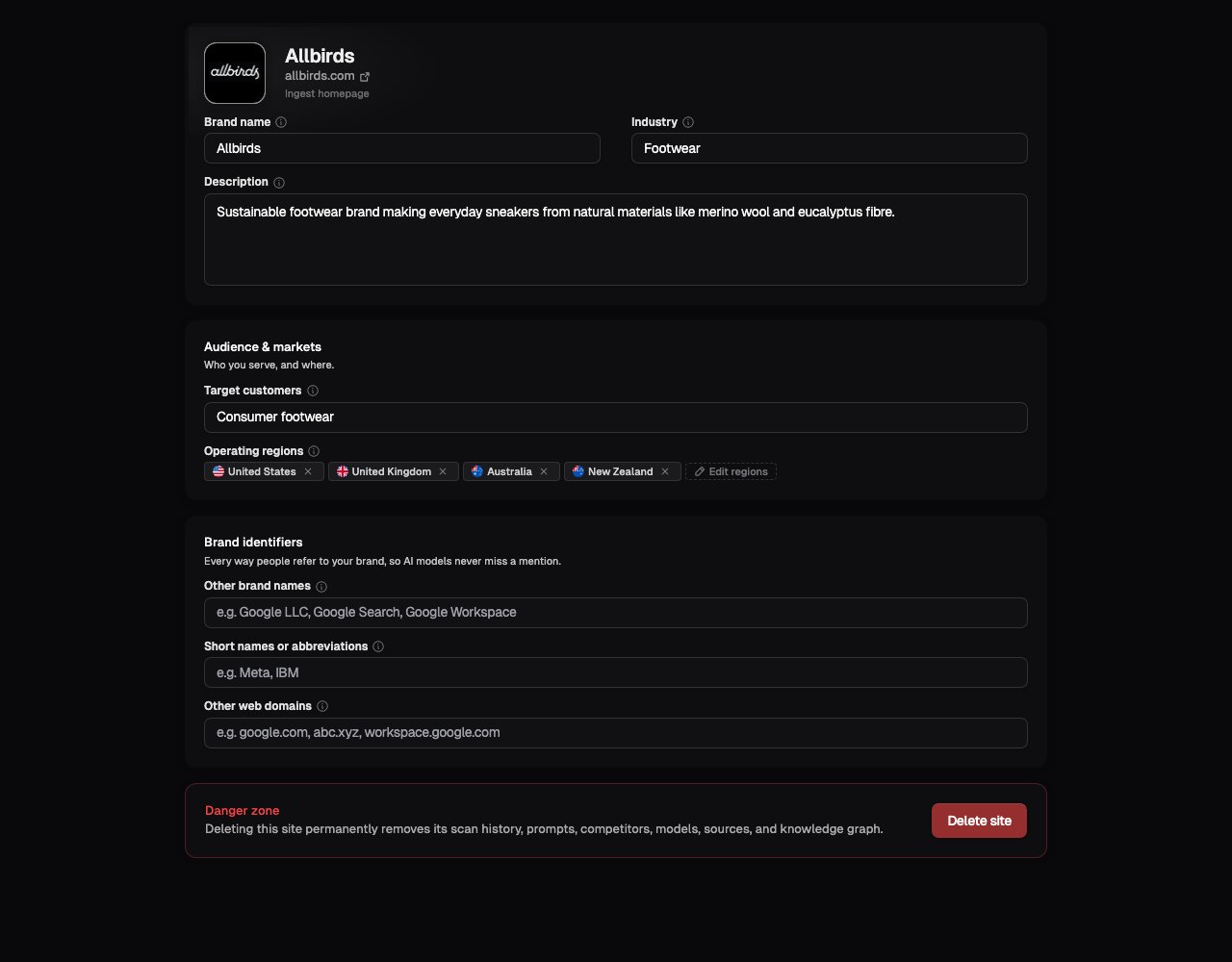
When you add a Site, Onsomble reads public information from the business's website and drafts a **business profile**. Review the profile before creating the Site, then update it later from **Site Settings** when the business changes.
The profile gives Onsomble the business context used for competitor suggestions and prompt generation. The brand name and aliases also help Onsomble match the business in scan responses. The initial draft may be incomplete, especially when a website has limited or outdated information, so check each field before confirming it.
 ## How the first profile is created
Site creation starts with a public website URL. Onsomble reads available information about what the business does, who it serves, and where it operates. It then presents an editable profile before you confirm the Site.
The initial profile contains the business name, industry, description, target customers, and operating regions. During first account setup, confirming it continues to competitor and prompt configuration. When you add another Site later, confirming it creates the Site and opens its Overview.
If the wrong business appears, use **Not your site?** or **Wrong site?** to return to URL entry. This discards the draft so you can research a different website.
## The business profile
Open **Site Settings** to review or change:
* **Brand name** and **Industry**: the business identity used in the Site and its scan configuration.
* **Target customers** and **Operating regions**: who the business serves and where it operates. Select **Edit regions** to search for and choose markets.
* **Description**: a short account of what the business does.
The **Brand identifiers** section is explained on its own below.
## Brand identifiers: helping Onsomble spot your brand
AI assistants do not always call your business by its exact name. They might use a shorter version, an old name, or a sister website. A scan can only count a mention when Onsomble recognises that the AI is talking about you, so these fields tell it every way your brand shows up. The better they are filled in, the more your Visibility, Sentiment, and Share of Voice reflect what is really being said about you.
There are three fields, and each one is for a different kind of name:
* **Other brand names**: other full names that always mean your business, like a spelled-out version, an old name, or a product line people treat as the brand. Onsomble counts every one of these as a mention of you. For example, a company now called "Meta" might add its former name "Facebook".
* **Short names or abbreviations**: short names or initials that could also mean something else, like a stock ticker, or a brand name that is also an everyday word (a clothing label called "Gap", for instance). Onsomble only counts these when the rest of the sentence makes it clear the AI means you. That way a common word is not counted as your brand every single time it appears. This is why short names are kept separate from full names.
* **Other web domains**: other websites your business owns. When an AI assistant points to one of them as a source, Onsomble knows that source is yours, and it shows up in [References](/results/references). Your main website is already covered, so only add the extras here.
Both mistakes cost you. Leave out a name people actually use, and Onsomble misses those mentions, so your scores look worse than reality. Add a name that is not clearly yours, and Onsomble counts other businesses' mentions as yours, so your scores look better than reality.
Only add a name to **Other brand names** if it always means your business and
nothing else. If a name is short or could belong to someone else, put it under
**Short names or abbreviations** instead, and Onsomble will check the context
before counting it.
## Saving profile changes
Profile fields save when you finish editing them. A status in each section's header shows whether the change is saving, saved, or failed.
Changing the profile does not delete completed scans. Brand names and aliases can affect how Onsomble identifies the business in future scan processing. Other context fields can affect competitor and prompt suggestions, so review the profile before configuring the next scan.
## Ingesting or refreshing the homepage
The Site domain appears at the top of **Site Settings**. Select **Ingest homepage** to store its current public content. If the homepage has already been ingested, use **Refresh homepage content** to read it again.
Refreshing homepage content does not edit the business profile or start a scan. Review the profile separately if the business name, audience, services, or operating regions have changed.
## If website research fails
Use the message shown during Site creation to correct the URL and try again. These checks cover the most common causes:
Enter the public root URL, including the domain. Check for a spelling error or an incomplete address before retrying.
Open the URL in a private browser window. Onsomble cannot research pages that
require a login. Website security or crawler protection may also prevent
access even when the page opens for you.
A small or outdated website may produce a limited draft. Correct the available fields before creating the Site, then add any brand aliases from **Site Settings**.
If repeated attempts fail, contact [support@onsomble.ai](mailto:support@onsomble.ai) with the website URL and the error shown during creation.
## Keeping the profile current
Update the profile when the business changes its name, audience, services, domains, or operating regions. Completed scans remain in the Site's history, but future scans use the current configuration. Keep a note of material profile changes when comparing results across time.
## What's next
Move between Sites, update their names, and delete a Site when required.
See how prompts, models, regions, and competitors form a scan.
## How the first profile is created
Site creation starts with a public website URL. Onsomble reads available information about what the business does, who it serves, and where it operates. It then presents an editable profile before you confirm the Site.
The initial profile contains the business name, industry, description, target customers, and operating regions. During first account setup, confirming it continues to competitor and prompt configuration. When you add another Site later, confirming it creates the Site and opens its Overview.
If the wrong business appears, use **Not your site?** or **Wrong site?** to return to URL entry. This discards the draft so you can research a different website.
## The business profile
Open **Site Settings** to review or change:
* **Brand name** and **Industry**: the business identity used in the Site and its scan configuration.
* **Target customers** and **Operating regions**: who the business serves and where it operates. Select **Edit regions** to search for and choose markets.
* **Description**: a short account of what the business does.
The **Brand identifiers** section is explained on its own below.
## Brand identifiers: helping Onsomble spot your brand
AI assistants do not always call your business by its exact name. They might use a shorter version, an old name, or a sister website. A scan can only count a mention when Onsomble recognises that the AI is talking about you, so these fields tell it every way your brand shows up. The better they are filled in, the more your Visibility, Sentiment, and Share of Voice reflect what is really being said about you.
There are three fields, and each one is for a different kind of name:
* **Other brand names**: other full names that always mean your business, like a spelled-out version, an old name, or a product line people treat as the brand. Onsomble counts every one of these as a mention of you. For example, a company now called "Meta" might add its former name "Facebook".
* **Short names or abbreviations**: short names or initials that could also mean something else, like a stock ticker, or a brand name that is also an everyday word (a clothing label called "Gap", for instance). Onsomble only counts these when the rest of the sentence makes it clear the AI means you. That way a common word is not counted as your brand every single time it appears. This is why short names are kept separate from full names.
* **Other web domains**: other websites your business owns. When an AI assistant points to one of them as a source, Onsomble knows that source is yours, and it shows up in [References](/results/references). Your main website is already covered, so only add the extras here.
Both mistakes cost you. Leave out a name people actually use, and Onsomble misses those mentions, so your scores look worse than reality. Add a name that is not clearly yours, and Onsomble counts other businesses' mentions as yours, so your scores look better than reality.
Only add a name to **Other brand names** if it always means your business and
nothing else. If a name is short or could belong to someone else, put it under
**Short names or abbreviations** instead, and Onsomble will check the context
before counting it.
## Saving profile changes
Profile fields save when you finish editing them. A status in each section's header shows whether the change is saving, saved, or failed.
Changing the profile does not delete completed scans. Brand names and aliases can affect how Onsomble identifies the business in future scan processing. Other context fields can affect competitor and prompt suggestions, so review the profile before configuring the next scan.
## Ingesting or refreshing the homepage
The Site domain appears at the top of **Site Settings**. Select **Ingest homepage** to store its current public content. If the homepage has already been ingested, use **Refresh homepage content** to read it again.
Refreshing homepage content does not edit the business profile or start a scan. Review the profile separately if the business name, audience, services, or operating regions have changed.
## If website research fails
Use the message shown during Site creation to correct the URL and try again. These checks cover the most common causes:
Enter the public root URL, including the domain. Check for a spelling error or an incomplete address before retrying.
Open the URL in a private browser window. Onsomble cannot research pages that
require a login. Website security or crawler protection may also prevent
access even when the page opens for you.
A small or outdated website may produce a limited draft. Correct the available fields before creating the Site, then add any brand aliases from **Site Settings**.
If repeated attempts fail, contact [support@onsomble.ai](mailto:support@onsomble.ai) with the website URL and the error shown during creation.
## Keeping the profile current
Update the profile when the business changes its name, audience, services, domains, or operating regions. Completed scans remain in the Site's history, but future scans use the current configuration. Keep a note of material profile changes when comparing results across time.
## What's next
Move between Sites, update their names, and delete a Site when required.
See how prompts, models, regions, and competitors form a scan.