Canvas
Spreadsheets
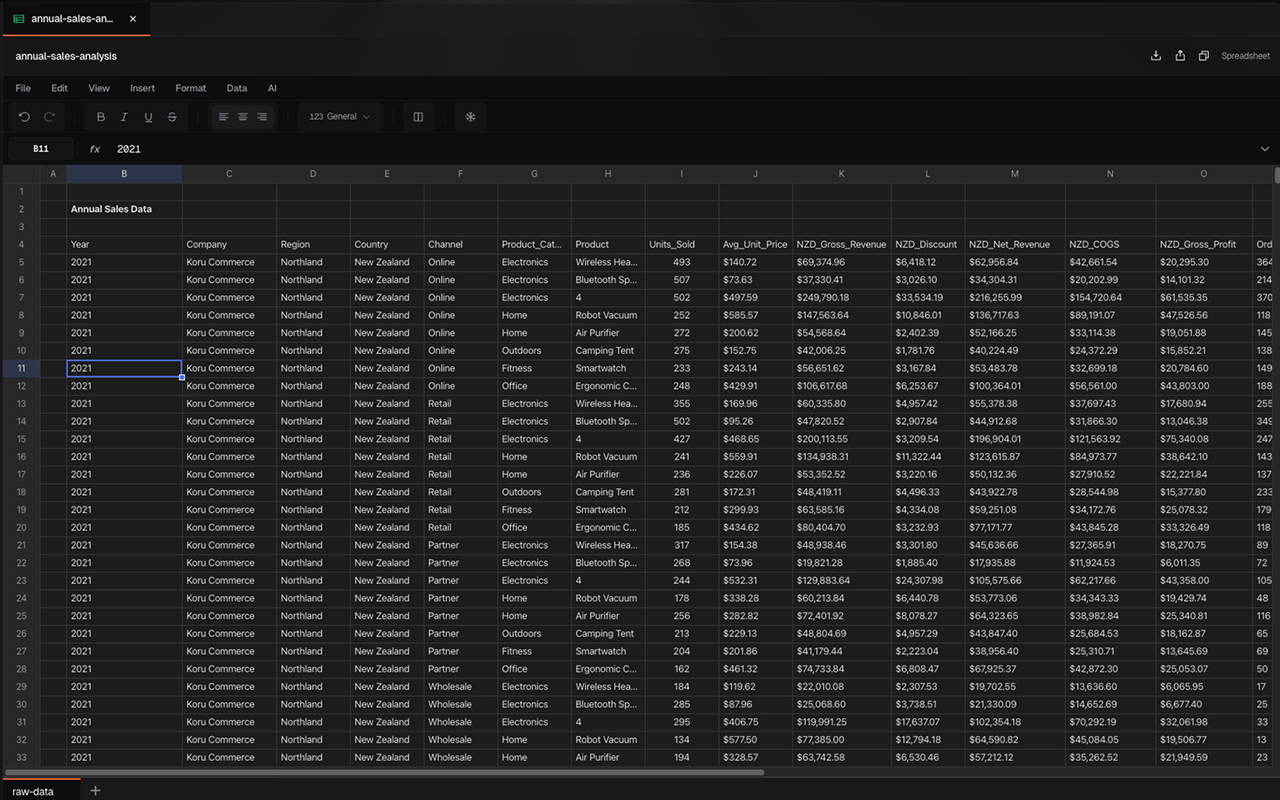
A full spreadsheet right in your notebook. Use the same formulas you know from Excel.
What You Get
The spreadsheet works like Excel or Google Sheets. Type data, write formulas, and organize with tables. It handles 100,000+ rows without slowing down.
Features at a Glance
100+ Formulas
SUM, VLOOKUP, IF, and all the functions you know
Tables
Add filters, sorting, and totals with one click
Multiple Sheets
Organize data across tabs in the same file
Import & Export
Open and save Excel (.xlsx) and CSV files
Get Started in 60 Seconds
Create a spreadsheet
In your notebook, click + → Spreadsheet.
Enter data
Click a cell and type. Press Tab to move right, Enter to move down.
Add a formula
Type = then your formula. Example: =SUM(A1:A10) adds up cells A1 through A10.
Make it a table
Select your data. Click Insert → Create Table. Now you can filter and sort.
The Basics
Editing Cells
| To do this… | Do this |
|---|---|
| Edit a cell | Double-click it, or press F2 |
| Move right | Press Tab |
| Move down | Press Enter |
| Cancel an edit | Press Escape |
| Navigate | Use arrow keys |
Writing Formulas
Start with = and type your formula:
=SUM(A1:A10)              Add up a range
=AVERAGE(B1:B100)         Get the average
=IF(A1>100,"High","Low")  If-then logic
=VLOOKUP(A1,B:C,2,FALSE) Look up a valuePress Tab while typing to autocomplete function names.
Using Multiple Sheets
- Click + in the tab bar to add a sheet
- Double-click a tab to rename it
- Reference other sheets in formulas:
=Sheet2!A1
Performance
- 100,000+ rows without slowdown
- 60 FPS scrolling through large datasets
- Instant calculations as you type