Spreadsheets
Formulas
The same formulas you use in Excel. SUM, VLOOKUP, IF — they all work here.
How Formulas Work
Type = then your calculation. You can add cells, use functions, or do math.
=A1+B1           Add two cells
=SUM(A1:A10)     Add up a range
=(A1+B1)*C1      Use parentheses for order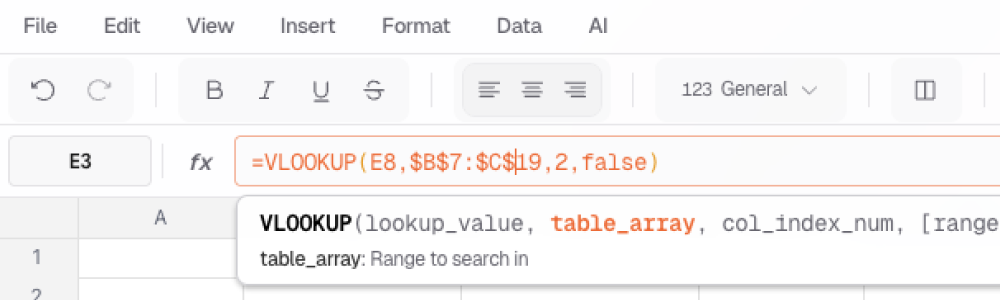
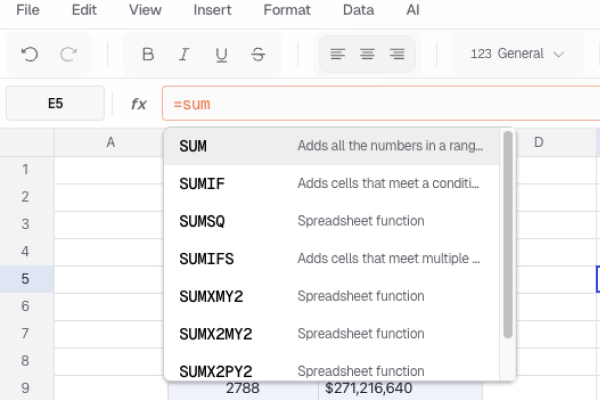
Start typing a function name and press Tab to autocomplete it.
Cell References
The Basics
| Reference | What it means | Example |
|---|---|---|
A1 | One cell | =A1*2 |
A1:B10 | A range of cells | =SUM(A1:B10) |
A:A | A whole column | =SUM(A:A) |
1:1 | A whole row | =SUM(1:1) |
Relative vs Absolute
When you copy a formula, references change by default. Add $ to lock a row or column.
| Type | Syntax | When you copy it… |
|---|---|---|
| Relative | A1 | Changes to match the new position |
| Lock column | $A1 | Column stays A, row changes |
| Lock row | A$1 | Row stays 1, column changes |
| Lock both | $A$1 | Never changes |
Press F4 while editing a reference to cycle through these options.
Referencing Other Sheets
Use the sheet name followed by ! to pull data from another sheet:
=Sheet2!A1                  One cell from Sheet2
=SUM(Sheet2!A1:A10)         A range from Sheet2
='Sales Data'!B5            Sheet name with spaces needs quotes
All Formulas by Category
Math & Statistics
| Formula | What it does | Example |
|---|---|---|
SUM | Add numbers | =SUM(A1:A10) |
AVERAGE | Get the average | =AVERAGE(B1:B100) |
COUNT | Count numbers | =COUNT(A:A) |
COUNTA | Count non-empty cells | =COUNTA(A:A) |
MIN | Find the smallest | =MIN(A1:A100) |
MAX | Find the largest | =MAX(A1:A100) |
ROUND | Round to X decimals | =ROUND(A1, 2) |
ABS | Remove negative sign | =ABS(A1) |
SQRT | Square root | =SQRT(A1) |
POWER | Raise to a power | =POWER(A1, 2) |
MEDIAN | Find the middle value | =MEDIAN(A1:A100) |
STDEV | Standard deviation | =STDEV(A1:A100) |
Lookup & Reference
| Formula | What it does | Example |
|---|---|---|
VLOOKUP | Look up a value in a table | =VLOOKUP(A1, B:C, 2, FALSE) |
HLOOKUP | Look up horizontally | =HLOOKUP(A1, 1:2, 2, FALSE) |
INDEX | Get cell at row/column | =INDEX(A1:C10, 2, 3) |
MATCH | Find position of a value | =MATCH(A1, B:B, 0) |
OFFSET | Get cell offset from another | =OFFSET(A1, 2, 1) |
ROW | Get row number | =ROW(A5) |
COLUMN | Get column number | =COLUMN(C1) |
INDEX + MATCH is more flexible than VLOOKUP. It can look up in any direction:
=INDEX(C:C, MATCH(A1, B:B, 0))Logic
| Formula | What it does | Example |
|---|---|---|
IF | If-then-else | =IF(A1>100, "High", "Low") |
AND | True if all conditions pass | =AND(A1>0, B1>0) |
OR | True if any condition passes | =OR(A1>100, B1>100) |
NOT | Flip true/false | =NOT(A1>100) |
IFS | Multiple if-then checks | =IFS(A1>90,"A", A1>80,"B", TRUE,"C") |
SWITCH | Match a value | =SWITCH(A1, 1,"One", 2,"Two", "Other") |
IFERROR | Show something else on error | =IFERROR(A1/B1, 0) |
ISBLANK | Check if cell is empty | =ISBLANK(A1) |
Text
| Formula | What it does | Example |
|---|---|---|
CONCATENATE | Join text together | =CONCATENATE(A1, " ", B1) |
LEFT | Get first X characters | =LEFT(A1, 3) |
RIGHT | Get last X characters | =RIGHT(A1, 3) |
MID | Get characters from middle | =MID(A1, 2, 5) |
LEN | Count characters | =LEN(A1) |
TRIM | Remove extra spaces | =TRIM(A1) |
UPPER | Make uppercase | =UPPER(A1) |
LOWER | Make lowercase | =LOWER(A1) |
PROPER | Capitalize Each Word | =PROPER(A1) |
FIND | Find text position | =FIND("@", A1) |
SUBSTITUTE | Replace text | =SUBSTITUTE(A1, "old", "new") |
You can also join text with &: =A1 & " " & B1
Date & Time
| Formula | What it does | Example |
|---|---|---|
TODAY | Today’s date | =TODAY() |
NOW | Current date and time | =NOW() |
DATE | Create a date | =DATE(2024, 12, 25) |
YEAR | Get the year | =YEAR(A1) |
MONTH | Get the month | =MONTH(A1) |
DAY | Get the day | =DAY(A1) |
WEEKDAY | Day of week (1-7) | =WEEKDAY(A1) |
DATEDIF | Days between dates | =DATEDIF(A1, B1, "D") |
EDATE | Add months to a date | =EDATE(A1, 3) |
EOMONTH | Last day of month | =EOMONTH(A1, 0) |
Financial
| Formula | What it does | Example |
|---|---|---|
PMT | Monthly loan payment | =PMT(0.05/12, 360, 200000) |
PV | Present value | =PV(0.05, 10, -1000) |
FV | Future value | =FV(0.05, 10, -1000) |
NPV | Net present value | =NPV(0.1, A1:A10) |
IRR | Internal rate of return | =IRR(A1:A10) |
Real Examples
Running Total
Add up everything from the start to the current row:
=SUM($A$1:A1)Put this in B1 and copy down. $A$1 stays locked. A1 moves as you copy.
Percentage of Total
Show each value as a percent of the sum:
=A1/SUM($A$1:$A$10)Format the cell as a percentage to see “25%” instead of “0.25”.
Letter Grades
Turn scores into letter grades:
=IFS(A1>=90,"A", A1>=80,"B", A1>=70,"C", A1>=60,"D", TRUE,"F")Find Duplicates
Check if a value appears more than once:
=COUNTIF($A$1:$A$100, A1)>1Returns TRUE for duplicates. Use with conditional formatting to highlight them.
When Things Go Wrong
Formulas show error codes when there’s a problem:
| Error | What it means | How to fix it |
|---|---|---|
#DIV/0! | Dividing by zero | Check if the divisor is empty or zero |
#VALUE! | Wrong data type | You used text where a number belongs |
#REF! | Missing cell | A cell you referenced was deleted |
#NAME? | Unknown function | Check for typos in the function name |
#N/A | Not found | VLOOKUP couldn’t find the value |
#NUM! | Bad number | The result is too large or invalid |
Use IFERROR to show a friendly message instead of an error:
=IFERROR(A1/B1, "N/A")