Spreadsheets
Import & Export
Bring in your existing files. Take your work anywhere.
What Works
| Format | Import | Export | Notes |
|---|---|---|---|
| Excel (.xlsx) | Yes | Yes | Multiple sheets, formulas, formatting |
| CSV (.csv) | Yes | Yes | Plain text, one sheet, no formatting |
Import a File
Option 1: Use the Menu
Open or create a spreadsheet
Go to the spreadsheet where you want the data.
Click File → Import
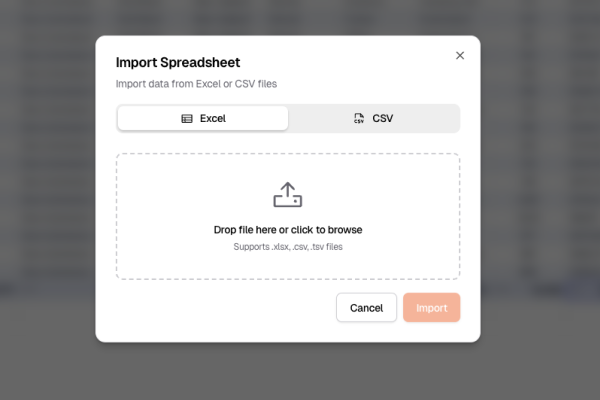
Pick your file
Choose an .xlsx or .csv file.
Check the settings
For CSV, make sure the delimiter looks right (comma, tab, etc.).
Click Import
Done. Your data appears in the spreadsheet.
Option 2: Drag and Drop
- Open your spreadsheet
- Drag a file from your computer onto it
- It imports automatically
Drag and drop is fastest — no menus needed.
What Gets Imported
Excel Files
| Feature | Supported? |
|---|---|
| Multiple sheets | Yes |
| Formulas | Yes |
| Formatting (fonts, colors) | Yes |
| Tables | Yes |
| Charts | No |
| Macros (VBA) | No |
| Comments | No |
Pivot tables and macros won’t import, but the underlying data will.
CSV Files
You can adjust these settings:
| Setting | What it means |
|---|---|
| Delimiter | What separates values (comma, semicolon, tab) |
| Encoding | How text is stored (usually UTF-8) |
| First row is header | Treat row 1 as column names |
We auto-detect delimiter and encoding. Only change these if your data looks wrong.
Export a File
Export to Excel
What gets exported:
- All sheets
- All formulas
- All formatting
- All tables
Export to CSV
Click File → Export
Choose “CSV (.csv)“
Pick a sheet
CSV only exports one sheet at a time.
Save
Pick a location and filename.
CSV exports only the current sheet. Use Excel format if you need multiple sheets.
Tips
Before importing:
- Large files take longer — be patient
- Remove junk rows/columns from the source first
- Complex formulas may need tweaking after import
Before exporting:
- Double-check your formulas are working
- Export creates a copy — edits elsewhere won’t sync back
When to use CSV:
- You need to open the file in another tool
- You only have simple data (no formulas, no formatting)
- Otherwise, use Excel format — it keeps everything
Common Problems
Import Issues
| Problem | Fix |
|---|---|
| All data in one column | Wrong delimiter — try comma, semicolon, or tab |
| Weird characters (é, ’) | Wrong encoding — switch to UTF-8 |
| Numbers treated as text | Select the column → change format to Number |
| Dates look wrong | Check date format matches your region |
Export Issues
| Problem | Fix |
|---|---|
| Formulas became values | Re-export from the original file |
| Formatting gone | Use Excel format, not CSV |
| Excel won’t open the file | Open Excel first, then use File → Open |
If import keeps failing, open the file in Excel, save as a fresh .xlsx, then import that.