

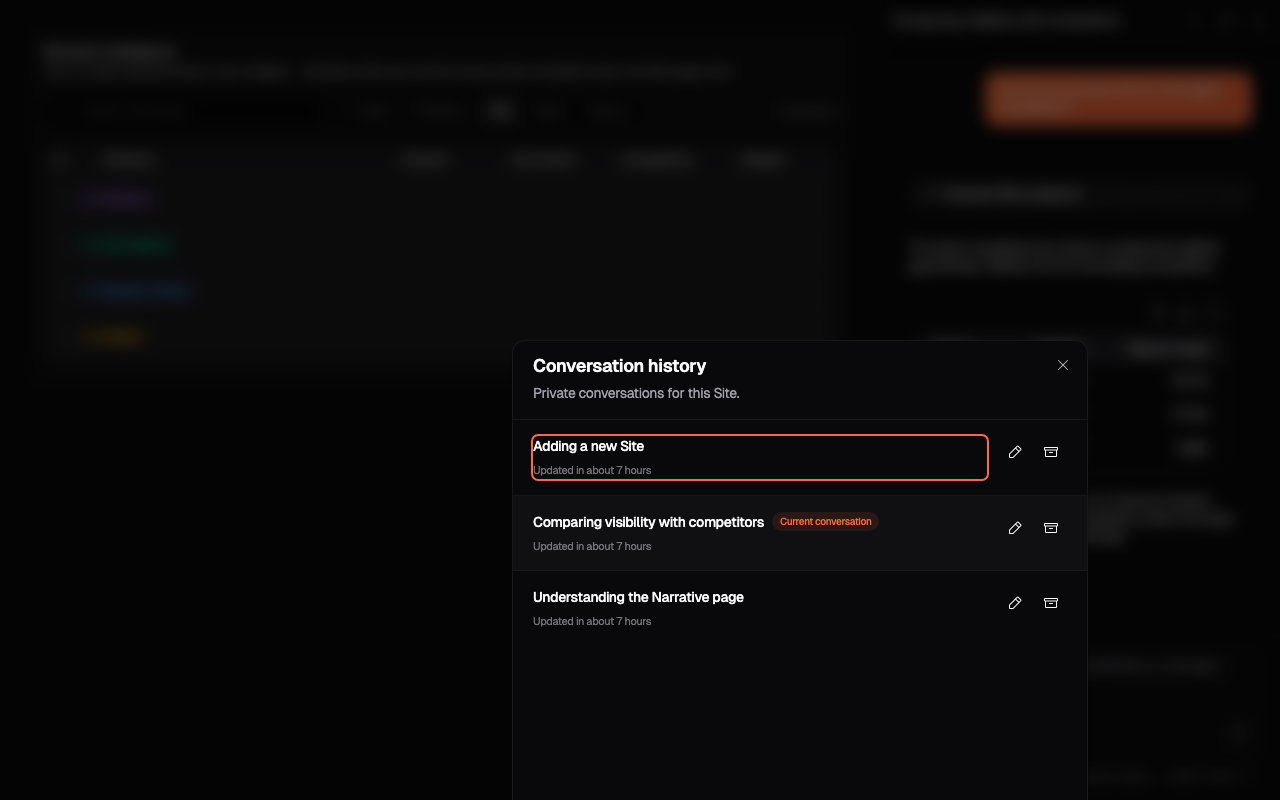
How conversations are organised
- A conversation contains one or more question-and-answer turns.
- Follow-up questions use the earlier turns in that conversation as context.
- The selected conversation can remain open while you move between supported pages in the same Site.
- Each new message records the page from which it was sent.
- Conversations from another Site do not appear in the current Site’s history.
Start a new conversation
Select New conversation in the Assistant header when you want clean context. The current conversation remains in history. The first question creates the new conversation. Onsomble generates a title from the exchange so it is easier to find later. Start a new conversation when:- You are beginning an unrelated investigation
- Earlier discussion could make a short follow-up ambiguous
- You want a clean record to share or return to later
- You have moved from analysing one topic to a different goal
Open conversation history
Select Conversation history in the Assistant header. Active conversations for the current Site appear with the most recently updated first. From the history dialog, you can:- Open a previous conversation
- Rename a conversation
- Archive a conversation
- See which conversation is currently selected
Rename a conversation
Use the pencil control beside a conversation in history, or select the current conversation title in the Assistant header. Choose a title that records the investigation rather than the first question. For example:- “Monthly competitor visibility review”
- “Narrative gaps for running shoes”
- “Regional performance investigation”
Archive a conversation
Use the archive control when a conversation is no longer active. Archiving removes it from the active history list. It does not move it to another Site. Archive completed or superseded investigations so the active list stays focused. Do not use archiving as a substitute for starting a new conversation when you only need clean context.Continue across Site pages
The selected conversation remains available as you move between supported pages in the same Site. The page context saved with each message does not change when you later open that conversation elsewhere. This means one conversation can move through an investigation:- Ask for the largest visibility change from Brand Scorecard.
- Move to Prompt Results and ask which prompts contributed to it.
- Move to Narrative and ask which themes appear in the supporting responses.
Long conversations
The context indicator beneath the composer shows how much working context the conversation is using. As a conversation grows, Onsomble may condense older context so you can continue with the central findings. For the clearest results:- Keep one conversation focused on one investigation.
- Restate a critical period, metric, or competitor after a long sequence of turns.
- Start a new conversation when the objective changes substantially.
- Rename useful conversations so you can recognise them later.
Privacy and Site boundaries
The history dialog labels these as private conversations for the current Site. A conversation does not become part of another Site’s history, even if the same user can access both Sites. Analytics questions remain scoped to the current Site. If you need to investigate another Site, switch Sites and start or open a conversation there.If history does not load
- Confirm that you are in the Site where the conversation was created.
- Use the visible retry control if the history request failed.
- Refresh the page if live updates have paused.
- Start a new conversation only if you do not need the earlier turns as context.
What’s next
Ask about your Site
Give a conversation the scope needed for useful analysis.
Assistant overview
Review the Assistant’s capabilities, grounding, and limits.