

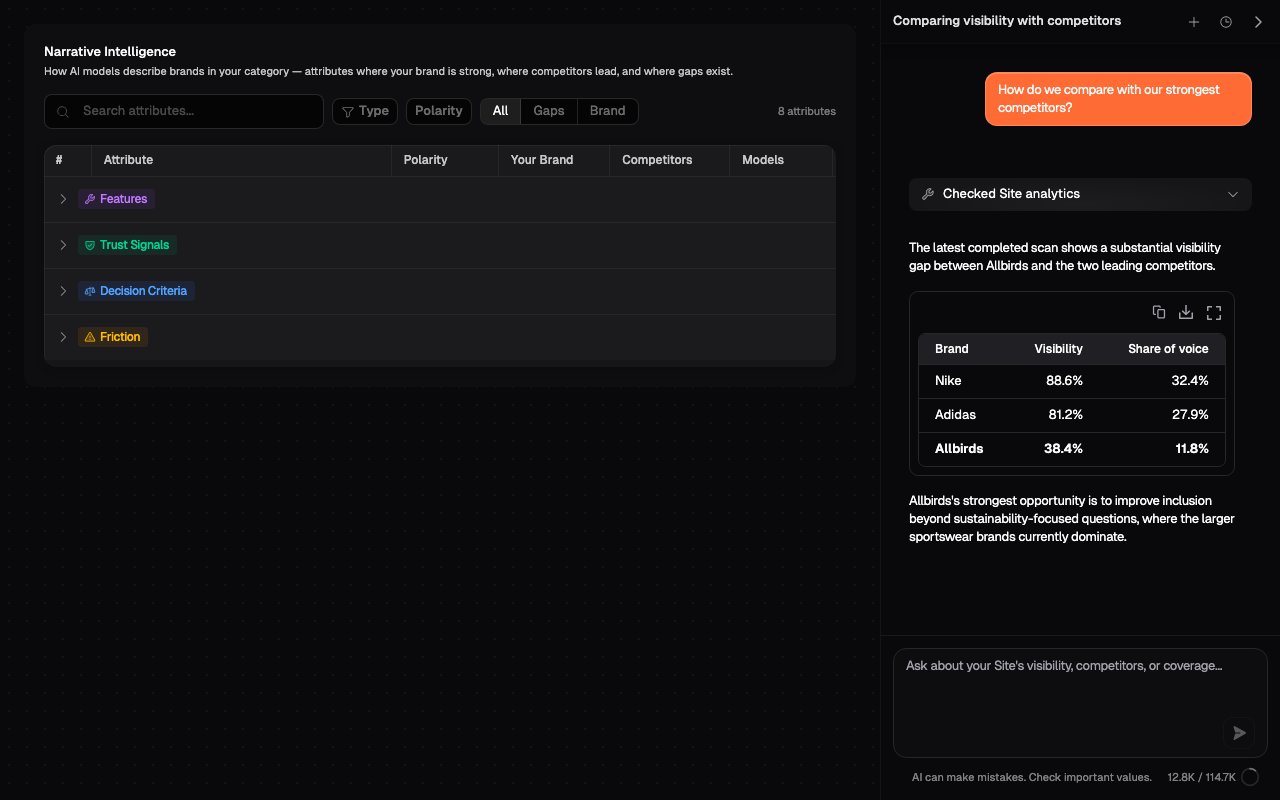
The parts of an answer
- Your question: the request and scope you supplied.
- Assistant activity: the analytics, AI responses, or documentation checked for that turn.
- Answer: the conclusion, supporting values, comparisons, tables, and limitations.
- Message controls: copy the message or review when it was sent.
- Context indicator: shows how much working context the selected conversation is using.
Activity and evidence
Activity appears before the part of the answer it supports. You may see:- Reviewing available metrics: checking which Site data and breakdowns are available.
- Checking Site analytics: reading current values, history, rankings, prompts, competitors, regions, references, Narrative, recommendations, or scans.
- Reading AI answers: retrieving exact response text behind an aggregate result.
- Searching Onsomble documentation: finding product guidance and concepts.
- Effective period and subject
- Data timestamp
- Metrics and dimensions used
- Records or values returned
- Coverage notes
- Evidence and calculation details
Analytics answers
Analytics answers use authoritative Site data. When a period or subject changes the meaning of a conclusion, the answer should identify the scope it used. Check these details before relying on a result:
Tables are used when comparisons are easier to scan by row. On narrow screens, scroll a wide table horizontally. Use the table controls to copy, download, or expand the table when those controls are shown.
Exact AI responses
An aggregate metric shows the pattern across scan results. It does not show the wording that produced the pattern. Ask for an exact AI response when you need to:- Verify how a brand was described
- See the evidence behind a Narrative attribute
- Review the context of a mention or citation
- Share a concrete example with a colleague or client
Documentation answers
For questions about using Onsomble, the Assistant searches the official documentation and links its sources.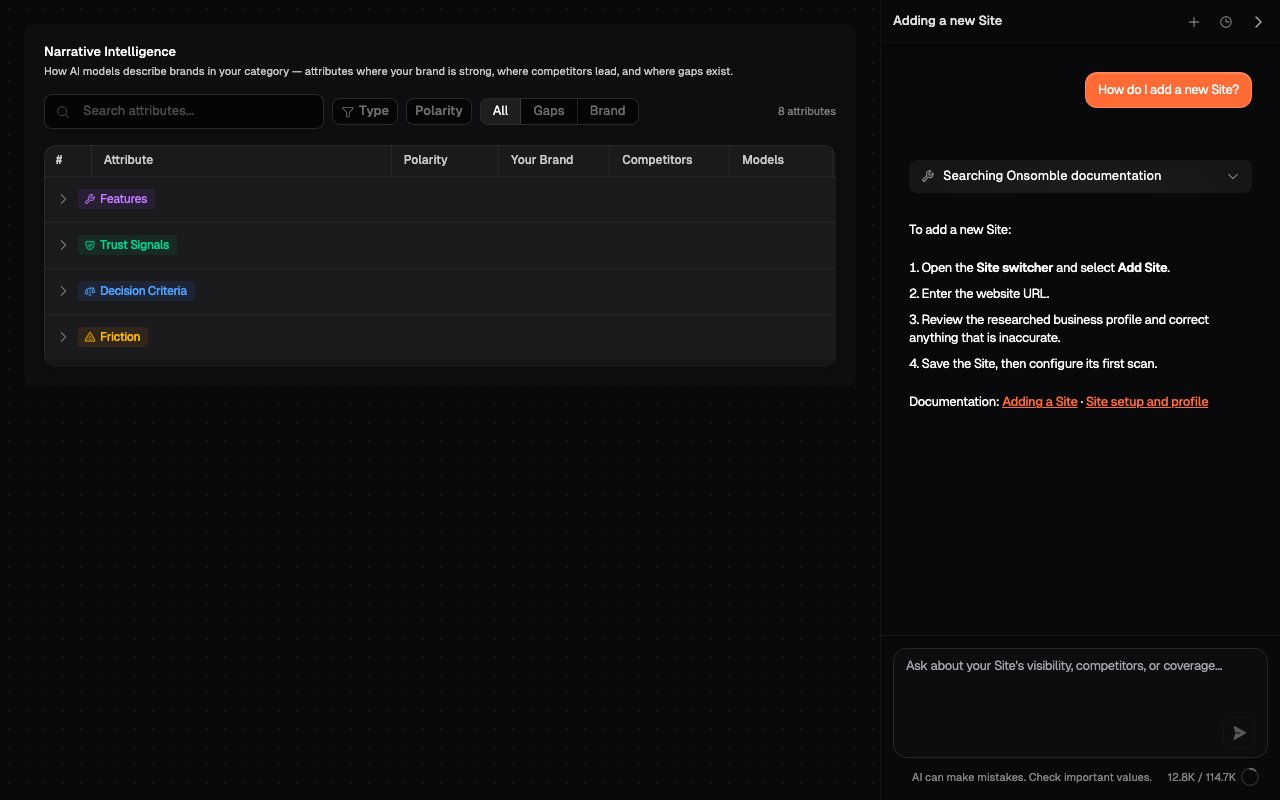
Running, stopped, and failed answers
The Assistant keeps the state of each turn visible:- Working on your answer: the turn is still retrieving evidence or composing a response.
- Stopping: a stop request has been sent.
- Answer stopped: the turn ended before a complete answer was produced.
- Failed activity: a retrieval could not complete. The error remains visible.
- Failed answer: the Assistant could not finish the turn. If it is retryable, ask again.
- Live updates paused: the connection stopped receiving updates. Refresh to load the latest saved conversation state.
Message controls
- Select Copy message to copy the text of a user or Assistant message.
- While an answer is running, the send control becomes a stop control.
- Use the timestamp beneath a message to distinguish similar turns.
- Use the context indicator beneath the composer to review working context usage.
Check important decisions
The Assistant can make mistakes. Before sharing a conclusion or acting on a recommendation:- Confirm the effective period and subject.
- Check important values against the dashboard.
- Review any coverage or ambiguity note.
- Ask for the underlying AI response when wording matters.
- Separate observed data from the Assistant’s interpretation of why it happened.
What’s next
Manage conversations
Return to earlier analysis or start with a clean context.
Prompt Results
Review individual AI responses directly in the dashboard.