

1
Create your account
Sign up at app.onsomble.ai with an email and password, or sign in with Google.
2
Tell Onsomble who you are
The first question is “Who are you setting up Onsomble for?” Choose the option for agencies managing AI discovery across many clients.You can switch to a business account while the agency account has no clients. Once you add a client, the self-service switch is no longer available.
3
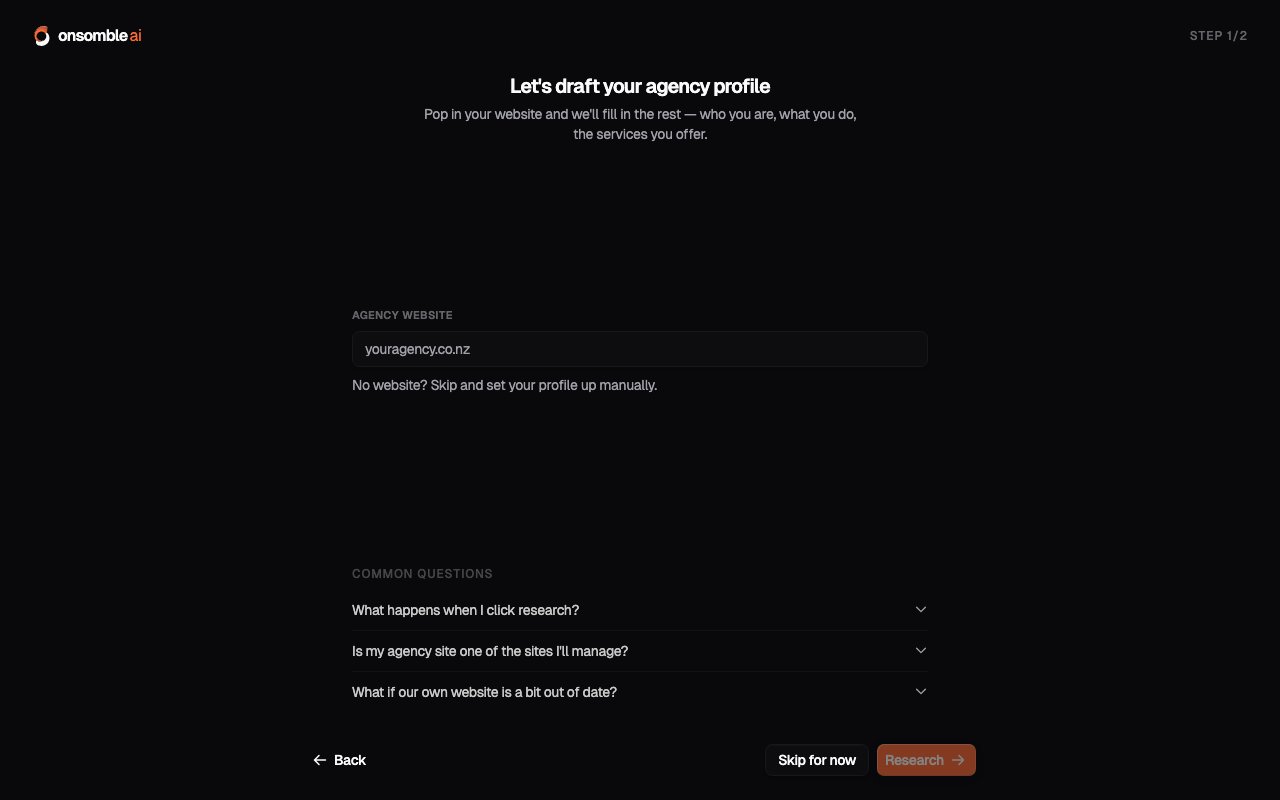
Set up your agency profile
Enter your agency’s website. Onsomble reads the website and public profiles, then drafts your agency name, industry focus, description, and services. Review the profile, correct anything inaccurate, and continue.Once confirmed, Onsomble opens your Portfolio, where you add and manage clients.
4
Add your first client
Select Add Client and enter the client’s website URL. Onsomble drafts a
client profile from public sources. Review the details and known brands before
creating the client.
5
Add the client's Site
From the client’s workspace, add their Site. This starts the same scan setup wizard a business account uses: confirm the business profile, then work through Competitors, Prompts, Models, and Review.See the business quickstart for an explanation of each step. The scan setup works the same way when you complete it for a client.
6
Start their free scan
Start the scan from Review. You can follow its progress or leave it running
in the background. When it finishes, Onsomble opens the client’s Site
Overview.
7
Work from the portfolio
The Portfolio groups your clients and their Sites. Use it to review recent scan activity, scheduled scans, and the Sites that may need attention. See Portfolio management.
What to do next
Adding a client
See how Onsomble drafts a client profile, what you can edit, and what is
created when you confirm it.
The client workspace
Understand how a client workspace organises its Sites and scan activity.
Ask the Assistant
Ask questions about one client’s Site results in a conversation saved to
that Site.