

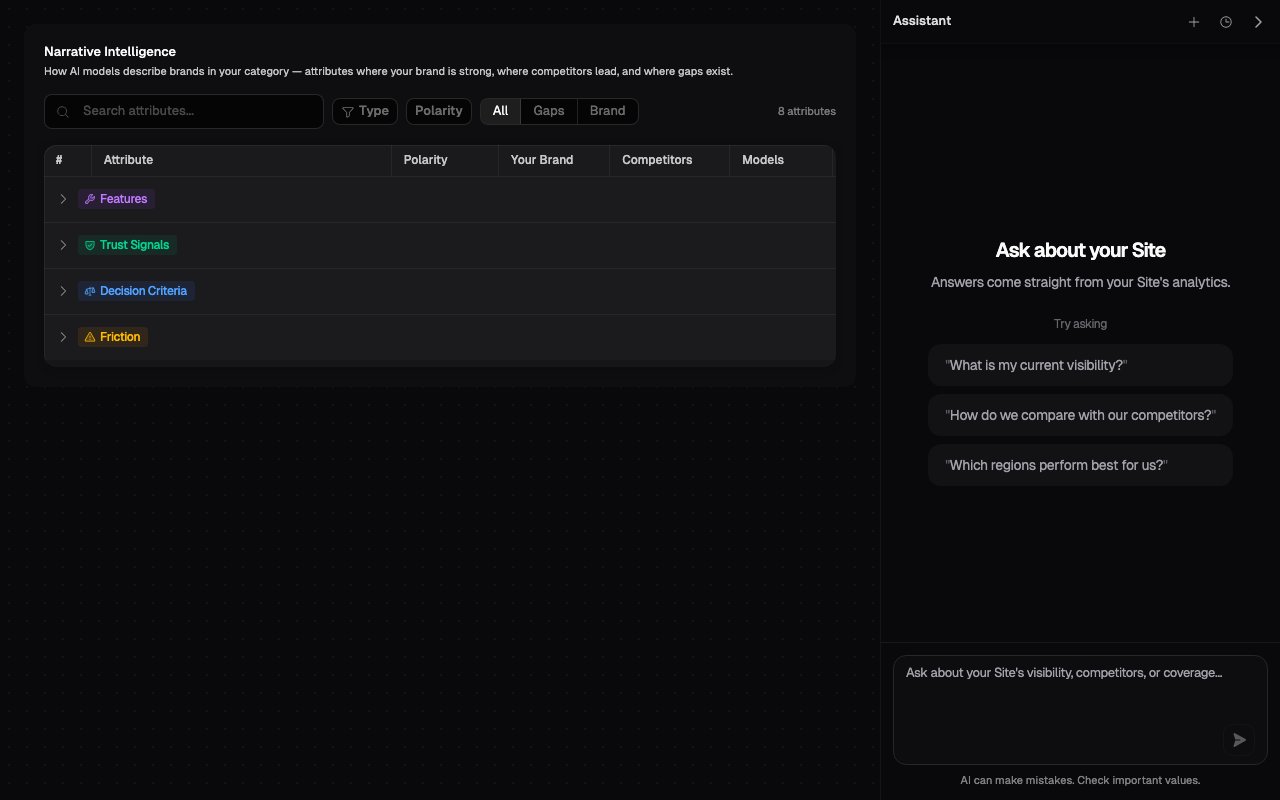
The Onsomble Assistant is the assistant inside the dashboard. In these docs,
AI assistants means the external services measured by your scans, such as
ChatGPT, Claude, Gemini, and Perplexity.
Open the Assistant
On a supported Site page, select Ask Assistant in the bottom-right corner. You can also press Command-J on macOS or Ctrl-J on Windows. On desktop, the Assistant opens beside the dashboard so you can keep the current page in view. On a smaller screen, it opens in a sheet. Select the arrow in the Assistant header to close it. If Ask Assistant is not shown, the current page does not support the Assistant. Move to a Site results page and try again.Start your first investigation
1
Open a relevant Site page
Start from the page closest to your question. For example, open Narrative for questions about themes and attributes, or Brand Scorecard for performance trends.
2
Ask a question
Select a suggested question or write your own. Your conversation is already scoped to the current Site, so you do not need to repeat the Site name.
3
Review the activity and answer
The activity row shows what the Assistant checked. The answer then explains the conclusion, supporting values, and any important limitations.
4
Continue or start again
Ask a follow-up when it depends on the existing answer. Start a new conversation when you move to an unrelated investigation.
What you can ask
See Asking about your Site for question patterns and examples for each results page.
How answers are grounded
The Assistant uses different sources for different jobs:- Your Site results: it reads the same Site analytics projections used by the dashboard.
- Exact AI responses: it can retrieve response text behind an aggregate result when that evidence is available.
- Product guidance: it searches the official Onsomble documentation and links the relevant pages.
- Conversation context: it uses earlier turns in the selected conversation to understand follow-up questions.
What the current page contributes
Each question includes the name of the supported page from which you sent it. This helps the Assistant understand what “this page” refers to. Page context does not include the values currently visible on your screen, selected filters, open table rows, or a selected scan. Include those details in your question when they affect the answer.Current limits
The Assistant is read-only. It cannot:- Change your Site or scan configuration
- Add, edit, or remove prompts and competitors
- Apply or clear dashboard filters
- Edit recommendations
- See which dashboard rows or controls you have selected
- Take action on an answer for you
Conversations and privacy
Conversations are saved automatically and belong to the Site where they were created. The history dialog describes them as private conversations for that Site. Conversations from one Site do not appear in another Site’s history. See Managing conversations to start, rename, revisit, and archive conversations.What’s next
Ask about your Site
Give the Assistant the period, subject, breakdown, and evidence level it needs.
Understand answers
Read activity, scope, tables, documentation links, and failure states.