

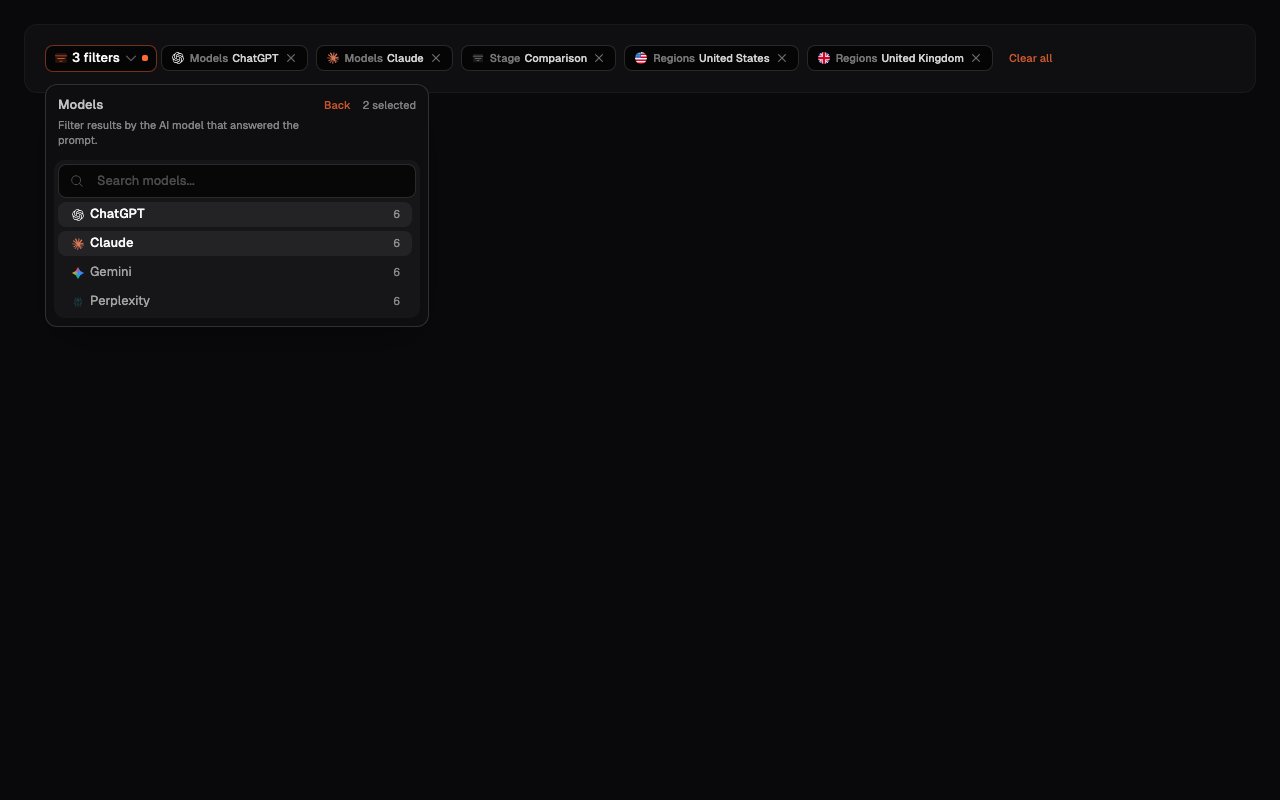
How filter choices work
Select Filters, choose a filter, then choose one or more values and apply the change.- Selecting more than one value within the same filter includes results matching any selected value. For example, choosing ChatGPT and Claude includes results from either model.
- Combining different filters keeps results that satisfy all of those filters. For example, ChatGPT plus Australia keeps ChatGPT results measured for Australia.
- Time and Brand mention allow one choice at a time. The other filters can accept several choices.
Time
Time controls which completed scans are available to the current view.
Onsomble can hide a time choice when the Site does not have enough scan history for it to be useful. Snapshot pages use the latest completed scan within the chosen period; trend views use the completed scans available within it.
Product
Product limits results to prompts associated with the selected products or services. The choices are the product values attached to prompts for this Site, so they will differ between businesses. Selecting more than one product includes prompts associated with any of those products. If no choices appear, the prompts do not yet contain product information.Persona
Persona limits results to prompts written for a selected audience or customer type. The choices come from the Personas attached to the Site’s prompts. For example, a Site might have Homeowners, First-home buyers, or Property investors, but these are not fixed Onsomble options. If no choices appear, the prompts do not yet contain customer-group information.Journey stage
Journey stage limits results to prompts associated with a point in the customer’s buying journey. The choices come from the stages attached to the Site’s prompts. Depending on the prompt strategy, they might describe early research, comparison, validation, decision, or post-purchase support. The names shown in your filter are the values used by your Site. Selecting more than one stage includes prompts associated with any selected stage.Brand mention
Brand mention describes whether the prompt itself names your business or one of its tracked competitors. It does not describe whether the AI response mentioned your brand.
Use this filter to compare prompted brand awareness with answers to brand-neutral questions. To find responses where your brand was absent, use the Gaps view in Prompt Results.
Tags
Tags limit results to prompts carrying the labels selected in the filter. Every choice comes from a tag used in the Site’s Prompt Library. Tags are flexible labels for distinctions that the other filters do not cover, such as campaign, priority, service line, or reporting group. Selecting more than one tag includes prompts carrying any selected tag. If no choices appear, no tags have been applied to the Site’s prompts.Models
Models limits results to responses collected from the selected AI models or assistant apps. Each available model or app appears as a choice. The choices are grouped by how Onsomble collected the response:- API Models: Responses collected directly through a model provider’s API.
- App Models: Responses collected through the consumer AI assistant experience.
Regions
Regions limits results to prompts measured for the selected countries or cities. The choices come from locations represented in the Site’s scans. Selecting more than one region includes prompts measured for any selected location. A region filter describes where the prompt was measured. It does not mean the business operates in that location or that the result represents every customer there.Categories
Categories limits results to prompts grouped under the selected prompt categories. The choices come from categories used in the Site’s Prompt Library. Categories provide a broad way to group similar questions; tags can add more specific or business-defined labels. Selecting more than one category includes prompts in any selected category. If no choices appear, the prompts do not yet contain category information.Apply more than one filter
Choose all the filters you need, then apply them together. The page keeps only results that match the combined selection and recalculates the metrics using that smaller set. For example, selecting ChatGPT and Claude, Australia, and comparison-stage prompts shows matching results for either selected model, limited to the chosen region and journey stage. Active filters appear as selections in the filter bar. They stay active as you move between Insights pages for the Site, until you change or clear them. Open the filters and use Clear all, then apply the change, when you want to return to the unfiltered view.An empty filtered view means no measured results match the current
combination. It does not mean that the brand’s performance is zero. Remove
filters one at a time to find which selection excludes the data.
Useful questions to ask
- Does one model behave differently? Select one model and compare its Visibility, Position, and responses with the combined view.
- Are high-intent prompts weaker? Filter by the relevant journey stage and inspect prompts where customers are comparing or choosing providers.
- Is one product being overlooked? Select its product label and compare its prompts with the rest of the Site.
- Is the issue regional? Select a country or city, then use Region Exploration for a geographic comparison.
- Did a recent result change? Narrow the time period, then check whether the same pattern appears across several prompts rather than a single response.
Keep your prompt details current
Product, Persona, journey stage, tag, and category filters depend on the information attached to each prompt. If a useful selection is missing or the results are too broad, review the prompt details in the Prompt Library. Filters change only what you are viewing. They do not edit the Prompt Library, alter the scan configuration, or delete historical results. See Understanding metrics for how the selected responses become each score.What’s next
Prompt Library
Review the prompt details that power these filters.
Overview
Return to the headline results and apply a focused view.
Understanding metrics
See how filters affect the numbers shown on each page.