

Open Matrix view
1
Open the Prompt Library
Under Scan Settings, select Prompt Library. The library opens in
List view.
2
Find the view switch
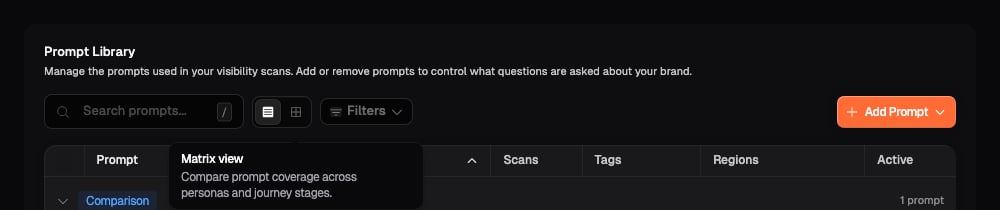
Look immediately to the right of Search prompts. The first icon shows
List view and the grid icon shows Matrix view. Hover over either
icon to see its name.
3
Select Matrix view
Select the grid icon labelled Matrix view. The prompt table changes to
a grid, and the highlighted grid icon confirms that Matrix view is active.
Choose what the columns compare
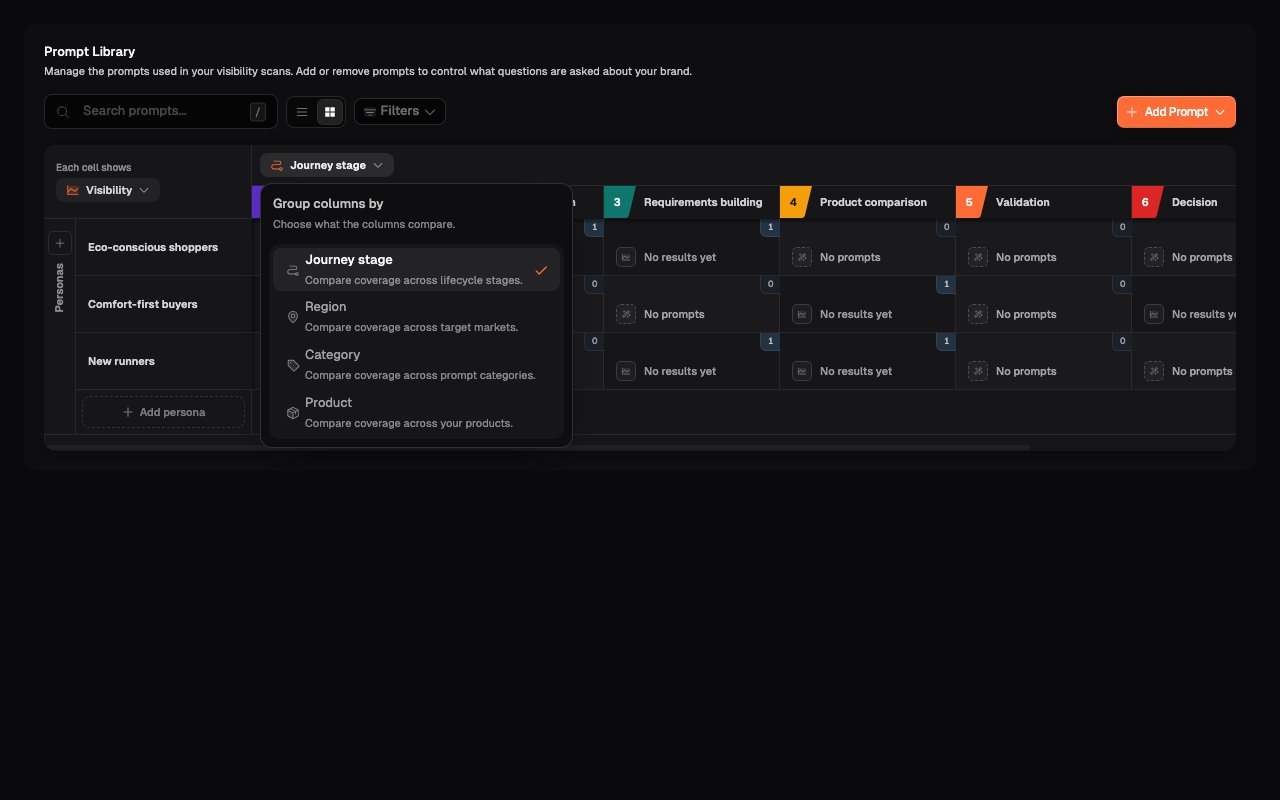
Personas always appear in rows. Use the selector above the columns to compare each Persona with a different part of your prompt framework.1
Open the column selector
Select the current column name, such as Journey stage.
2
Choose a column grouping
Select Journey stage, Region, Category, or Product. The
columns change immediately, but the prompts in your library are not
edited.
3
Review every column
Scroll horizontally when the selected grouping contains more columns than
the matrix can show at once.
Region or Product is unavailable when none has been configured for the Site. Add the missing detail before using that grouping.
Balanced coverage does not mean every cell contains the same number of prompts. Give more attention to the intersections supported by your measurement objective and customer evidence.
Read a matrix cell
Each cell joins one Persona with one column value, such as Comfort-first buyers × Product comparison.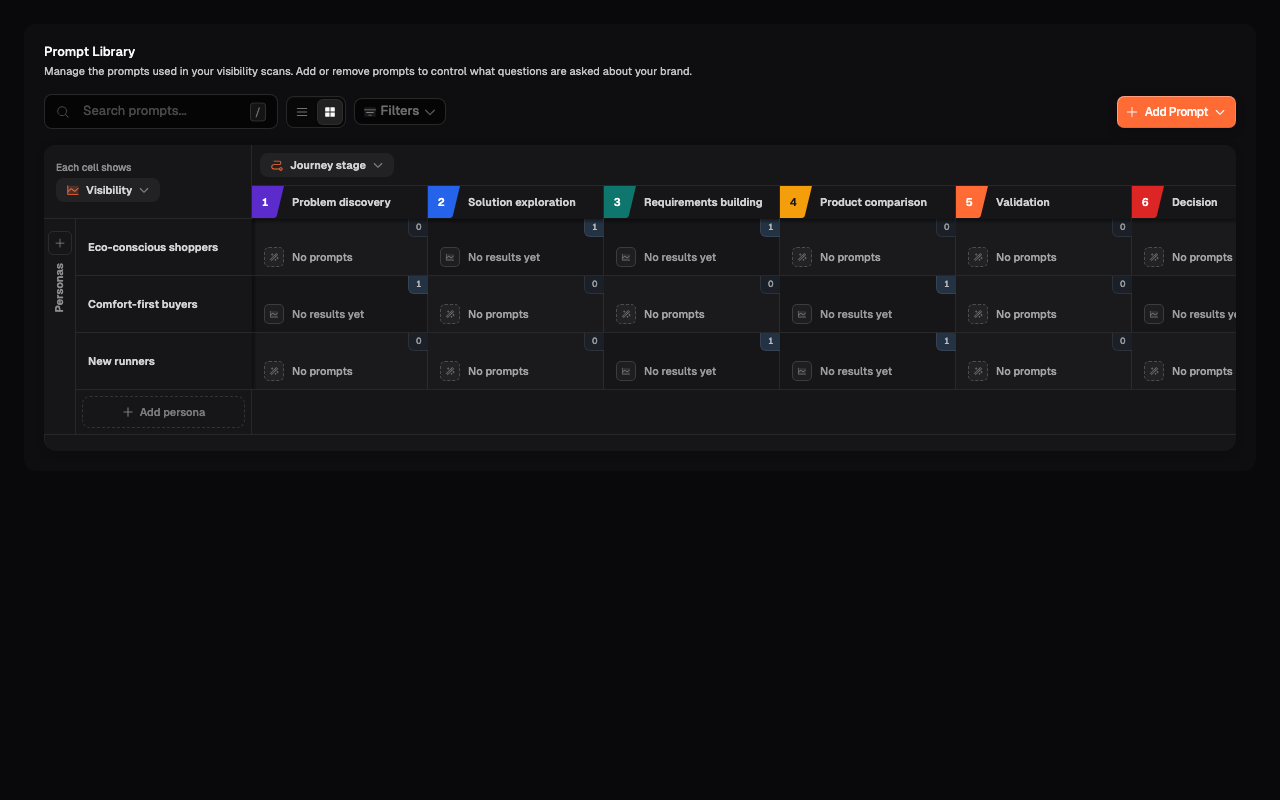
- The small badge in the top-right corner is the number of prompts in that intersection for the current search and filters.
- The main reading shows the result selected under Each cell shows. Before scan results are available, it explains why no result is shown.
Inspect the prompts in an intersection
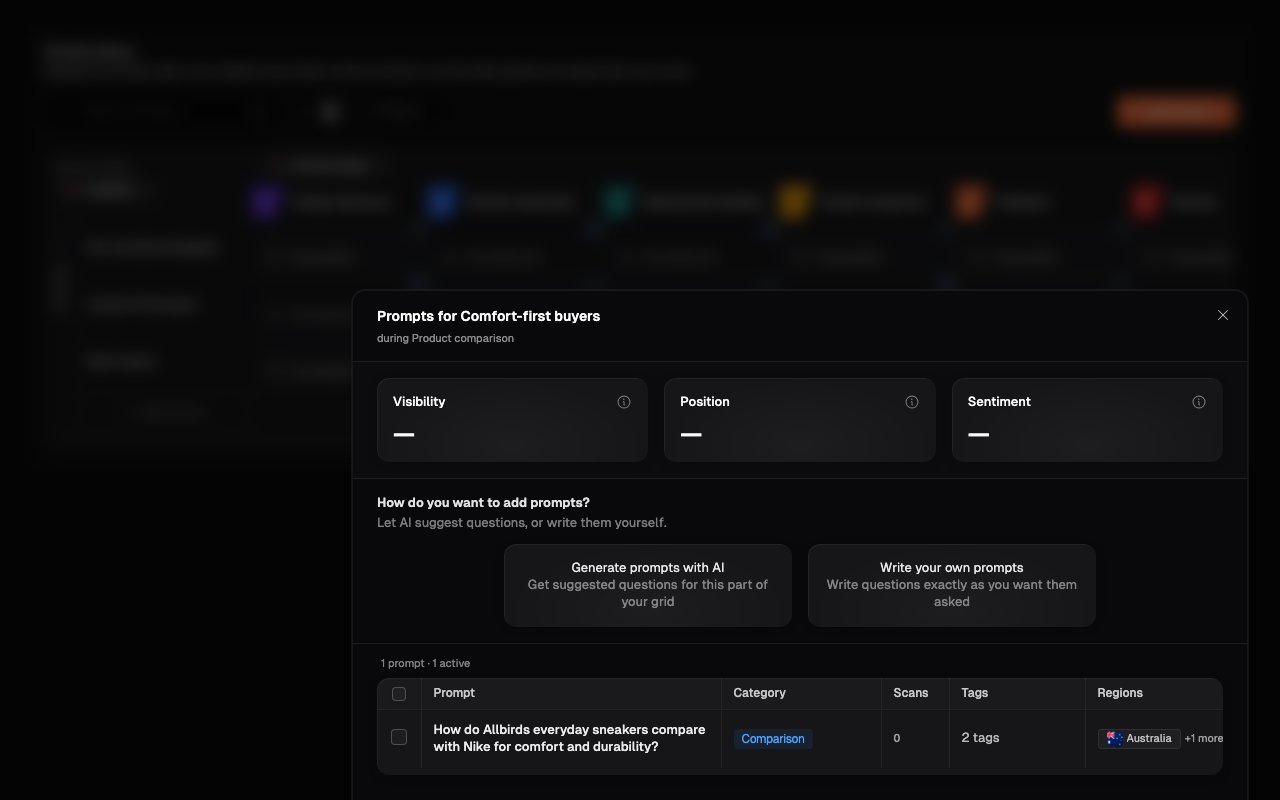
Open a populated cell before deciding that it needs more coverage. The intersection dialog shows the exact prompts behind the count and result.1
Open a populated cell
Select a cell with one or more prompts.
2
Confirm the intersection
Check the dialog heading and subtitle. They identify the Persona and column
value you selected.
3
Review the prompts
Read the wording and review the Category, Tags, Regions, and scan count.
Check whether the existing prompts already represent the customer intent
you want to measure.
4
Return to the matrix
Select the close icon when you have finished reviewing the intersection.
Decide whether an empty cell is a gap
No prompts describes the current view. Search text and filters can remove prompts from the matrix, so clear them before making a judgement about the complete library. Then ask:- Would this Persona realistically have this need?
- Would the selected Product, journey stage, or region materially change the question or answer?
- Is the situation important enough to measure across future scans?
- Does another prompt already cover the same customer intent under a different label?
Review unassigned prompts
A prompt cannot appear in the expected cell when it is missing a Persona or the detail currently used for the columns. Matrix view collects these prompts under Unassigned below the grid.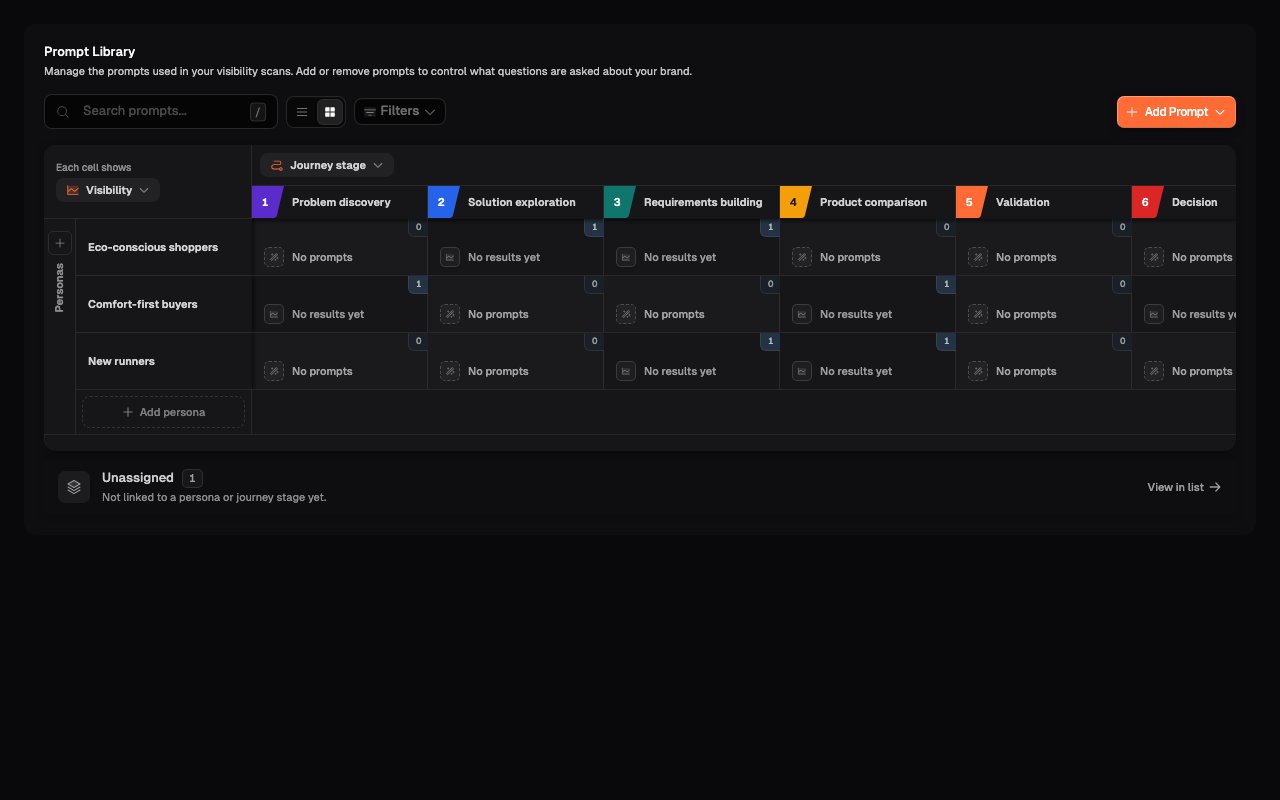
Review results after scans
After prompts have run, use Each cell shows in the top-left corner of the matrix to change the main reading in every cell.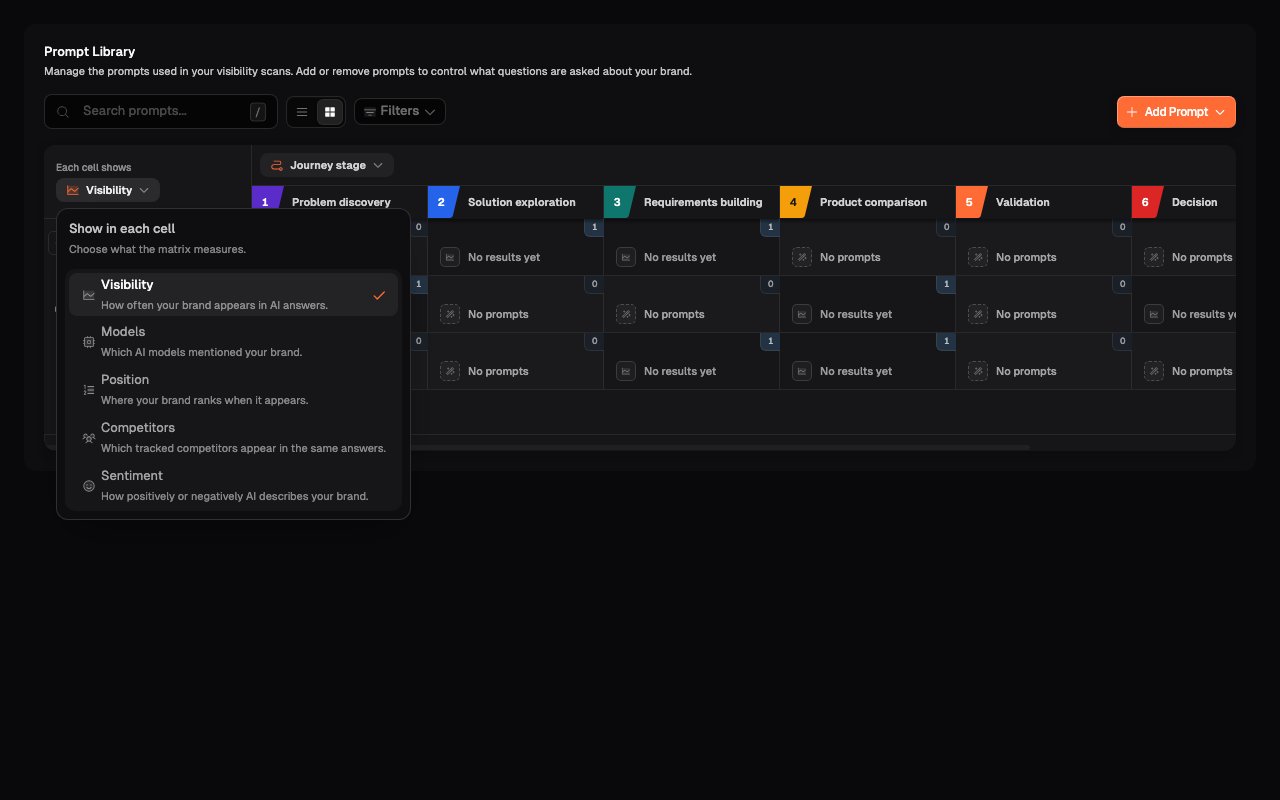
Changing this control changes the main reading, not the prompts or the prompt-count badge. Use the result to choose an intersection to investigate, then inspect its prompts and scan responses. A weak result identifies where to look; it does not explain the cause by itself.
Compare intersections carefully when they contain very different numbers of prompts or evaluated answers.
Complete the review
Your review is complete when:- important customer situations are represented;
- deliberately empty intersections have a clear reason;
- search and filters are cleared for the final library-wide check;
- unassigned prompts have been resolved or deliberately left unassigned;
- repeated wording does not inflate the apparent coverage; and
- you know which gaps need a new prompt and which should remain empty.
What’s next
Manage prompts in Matrix view
Add prompts to an intersection and maintain the Personas and Products that shape the grid.
Manage your Prompt Library
Search, filter, update, deactivate, and remove prompts in List view.