

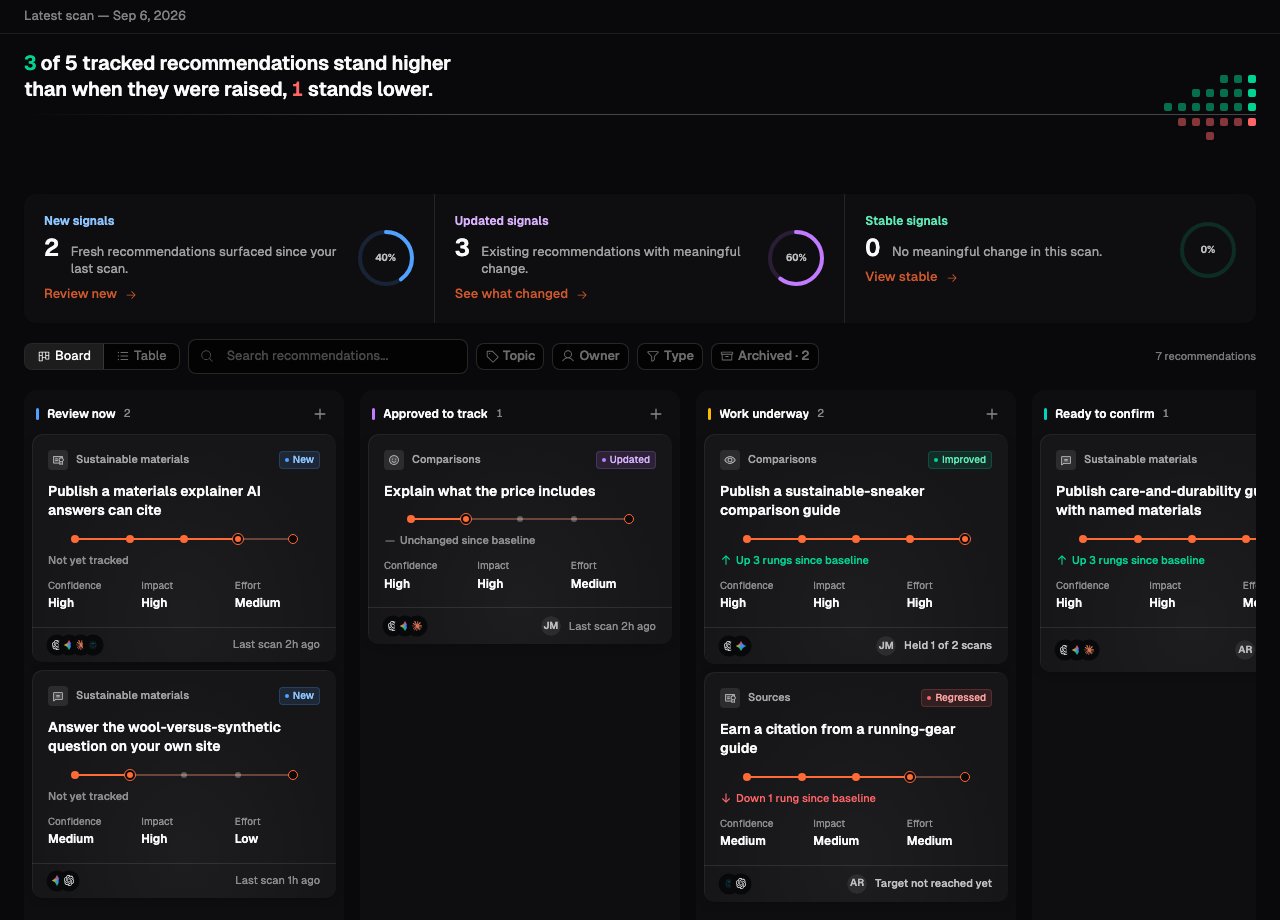
Above the board
Two summaries sit above the columns:- The headline counts how your tracked recommendations are moving: how many stand higher than when they were raised, and how many stand lower.
- The signals strip counts what the latest scan did: New signals it surfaced, Updated signals that changed, and Stable signals that held. Select one to filter the board to it.
The statuses
1
Review now
Recommendations the latest scan surfaced, plus any tracked ones flagged for
a fresh look. Approve the ones worth pursuing, or dismiss the rest.
2
Approved to track
Recommendations you have accepted. Progress is measured from the scan that
raised each one, so approving sets the baseline.
3
Work underway
Recommendations where the action has gone live. Each scan re-reads where you
stand on the question until you confirm the result.
4
Ready to confirm
Your standing has reached the target on two scans in a row since the work
went live. Look at the evidence and confirm whether it worked.
5
Proven
Someone has confirmed the result: the work went live and your standing
reached its target.
Moving a card
Drag a card to the column you want it in. Onsomble only allows moves that make sense, and a card you drop somewhere it cannot go returns to where it was.- Drag from Review now to Approved to track to start tracking a recommendation.
- Drag from Approved to track to Work underway once the action is live.
- Drag from Ready to confirm to Proven to confirm the result.
- Drag any active card to Archived to set it aside, and drag an archived card back to Review now to restore it.
Ready to confirm and Proven are partly earned, not just set. A card
only becomes ready to confirm once the scans show your standing has held at
the target, so you cannot drag a card straight into it before the evidence is
there.
Reading a card
Each card carries its topic and type, its title, where your standing sits on the ladder with the movement since baseline, and the confidence, impact and effort estimates. Open a card to see the full recommendation.Reading a recommendation
Open a card to see the buyer question, the answers, the shortfall and the
proposed work.
Tracking recommendations
Follow an approved recommendation across scans and record the work you do.